 Instructions for COBISS Cat Application
The new generation of COBISS Cat software is a web application. Since it works in web browsers, users can also use it on their mobile devices.
You can log in to the web application at https://cat.cobiss.net/cat/. In the COBISS Cat login window, enter the library acronym and the username and password.
After login, the browser tab will display the Cataloguing name along with the library acronym.
The basis of online shared cataloguing is the co-operative data collection and distributed data processing, which enable a rational division of work and time saving in the complex procedure of cataloguing library materials. Each item needs to be catalogued only once; after that, the record is accessible to all participants in the system through the COBIB shared database.
A close connection between COBIB and local databases of individual libraries is a characteristic feature of COBISS shared cataloguing.
Databases contain bibliographic records for different types of bibliographic resources (monographs, serials, integrating resources, articles and other component parts, non-book material, antiquarian material), and for the purposes of managing authors’ personal bibliographies, and also records for performed works.
For the preparation of personal bibliographies of researchers within the COBISS system, the unified typology of documents/works must be used, according to which the bibliographic units are classified. The type of every bibliographic unit, which must comply with the valid definition, is specified (i.e. original scientific article, review article, professional article, scientific or professional monograph, scientific or professional conference contribution, etc.)
The COBIB shared bibliographic database and the local databases of all participating libraries have the same structure of bibliographic records and summary holdings data. The local databases additionally contain uniformly structured copy-specific holdings data, vital for the library local functions and for the display in the COBISS Plus system.
To exchange data in the COBISS system, the COMARC/B format is used for bibliographic record and the COMARC/A format for authority data, which are both based on the UNIMARC format, while the COMARC/H format is used for holdings data and was developed by IZUM. For the international data exchange, the MARC 21 and UNIMARC formats are used. The conversion from the MARC 21 format to the COMARC format has been integrated within the implementation of Z39.50 and SRW/SRU clients, and the conversion from the COMARC format to the MARC 21 format within the implementation of Z39.50 and SRW/SRU servers.
In the shared cataloguing process, data is entered to COBIB, and simultaneously also to local databases. Concurrently, online indexing with the use of about 200 search indexes for bibliographic, authority and holdings data is carried out.
A cataloguer who wishes to add a record to the local database, firstly checks if the bibliographic record already exists in COBIB. If it does, they download it to the local database and add the relevant detailed holdings data. If it does not, they create the record, which is then entered both to COBIB and the local database.
In the process of creating a record, you can check if the record already exists in any of the shared bibliographic databases within COBISS.net and download it from there.
If an agreement is signed between the Library Information Service and the ISSN Centre in Paris, the international ISSN database, which is known as the most complete and most authoritative source for identifying serials, is used when creating records for serials. The relevant data from it is transferred to COBIB and local databases. It also possible to download bibliographic records from WorldCat via the OCLC Z39.50 server to COBIB and the local database simultaneously, but this too, requires a special agreement between the Library Information Service and OCLC. Records can also be downloaded from catalogues of the Library of Congress (LC), the German National library (DNB), and libraries of the University of Oxford (OXF).
Retrospective conversions from machine readable records, created by a library prior to joining the COBISS system, are possible as well, if minimum quality criteria and compatibility with the COMARC format are met. As a rule, such conversions are done only in local databases.
Quality, uniformity and consistency of the local databases and COBIB are ensured in different ways: by use of authority control, duplicates control, COMARC format software controls, record editing, global code lists for all standardised data (e.g. countries, languages, UDC), local code lists for all data which is uniform within the library, automatic counters, unique identification control of serials, etc., and above all by providing a systematic training for record creators, who must obtain the official cataloguing permit for their work.
The following databases are included in the shared cataloguing system:
All COBISS systems have the COBIB shared bibliographic database, local databases and the CORES database.
COBIB is the shared bibliographic database, which contains bibliographic data and summary holdings data, added from all the local databases.
Local databases are databases of individual libraries. Every local database is an independent entity (i.e. the catalogue of an individual library) but also represents a part of COBIB.
The data on bibliographic resources is entered in COBIB, and the record is automatically added to the local database as well. Only one record is created in the local database and COBIB for the same bibliographic resource, which is then available via COBIB to all libraries within the COBISS system.
CORES is a specialised database that contains data on editors and other persons and corporations, who at one point were contributors to continuing resources. Only one record is created for each continuing resource, which contains the basic identification data and the responsibility statement by years. The database is updated regularly for the purposes of personal bibliography management.
ELINKS is a database of Internet links to e-publications. It mainly comprises web addresses (URLs) to books and serials that are, under special agreements between library consortia and information service providers, accessible only to a limited number of users; it also comprises web addresses to other e-publications.
The COBISS software enables downloading records from other shared bibliographic databases within the COBISS.net network and other foreign bibliographic databases ISSN, WorldCat, LC Catalog, DNB Catalogue and OXF Catalogue).
COBISS.net COBISS.net is the name of the network linking autonomous (national) COBISS library information systems of various countries and their current research information systems. The Agreement on the establishment of the COBISS.net network and the free exchange of bibliographic records, created in the autonomous library information systems of Bosnia and Herzegovina, Montenegro, North Macedonia, Slovenia and Serbia was signed in Belgrade in February 2003. In November 2006, the agreement was also signed by the National library of Bulgaria. At the beginning of December in 2012, the COBISS.AL system was established and included in COBISS.net on the basis of a special agreement between IZUM and the Academy of Sciences of Albania. Some other Albanian libraries have joined since. In 2018, on a basis of another special agreement with IZUM, the Kosova Academy of Sciences and Arts joined the project, followed by more Kosovan libraries.
ISSN is a database maintained by the International ISSN Centre in Paris. Each ISSN assigned to a serial publication is registered in an international database, the ISSN Register, formerly known as the International Serials Data System. The database has an annual growth of between 40,000 and 60,000 ISSNs which corresponds to an equal number of records for publications. The national and regional ISSN centres are responsible for the formation and maintenance of the ISSN database. By means of a special arrangement, countries that are not formal international centre members are also included in the system.
WorldCat is an online shared catalogue of bibliographic records of over ten thousand libraries worldwide linked via OCLC (Online Computer Library Center). The catalogue contains records for all types of material in various languages. The records are in the MARC 21 format and were created following various cataloguing rules. If a library has a valid contract with the WorldCat database provider (OCLC), it is possible to download records to COBIB and the local database, whereby the record data is converted into the COMARC/B format.
LC Catalog is the bibliographic database of the Library of Congress, i.e. the US Congress research library and also the largest library in the world. The catalogue contains millions of records for various types of material in various languages, but mainly monographs, manuscripts, photographs, cartographic material, video and audio recordings. The records are in MARC 21 format and comply with the Anglo-American Cataloguing Rules (AACR). When downloading a record to COBIB and the local database, the record data is converted into the COMARC/B format.
DNB Catalogue (Deutsche Nationalbibliothek) is the central German catalogue containing more than 50 million records for various types of material, mostly in German. DNB utilises MARC 21 for exchanging and processing bibliographic records. When downloading a record to COBIB and the local database, the record data is converted into the COMARC/B format.
OXF Catalogue (Oxford University Libraries), SOLO (Search Oxford Libraries Online) is an online catalog, which grants access to collections of more than a hundred libraries of the University of Oxford. The records are in the MARC 21 format. When downloading to COBIB and the local database, the record data is converted into the COMARC/B format.
Authority databases are intended for authority control of authors, titles and subject headings. They contain authority records for different types of names, such as personal names, corporate names, titles, topical names, etc. They are being included to COBISS systems gradually and in different ways.
In 2003, the CONOR.SI database was included in COBISS.SI, which contains authority records for personal names and corporate body names that appear as authors in bibliographic records. The field for authors can be linked with the corresponding authority records.
In 2021, authority control for subject headings was included in COBISS.SI. For this purpose, the General List of Subject Headings (SGC) is used. The SGC authority database contains records for subject access points in Slovene and English. The list contains records for topical, personal, family and geographic names, names of corporate bodies, work titles, and genres and forms. The basis for the creation of the SGC authority database was the translation of the Sears file by H. W. Wilson (2001) with records for subject access points from the hard copy of the Sears List of Subject Headings, published in 2000. The COBISS software makes it also possible to edit SGC, which is carried out by the SGC Editorial Board.
When the shared cataloguing system was established in Bulgaria, in addition to the local database and COBIB, the authority database for personal names and corporate body names (CONOR.BG) and the authority database of subject access points (COSUB.BG) were also established through the mapping process. Bibliographic records are linked only with records from CONOR.BG, but not with records from COSUB.BG.
Authority control for personal names is also established in COBISS.SR, COBISS.CG, COBISS.RS, COBISS.AL and COBISS.KS.
In COBISS.BH and COBISS.MK systems, where authority control is currently not implemented yet, the editing of initial CONOR databases is in progress. Upon completion, authority control will be implemented in these systems as well.
There is the option of downloading files from the authority database of names LC/NAF – Library of Congress/NACO Authority File using COBISS software.
LC/NAF is an authority file containing several millions of authority records for names, which were added by libraries participating in the NACO programme (Name Authority Cooperative Program), one of the international Programs for Cooperative Cataloging (PCC) coordinated by the Library of Congress. The file contains records for personal names, corporate names, political and territorial units as well as records for uniform titles, titles of book series and name/title access points. The file is updated several times a year and the records are in the MARC 21 format.
Archive databases are intended for saving all versions of bibliographic and authority records. Archive databases fill up when records are created, updated or deleted. Every version of a record a cataloguer saves to the COBIB, CONOR or SGC database is also saved to the archive database where it receives its identification number and does not overwrite the previous versions.
Within the COBISS.SI system, it is possible to check and display all previous versions of a record from 2007 onwards for every bibliographic record from the COBIB.SI database and every authority record from the CONOR.SI database. For authority records from the SGC database, it is possible to check and display all previous versions of a record from April 2018 onwards and also some older versions that were archived in case of major SGC updates.
Before creating a new bibliographic record, you must check if the record for the same bibliographic resource already exists in the local database or COBIB in order to avoid creating duplicate records.
The newly created record is saved both to COBIB and the local database.
In the COBISS Cat application, a record from the local database can simultaneously be edited in COBIB and in the local database.
You can also edit a COBIB record that is not in the local database by downloading it to the local database. Alternatively, you can also edit a record only in COBIB, if you do not keep the material in your library and do not want to download the record to the local database.
En existing record can only be edited by one cataloguer in the system at a time.
Local databases of individual libraries may contain records which are not in COBIB. These are called local bibliographic records and were created by mapping the records from the system used by the library before joining the COBISS system. It is recommended to either copy local bibliographic records to COBIB or delete them, as soon as possible, see chapter Link local records.
Authority control enables a more consistent use of headings and subject headings in the process of cataloguing, but also easier maintenance of both in bibliographic records. Authority control is based on the link between bibliographic and authority records. Authority records contain access points that are uniformly defined for the use in the entire shared cataloguing system, and also other data such a variant access points, related access points, notes, etc. In the case of cataloguing with authority control, changing authorized forms, adding variant forms or other data is only possible in the authority record.
Authority control is implemented for personal names, corporate body names who have the role of authors in bibliographic records, and for subject headings.
For personal names, brief authority records with a limited set of fields can be created by all cataloguers who can create bibliographic records. For creating full authority records for personal names and corporate body names, a special privilege is required. With a privilege for creating full authority records, you can adopt an authority record and in doing so lock it. Such a record can only be edited by the cataloguers from the library which locked the record. The procedure can be used for records for personal names and corporate body names you are well familiarised with.
The SGC is edited exclusively by the SGC editorial board, whereas cataloguers can only suggest updates.
Special software is used to synchronise bibliographic databases with the CONOR and SGC authority databases. Once you change an authorized, variant or related access point in a CONOR authority record, or change an authorized access point in a SGC authority record, fields in bibliographic records are automatically changed in COBIB, and, if a library requested so, also in the local database.
Librarians, adequately trained for the use of cataloguing rules, other bibliographic standards and COMARC formats, can participate in the shared cataloguing system.
The following can be acquired through training and courses for shared cataloguing:
Cataloguers who only download records from the COBIB shared database do not require these permits/privileges.
On IZUM’s COBISS Edu portal, the procedure for acquiring each permit is described.
In Slovenia, the process of acquiring a shared cataloguing permit is governed by the document Pridobitev dovoljenja za vzajemno katalogizacijo v sistemu COBISS.SI (Acquiring a shared cataloguing permit in the COBISS.SI system). The document was adopted by the National and University Library (NUK) and the Institute of Information Science (IZUM), who, based on Article 44 and Article 47 of the Librarianship Act (ZKnj-1, Official Gazette RS, No. 87/01, 96/02 – ZUJIK, Exercising of the Public Interest in Culture Act and 92/15) are responsible for verifying the qualification of library staff to participate in shared cataloguing.
The sequence of training and courses for acquiring each permit is published in the NUK and IZUM training programmes. The overview of all required activities is also available on IZUM’s COBISS Edu portal, along with all relevant documents.
In other countries, the national institutions, usually the national libraries, are competent for granting shared cataloguing permits and preparing transparent and suitably formalised procedures to do so.
Listed below are the privileges for working in the COBISS Cat application.
| Privilege | Description |
|---|---|
| CAT | access to the cataloguing module |
| CAT_A_MON | shared cataloguing of monographs (books), and the creation of collection-level records and records for performed works |
| CAT_B1_ART | shared cataloguing of component parts |
| CAT_B2_CON | shared cataloguing of continuing resources |
| CAT_BIBSER | creating and editing BIBSER records |
| CAT_CONOR | editing all authority records including those adopted by another library |
| CAT_COSUB | creating, editing and confirming records for subject headings – privilege for verifying records |
| CAT_C_NBM | shared cataloguing of non-book material |
| CAT_D_ANT | shared cataloguing of antiquarian material |
| CAT_EDITTYPE | changing properties of fields and subfields, setting up and editing counters |
| CAT_EXPORT | exporting bibliographic records |
| CAT_EXPORT_COBIB | exporting data from COBIB |
| CAT_INV | creating and editing inventory records |
| CAT_LINKAU | batch linking bibliographic records with CONOR or SGC authority records |
| CAT_LOCKTD | verifying typology of documents/works |
| CAT_METADAT | access to the METADAT database |
| CAT_NEWCB | creating and editing full authority records for corporate bodies |
| CAT_NEWCORES | downloading and editing records in the CORES database |
| CAT_NEWMARC21 | downloading bibliographic records in the MARC 21 format |
| CAT_NEWPN | creating and editing full authority records for personal names and downloading records from the LC/NAF database |
| CAT_SUBLINK | linking bibliographic records with SGC records |
| CAT_SUBRED | creating and editing records for subject headings – privilege for editing records |
With the CAT_A_MON privilege it is possible to create and edit records for printed and textual electronic monographs, and with the CAT_B2_CON privilege for printed and textual electronic serials. For serials in non-book form, the CAT_B2_CON and CAT_C_NBM privileges are required.
The cataloguing user interface is used for performing procedures for bibliographic resource cataloguing, as well as for working with authority records.
User interface elements:
button that allows you to show or hide the workspace
button for accessing manuals in electronic form
button for user settings
button with the information on the database and the logged-in user displaying the following in a drop-down list:
button for switching between the search window and the record editor
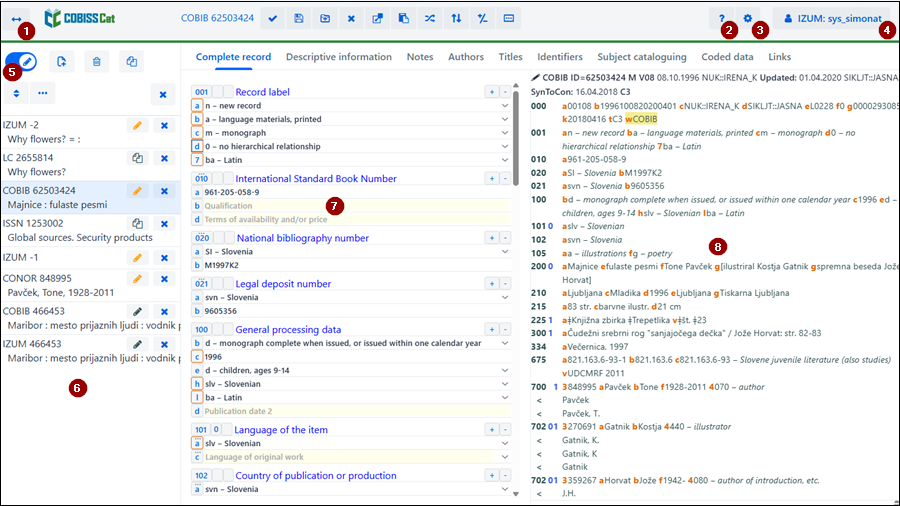
Use the mouse or the <Tab> button to move between the user interface elements, and the mouse or the <up>, <down>, <PgUp>, <PgDn> keys to move through lists (e.g. of records, search terms, access points). Confirm your selection with the spacebar, the <Enter> key or tick the checkbox  .
.
In the search window, you can use search requests to search for records in bibliographic or authority databases. The search window consists of two parts. The top part is used for entering queries and the bottom part for displaying the search results.
Activate the search window by clicking the  button on the workspace.
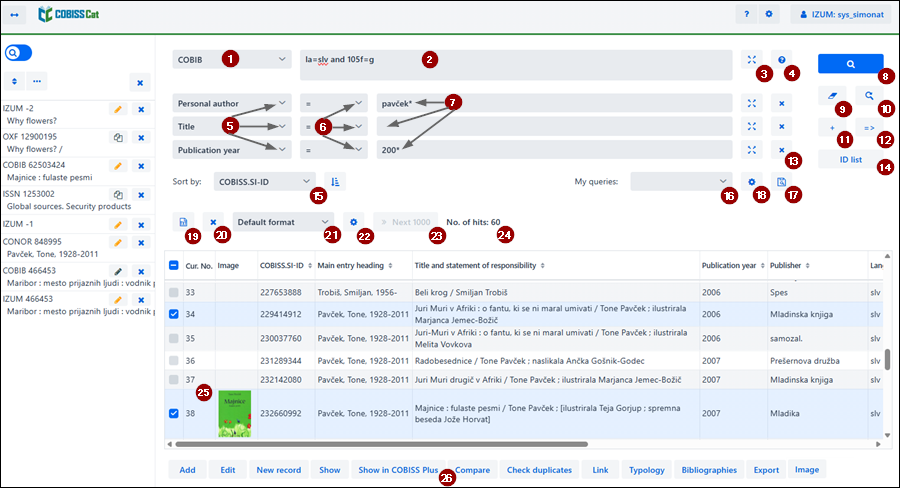
Search window elements:
drop-down list for database selection
input field for entering a search request (expert search + scanning)
 button for the expand function
 button that opens the search prefixes and suffixes list
drop-down list for search field selection (advanced search)
drop-down list for selecting additional operators
input field for entering a search request (advanced search)
 search button
 button for performing a new search
 button for repeating the last search
 button for adding search fields (advanced search)
 button for converting the search request from advanced to expert search
 button for removing search fields (advanced search)
ID list button for adding an ID list
drop-down list for selecting the data by which to sort search results; they can be sorted in ascending (the  button) or descending (the
  button) order
drop-down list for selecting saved queries
 button for saving a query
 button for editing saved queries
 button for exporting search results to a text file
 button for removing a hit from the search results list
drop-down list for selecting the search results format
 button for editing the search results format
Next 1000 button for displaying the next 1000 records, or the Next 100 or More results button for certain foreign databases
information on the number of search results the software found in the database that correspond to the entered search request
search results list
toolbar with buttons that are displayed varyingly according to the selected database
Add for adding a selected record or records to the workspace
Edit for loading a selected record in the editor
New record for creating a new record
Show for viewing one or more records
Show in COBISS Plus for displaying a record in COBISS Plus
Compare for comparing two or more records
Check duplicates for a software check if the selected record is a duplicate of existing records in COBIB
Link for batch-linking bibliographic records with authority records
Typology for verifying the typology (only available for central specialised information centres)
Bibliographies for creating and printing of bibliographies and subject headings lists
Export for exporting records to different formats
Image for adding material covers, inventory photos or photos of authors
Link local records for the procedure for checking and saving local records (000e = only) to COBIB (only available in certain libraries)
Send to verify for sending SGC records to be verified (only available to the SGC editorial board)
Verify record for verifying SGC records (only available to the SGC editorial board)
To exit the search window and switch to the editor, click the  button on the workspace or press the <F8> key.
For the most relevant and useful search results, it is advisable to use certain search techniques and basic principles.
You can select between various domestic and foreign databases:
In some libraries, the drop-down list also includes the METADAT database. Working with records from this database is described in the METADAT chapter.
If you select a foreign database from the drop-down list, the search window adapts (some buttons are omitted, the input field where you enter the search request in the expert search is in some cases inactive, etc.).
When reopening the search window, the database you selected in your last search is retained, but only until you log out of the COBISS Cat application.
Note
The WorldCat, LC/DNB/OXF, and LC/NAF databases only appear on the list if you have the privileges to download records from these databases.
Enter the search request in the input field in the appropriate syntax. When using the expert search, you can use search prefixes and suffixes. Instead of the search prefix, you can also use the field and subfield designation, or the field designation with the “ind” abbreviation and the indicator designation (scanning).
Examples
CL=Penguin Classics AND AU=Austen*
PU=Universal(2N)Entertainment NOT 001b=j
(mountaineering AND handbooks)/ART
PU=Macmillan publ* AND 101ind1=1 AND (205a=*reprint* OR 205b=*reprint*)
You can also combine search requests by entering them in the input field when using the expert search, or in individual input fields when using the advanced search, whereby the software will automatically use the logical operator AND between them.
Notes
In the WorldCat, LC/DNB/OXF, and LC/NAF databases, the input field is inactive.
In the archive databases, it is only possible to enter the ID of a record from the COBIB, CONOR or SGC database in the input field.
When entering search requests in input fields, you can use the expand function. Clicking the button will open a window with a list of search terms that are currently in the database.
Notes
In the WorldCat, LC/DNB/OXF, LC/NAF and archive databases, the button is not available.
When using the expert search, the minimum requirement is to enter the search prefix in the input field before clicking the button, whereas in the advanced search, you can leave the input field empty.
When entering a search request, you can use the search prefixes and suffixes list and the limiting suffixes list by clicking the button. You can view the list of all search indexes that are used in bibliographic databases, authority databases, and the CORES and ISSN databases in the Search indexes chapter.
Note
In the WorldCat, LC/DNB/OXF, LC/NAF and archive databases, the button is not available.
There are three search fields visible. You can change the default search fields by selecting other fields from the drop-down list. The changed order of search fields without search requests can also be saved (the button). The order of search fields is retained even after you exit the browser and is linked to a username.
You can also add additional search fields (the button).
Notes
In archive databases, the advanced search is not available.
You can limit your search requests with additional operators: EMPTY, NOT, NOTEMPTY.
Example
Under “Personal author”, select the operator EMPTY.
The search retrieves records that do not contain fields 700, 701 and 702.
Note
If you select the operator EMPTY for an individual search field, entry of the search request into the input field is disabled.
Example
Under “Language”, select the operator NOT and type in slv.
The search retrieves records that do not contain the code for the Slovene language in subfield 101a.
Example
Under “Series”, select the operator NOTEMPTY.
The search retrieves records that contain data on the book series.
Note
If you select the operator NOTEMPTY for an individual search field, entry of the search request into the input field is disabled.
Note
In the WorldCat, LC/DNB/OXF, and LC/NAF databases, the additional operators are not available.
Enter a search request in the input field. The logical operator AND is used between search fields by default.
When entering search requests in certain input fields (e.g., personal names, titles …) you must follow specific rules.
You can also combine search requests by entering them in the input field when using the expert search, or in individual input fields when using the advanced search, whereby the software will automatically use the logical operator AND between them.
Notes
In archive databases, the advanced search is not available.
If you would like to use the logical operator OR instead of AND between identical search fields, tick the relevant checkbox in user settings (the  button).
Searching records in the LC/DNB/OXF databases is slightly different than in other foreign databases as it is simultaneously performed in all three databases and because the databases adhere to different rules. There are six search fields available with some limitations: searching by keywords and publication year is only enabled in the LC and DNB databases and not in the OFX database, and searching by language is only enabled in the DNB and OFX databases and not in the LC database. Truncating search terms with the "*" character is fully supported only in the LC database and not in the DNB an OFX databases, which is why it is advisable to search records for monographs in the LC/DNB/OXF databases by the ISBN number or enter the search terms in their entirety.
Clicking the  button will display the information on the performed search via the SRU protocol: number of retrieved records in an individual database, the search request in URL form, and a notification in case of a non-performed search.
Click the button to perform the search.
The software performs the search in the local database (the local database is set as the default database after opening the cataloguing user interface), or in the database that you selected before the search process.
If you performed the search in the local database, you can also use the entered search request in the COBIB database or in the shared databases in the COBISS.net network. To do that, you only need to select the database without having to click the button.
Note
If you entered record IDs (the ID list button), the search will be performed in the selected database but only among the records whose IDs were added to the list.
Clear the entered search requests and search results by clicking the button.
Search requests are saved automatically. If you click the button, the Search history window will open. The most recently used search request is at the top of the list. When you select a search request, it is automatically performed after clicking the OK button.
Note
The search history can hold up to 100 search requests for an individual database. When this number is reached, the software starts deleting search requests starting with the oldest.
To add search fields when using the advanced search, click the button. You can add all available search fields.
Note
In archive databases, the button is not available.
When creating a search request, you can make the process easier by first creating the search request using the search fields in the advanced search mode and then clicking the button. After clicking the button, the software transfers and converts the entered search request to the appropriate syntax for the expert search mode (prefixes and suffixes are added to search terms and the terms are linked with logical and context operators). If required, you can then update the search request or change it before performing the search.
Note
In the WorldCat, LC/DNB/OXF, LC/NAF and archive databases, the button is not available.
To remove a search field when using advanced search, click the button.
Note
In archive databases, the button is not available.
You can use ID lists for further search. Enter the IDs separated by a comma, space, or a new line in the ID list window.
Notes
The number of IDs you can add to the list is limited to 25,000. If you add more, only the first 25,000 will be considered when searching.
In the WorldCat, LC/DNB/OXF, LC/NAF and archive databases, the ID list button is not available.
You can decide by which data the search results should be sorted (e.g. by COBISS.XX-ID, publication year, publisher, etc.). By default, the records are sorted by their COBISS.XX-ID number in ascending order. If you click the button, the sorting is changed to descending order (the button).
Note
In the WorldCat, LC/DNB/OXF, CONOR, LC/NAF, SGC, ISSN, CORES and archive databases, the drop-down list for search results sorting and the and buttons are not available.
The search requests you used in a search can be saved and used again later. First, enter the search request and click the button. This will open the Save query window, where you enter the name of the query. The query is added to the drop-down list under “My queries”. Saving queries is linked to a username.
You can also change the order of search fields (if they are empty). If you click the button, the order of search fields is saved after exiting the browser and remains the same until it is changed and saved again. Changing the order of search fields is linked to a username.
A previously saved query can be renamed or deleted (the button next to the “My queries” drop-down list).
The records from a list of search results can be exported to a text file (the button). Data can then be imported to different data processing tools (e.g. MS Excel).
Note
The button only becomes active once you select one or more records on the list of search results.
To remove one or more hits from the search results list click the button. Select the the hits you want to remove before that.
Note
If you remove one or more hits from the search results list, the button for displaying more search results becomes inactive.
You can select the format of how you want the search results to be displayed. The most recently selected format is saved and used in subsequent searches until you change it.
The two predefined formats for all resources are the default format and the format for downloading bibliographic records. For authority records, only the default format is predefined.
You can also define different types of search results format yourself (the button).
Note
In the WorldCat, LC/DNB/OXF, and LC/NAF databases, it is not possible to select a search results format.
You can define and edit (change and delete) the search results format yourself. For more information, see the Search results formats chapter.
Notes
In the WorldCat, LC/DNB/OXF, and LC/NAF databases, the button is not available.
The search results format you defined for the local database is the same for the COBIB and COBISS.net databases as well.
When the software finds more than 100 records that correspond to the entered search request, only the first 100 search results are displayed on the list. Click the Next 1000 button to display the next 1000 records.
Note
When searching the WorldCat and LC/NAF databases, it is possible to add 100 new records to the list of search results (the Next 100 button), and when searching the LC/DNB/OXF databases, it is possible to add 90 new records (30 from each database if the software finds as many results in individual databases) (the More results button).
In the bottom part of the search window, the list of found records is displayed in the default search results format or in the most recently selected format.
Displayed in grey are records marked for deletion (001a = “d”), and in authority databases records marked for splitting (001a = “r”) and unverified SGC records.
You can sort the displayed search results by different criteria, swap the columns or change the column width:
button).On the list of found records, select a record (or several records) by ticking the checkbox () next to the current number of the record. If the list contains only one record, the checkbox of the record is selected automatically. If you want to select or deselect all checkboxes on the results list, click the checkbox next to “Cur. No.”.
Highlighting a range of search results
You can highlight a range of search results in the search window in the following way:
If you repeat the procedure, you can highlight several ranges of search results (e.g., from 3 to 10, and from 15 to 20).
Note
The column with current numbers of search results cannot be moved.
Tip
In the results list, the text automatically breaks into multiple lines if the checkboxes next to Show images and Limited column width in search window are ticked.
Select a record (or several records) on the list of found records and add it (or them) to the workspace by clicking the Add button.
You can load a selected record in the editor by clicking the Edit button. The record is simultaneously added to the workspace and displayed in the record display. If you selected more than one record, the first record will be loaded in the editor, and all records will be added to the workspace.
You can also edit a record if it is loaded to the workspace, see chapter Edit record.
Create a record by clicking the New record button. This will open the New record window, where you must first select the appropriate database and input mask. Next, a record is loaded in the editor with empty fields and subfields with default values from the selected input mask. If you have previously defined a template for a new record, you can select it in the same window. This will load the content from the template in the editor.
If you tick the checkbox Show all under Template, the templates from all cataloguers in the same library will be displayed. If you leave the checkbox empty, you will only see the templates you created. The names of cataloguers who created the templates are automatically displayed in front of the template name (e.g., MARTINAK: E-article, VESNA: default).
If you want to create a record for a monograph or an article with the help of artificial intelligence, you must first save the photos of preliminary pages of a monograph or an article in the pdf format to your local drive. Then, click the AI draft button. This will open the Data source window, where you must first select the file type (jpg or png for a monograph or pdf for an article). After you click the Select file button, select the appropriate files on your local drive (the upper limit for monographs is three files). After you click the Send button, the editor will load a draft with the data that the artificial intelligence has recognized from the uploaded files.
Data recognition is not fully optimized yet, which is why it is advisable to check the draft of the record thoroughly and update it before saving.
Notes
The input mask in a particular database remains selected until you change it, but only until you log off from the COBISS Cat application.
When creating a record with the help of artificial intelligence, there is no need to select the input mask as it will be automatically assigned based on the uploaded files.
You can view one or several records from the search results list by selecting the record or records and clicking the Show button. This will open the viewer, where you can check records in the COMARC format (the  button) or the standard format (the
  button). You can check records from foreign databases in the original format (the MARC21 button) or in the COMARC format (the COMARC button). In libraries that create CIP records, the CIP button is also available in the viewer. You can move between records by clicking the
  button to move forward or the
  button to move backward.
In the viewer, you can also delete a record from the database (the  button), add it to the workspace (the Add button), or show it in a new browser tab (the Open in new tab button).
If the selected record is linked or related to other records, you can see the related objects in the bottom part of the viewer.
For bibliographic records, the following relations are added:
For authority records from the CONOR database, the following relations are added:
For authority records from the SGC database, the following relations are added:
If you click on a record displayed on the list of related objects, the record will be opened in a new viewer window.
A maximum of 5 records is shown for a specific type of related objects. You can view all records if you click on the ellipsis under a specific list. This will open the search window with the entered search request and displayed search results.
Records marked for deletion (001a = “d”) or splitting (001a = “r”), and unverified SGC records are displayed in grey on the list of related objects.
Tip
The COMARC format also displays fields 996/997 and 998 if you ticked the Show holdings fields checkbox in the user settings (the button).
A bibliographic or authority record that you selected on the search results list can be opened in COBISS Plus (the Show in COBISS Plus button). The record is displayed in a new browser tab.
Note
Records from the WorldCat, LC/DNB/OXF, ISSN, LC/NAF and archive databases cannot be displayed in COBISS Plus.
You can compare records by selecting a record on the workspace and one or more records on the search results list and clicking the Compare button. This will open a window with highlighted differences, with the record from the workspace always on the left and the records you selected from the search results list on the right. If the compared records differ only in the 000 system field, the “No differences” notification will be displayed above the system field.
If you click the Add button, you can add a record to the workspace, while clicking the Open in new tab button will show records in a new browser tab.
Tips
You can also compare records on the workspace (click the  button and select the Compare option).
If you want to avoid too many opened tabs in the browser and having to switch between them, you can open the record in a new browser window instead of a new tab. To do this, click and hold the tab with the left mouse button and drag it out of the browser window into a new window. This will give you an overview of multiple records at the same time.
If you click the Check duplicates button, you can check if a selected record is a potential duplicate of one of the records in COBIB. You must first select a record on the workspace, and then the search request for checking for duplicates will be automatically entered to the input field in expert search mode. Confirm the search request by clicking the button.
Note
You can only check potential duplicates for bibliographic records in the local database, COBIB or COBISS.net.
If you click the Link button, you can simultaneously link several bibliographic records from COBIB with a CONOR or SGC authority record.
First, find an appropriate authority record in the CONOR or SGC database, add it to the workspace and select it. Then, select the COBIB database in the search window and click the Link button. A search request formed on the basis of the access point from the authority record you selected will be automatically entered to the input field in the expert search mode. If necessary, you can edit the search request any way you like. On the search results list, select one or more bibliographic records that you want to link with the selected authority record and click the Link button again. This will open the linking window. In the upper part of the window, the first of the selected records is displayed in the COMARC/B format, and in the bottom part of the window, you will find the fields with linking options. The 7XX or the 60X fields from the bibliographic record displayed in the upper part of the window will be displayed, along with the + character that enables linking with an additional authority record. Apart from the existing 60X fields, the 60X field that can be added to the record will also be displayed.
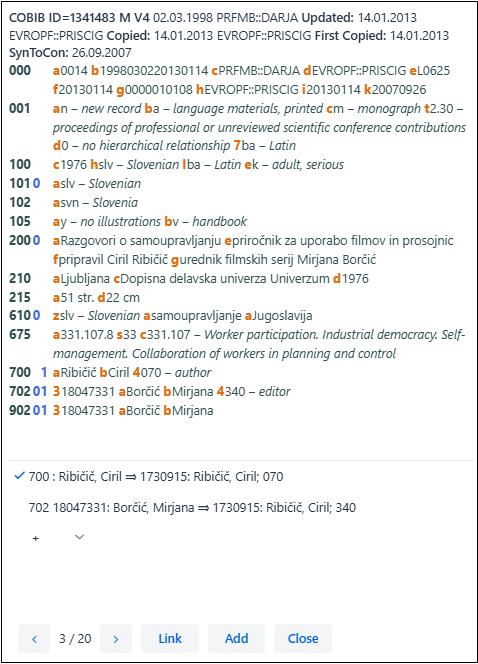
If you want to link or add a 7XX or 60X field, select it and click the Link button. This will add a subfield 3 with the authority record ID and an authority record access point to the bibliographic record (in 60X fields, it will also add a subfield 2 with the “SGC” value). The new version of the record will be loaded in the window and the Link button will become inactive. The record is saved to COBIB.
If you want to add a link to an additional authority record to the record, select the appropriate field from the drop-down list, search for the appropriate authority access point in the Searching database CONOR or Searching database SGC window, and click the Link button. This will add a subfield 3 with the authority record ID and an authority record access point to the bibliographic record (in 60X fields, it will also add a subfield 2 with the “SGC” value). The new version of the record will be loaded in the window and the Link button will become inactive. The record is saved to COBIB.
If you want to link the next bibliographic record you selected from the search results list, click the button and repeat the process. If you click the button, you will return to the previous record.
You can also add a record to the workspace (the Add button).
When you finish the linking procedure, click the Close button. You can use this button at any point to cancel the procedure.
Notes
You need the CAT_LINKAU privilege for batch-linking bibliographic records with CONOR or SGC authority records. For linking SGC records, you also need the CAT_SUBLINK privilege.
Authority records that are marked for deletion or are still in progress (SGC), reference records and general explanatory records cannot be linked to bibliographic records.
If you click the Typology button, you can verify the typology in records from COBIB. If you want to confirm the typology, click the Lock button, and if you want to change an already verified typology, click the Unlock button. You can also add the record to the workspace (the Add button).
Notes
The CAT_LOCKTD privilege is required to verify a typology.
Once the subfield with the typology is locked, it is no longer possible to change the content of field 970.
Bibliographies and subject headings lists can be created and printed from the search window (the Bibliographies button). Before that you can enter a search request in the search window and perform a search in the local database or COBIB if you want.
Start out from the Bibliographies, subject headings … window, where you first select the type of report you want to create.
Notes
Creating a bibliography with several items can take some time.
The BIB051: List CIP report is only available in libraries that create reports of CIP records.
The same procedure is used for creating bibliography reports and subject headings lists in the COBISS Lib application as well, in the Reports module in Bibliographies tab.
Created bibliographies are saved and can be accessed later.
Start out from the Bibliographies, subject headings … window, where you first select the type of report you want to create.
In the COBISS Lib application in the Reports module, you can define formats with different sets of bibliographic and other data that can be used in bibliographies.
In the COBISS Lib application in the Reports module, select the Bibliographies tab. This will open the Bibliographies, subject headings … window where you first select a group (e.g., BIB001, DSC001…) and then click the User formats for bibliographies button. This will open the User format editing window with the list of formats you already defined. At the beginning, the list is empty.
Note
The defined formats are not tied to a username, which means that all cataloguers from a particular library can use them.
You can add a new format to the list of user formats or modify a defined format.
Start out from the User format editing window.
Note
If you select several sub-elements from the same area or group, data in the bibliography will be duplicated.
Tips
If you want to slightly modify an existing format and save it under a new name, click the Save as button.
If you want to check the list of elements and display data for bibliographies, click the  button.
You can delete user formats in the User format editing window.
You can export an individual record or several records from the search results list to different formats. When you select one or more records and click the Export button, the Export of records window will open where you select a format (MARC21, MARCXML, Dublin Core, COMARCXML, COMARC, MODS or MARC Text) from the drop-down list. Click the Prepare button and then the button that displays the number of records to export.
The result of the export is a file, which is by default usually saved in the Downloads folder on the local drive and it usually retains the name offered by the software. It depends on the browser settings if you can change the saving location and the name of the downloaded file. See also chapter Working with files.
The file in which the records from the export are saved can also be opened in the browser (the  icon in the upper right corner of the browser). The file type can be mrc (for records in MARC 21), xml (for records in MARCXML, Dublin Core, COMARCXML, MODS) or txt (for records in COMARC, MARC Text).
Notes
The CAT_EXPORT privilege is required for exporting records.
The bibliographic records are exported from the local database and the export is limited to 10.100 records. If you are exporting the maximum number of records (this applies mostly to exports to MARC 21, MARCXML, Dublin Core), the process can take a long time (sometimes more than an hour).
Tip
If you want to display bibliographic records with linked authority records in the COMARC format, select the option MARC Text in the Export of records window.
If you want to add a photo of a material cover or of inventory to a bibliographic record, or a photo of an author to an authority record, click the Image button. This will open a window, which will have the general data of the record displayed in the upper part.
To add the image, click the Upload file button and select the appropriate file from your local drive (jpg or png format). Before confirming, you are required to tick the checkbox, which states that you are familiar with the provisions of the Copyright and Related Rights Act and other criteria.
In authority records, you can additionally add or check the following data:
It is mandatory to enter data to the licence, image author and source fields.
Note
The privilege CAT_610 is required for adding images to bibliographic records.
Local records are records that are only saved to one of the library local databases but are not in COBIB. You can identify them by the word “only” entered in subfield 000e in the system field. In most cases they were created by converting the records from the system the library was using before being included in the COBISS system.
The procedure for linking local records enables a quick way to resolve these records and includes the identification of possible duplicates followed by either the saving of the local record to COBIB, or the downloading of the duplicate with an automatic transfer of holdings data and automatic deletion of the duplicate (local) record.
Local records on the workspace are designated with the local database acronym and the COBISS-ID followed by the word [only].
Note
The procedure for checking and saving local records to COBIB is only available in certain libraries whose local databases contain local records that are not yet in COBIB.
Procedure
and buttons. button in the duplicate search window and repeat the procedure. If you click the button, you will return to the previous record.The video demonstrates the procedure for linking local records.
Procedures for editing the SGC list of subject headings are only available to members of the SGC editorial board (the Send to verify and Verify record buttons).
Presented below are some techniques and basic principles for effective searching.
You can enter the search request in all uppercase or all lowercase letters, or mixed, as it does not affect the search result.
When entering search requests, you can use diacritics or decide against their use as it does not affect the search results (the only exception being the access points in the CONOR database). It is important to be consistent in using or not using different types of characters, and to not mix the in an individual search request.
Examples
Personal author: župančič | zupancic
Personal author: Gödel | Godel
Personal author: nesbø, jo | nesbo, jo
Keywords: karađorđević | karadordevic (INCORRECT: karađordevic)
Example
Personal name: Händel, Georg Friedrich*
The search result in the CONOR database is the authority record for the composer Georg Friederich Händel. The same search request without diacritics returns no results. A record for Händel without diacritics in the search request can be found only in the basic index if the expert search mode is used, e.g., (Handel and Georg and Friedrich)/PN.
When entering diacritics and other characters, different character maps (e.g., Character Map, BabelMap, Unicodia, COBISS character map) and on-screen keyboards can be of assistance.
Word search means that the search is performed for each search word separately. In word search, the order of the entered words is irrelevant.
Example
Keywords: ivan grohar | ivan-grohar | ivan,grohar
The search returns records that contain both words Ivan and Grohar anywhere in the record.
When performing a word search in expert search, enter the words you are looking for and separate them using any punctuation mark (e.g., a comma, a semi-colon), or just a space. The software will automatically use the logical operator AND and retrieve only those records that contain all of the words entered.
In advanced search, the word search is performed by entering the words you are looking for in the search field under Keywords. The operator AND is used automatically in this case as well.
Phrase search means that the software searches the contents of a bibliographic record for a phrase, i.e., a specific order of words that you have entered in the search request.
Example (expert search)
TI=traditional slovenian cooking
The search result is a record for the material titled Traditional Slovenian cooking.
In expert search, the phrase search is performed by putting a search prefix and equals sign in front of the phrase you are looking for.
If you are using advanced search, a phrase search is always automatically performed, with the exception of searching under Keywords.
You can enter whole search terms in input fields or truncate them. The "*" and “%” characters are used for truncating.
The asterisk can replace any string of characters (which can also be no characters), whereas the “%” character replaces exactly one character (and the “%” character can appear multiple times in a string). Both characters can be used anywhere, at the beginning, in the middle or at the end of a search term, and can appear more than once.
If you are searching for a phrase that contains an asterisk (the “*” character), you must enter a space instead of an asterisk in the search term, and replace any double spaces with a single one.
Example
Title: *stein*
Search results contain records for works titled Mileva Einstein, Theory of Sorrow, Wittgenstein and the Meaning of Life, Frank Einstein and the Space-Time Zipper, etc.
Example (expert search)
215a=%%%% str.
Search results are records, in which subfield 215a – Specific material designation contains a space in the fifth place, followed by the word “str.”, i.e., records which contain data on the number of pages, where that number is greater than 1000, or records which have all four places filled-in in subfield 215a (e.g., [24] str.).
Tip
When performing a simultaneous search in foreign databases LC/DNB/OXF, it is advisable not to truncate the search request with the "*" character, as doing so will generally return only results from the LC database.
If you are performing expert search and want to search for a term that contains reserved characters “(”, “)”, “=”, “/”, “:” and “%”, or reserved words and, or and not, you must put the search term in quotation marks.
Example (expert search)
TI="science and technology*" AND PP=oxford*
This way you will find records, where the title starts with science and technology, and the place of publication with oxford. The first search term must be put in quotation marks as it contains the reserved word “and”.
In bibliographic records, personal names in fields for authorship and fields for personal names as subject headings are inverted, which means that the surname is first, followed by one or more first names. Because of this data structure, you must enter the name in the form “Surname, First name”. As some personal names have additional identifiers in order to identify an author uniformly, it is advisable to end the search request with the truncating character “*” (e.g., Surname, First name*).
Example
Personal author: Newton, Isaac*
Search results are records that contain name forms Newton, Isaac or Newton, Isaac, sir or Newton, Isaac, sir, 1642-1727 in the authorship field.
Articles from foreign languages that are surrounded by non-sorting characters “ǂ” in the record can be omitted in the search. The search request (e.g., the title) can be entered to the search field without the articles a, the, die, l, le, la, etc.
Example
Title: Schule*
Search results include records where the field for the title contains the forms of the title ǂDie ǂSchule.
There is no need to enter hyphens when searching by ISBN and ISMN numbers.
Example
ISBN: 9616162861
The search result is a record with the ISBN number written as 961-6162-86-1.
Searching by keywords means that a word search is performed in all fields in subfields of a bibliographic records that are indexed as the basic index, see chapter Search indexes.
Example
Keywords: požiralnik* voranc
Search results are records that contain the word Voranc and all words starting with požiralnik, e.g., records with the title of the novella Boj na požiralniku and the name Prežihov Voranc.
When you want to search works published in a certain time period, you must enter two years in chronological order and a colon between them.
Example
Publication year: 2022:2025
Search results contain all publications published between 2022 and 2025.
Note
When searching by a period of time, the "*" or “%” characters are not used.
When creating the search request, you can combine search terms with search operators. These define how the data you are looking for is related. In COBISS Cat you can use:
Logical operators
Logical operators are used in expert search and are entered in English.
Search results are records that contain the first and the second search term, or all search terms that you linked with the AND operator.
Example (expert search)
slovenian AND mountains
This keyword search will retrieve all records that contain both keywords slovenian and mountains. You would get the same results if you would enter the keywords separated by space and without the operator, i.e., slovenian mountains.
Search results are records that contain at least one of the entered search terms that are linked with the OR operator.
Example (expert search)
CO=(cze OR svk)
This way you will find records for publications that were published in Czechia or Slovakia.
Search results are records that contain the first search term but do not contain the term that follows the NOT operator.
Example (expert search)
journalism NOT televis*
This way you will find records that contain the word journalism but not the word televis*.
Context operators
Context operators define the relative proximity between search terms. In COBISS Cat, only the proximity operator NEAR (N) is available. It is used for searching records in which the search terms are adjacent to each other, regardless in what order. It can only be used in expert search and, if necessary, it can be combined with search suffixes. You can put any number in front of the N operator, which decides the maximum number of words that can appear between both search terms.
Search results are records, in which the search terms appear next to each other in any order.
Example (expert search)
rudolf (N) maister
This way you will find records that contain the phrase Rudolf Maister or Maister Rudolf.
Search results are records, in which the search terms that are linked with the operator are at most n words apart, regardless in what order.
Example (expert search)
cost (1N) benefit
This way you will find records that contain phrases cost to benefit, benefit to cost, cost-benefit, etc.
Example (expert search)
journal* (2N) invest*/TI
Among the search results you will find the article The paradox of Slovenia: investigative journalism during socialism and democracy and the article Journal of Criminal Investigation and Criminology.
Note
The NEAR operator cannot be used in combination with left truncation.
When using logical operators, you must pay attention to the order of performing operations:
Example (expert search)
((ocean OR air) AND pollut*) NOT rivers
This way you will find records that contain at least one of the words ocean or air and a word starting with pollut, but not the word rivers. The software will search for the search terms in brackets first.
Search by basic index
When searching the basic index, you are searching by keywords, i.e., by any words found in the records. Enter one or more words without a search prefix in the search window and, if necessary, use logic or context operators. If you do not enter any operators, the logic operator AND is automatically used when entering more than one word.
Form of search request: [search term] [operator] [search term] …
Examples (expert search)
mountain farms
farms AND mountain
planet earth encycloped*
The first two search request are equal. With it, you will find records that contain both words, farms and mountain. With the third search request, you will find records that contain the words planet, earth, and a word starting with encycloped.
If you add a search suffix after the slash1 to a search request formed this way, you will limit the search additionally.
Form of search request: [search term]/[suffix] [operator] [search term]/[suffix] …
1 In COBISS systems that use two scripts, it is also possible to search only by words in Cyrillic script. In such cases, use two slashes between the suffix and search term instead of one.
Examples (expert search)
farms/TI AND mountain/TI
(farms AND mountain)/TI
(folk (N) medley)/TI
The first two search request are equal. With it, you will find records that contain both words, farms and mountain. With the third search request, you will find records, in which the words folk and medley appear next to each other in any word other.
Search by additional indexes
Additional indexes are primarily intended for phrase search in individual content sets of records. Create a search request by entering the search prefix, followed by the equals sign and the search term: [search prefix]=[search term]
or combined with operators: [search prefix]=[search term] [operator] [search prefix]=[search term] …
2 In COBISS systems that use two scripts, it is also possible to search only by phrases in Cyrillic script. In such cases, use two equals signs between the prefix and search term instead of one.
Examples (expert search)
TI=molecular genetics in medicine OR DU=molecular genetics
AU=darabont* AND TI=shawshank redemption
AU=tolstoj* AND TI=ana karenina AND LA=slv
Search by content of any subfields and indicator values (scanning)
The search request for searching only a certain subfield is created by entering a field and subfield designation, followed by the equals sign and the search term: [field and subfield designation]=[search term]
or combined with operators: [field and subfield designation]=[search term] [operator] [field and subfield designation]=[search term] …
Example (expert search)
105f=a* NOT (205a=*ponat* OR 100c=19*)
This way you will find records for novels of any genre (105f = a*) that do not include reprints (205a = *ponat*) and that were also not published between 1900 and 1999 (100c = 19*). The software first performs the search for search terms in brackets.
Example (expert search)
TD=2.30:2.32 AND PY=2007 AND 101d=* NOT 101d=eng
This way you will find records for proceedings, which were published in 2007 and which in subfield 001t – Typology of documents/works contain codes “2.30”, “2.31” or “2.32” for the typology of work, and which contain a summary in any language (101d – Language of summary) except for English.
To create a search request to search by an indicator value, enter the field designation, the »ind« abbreviation and the indicator designation, followed by an equals sign and the indicator value: [field designation]ind[indicator designation]=[indicator value]
or combined with operators: [field designation]ind[indicator designation]=[indicator value] [operator] [field designation]ind[indicator designation]=[indicator value] …
Example (expert search)
PY=2008/mon AND LA=scc AND 105f=g AND 200ind1=0
This way you will find records for monographs in Serbian language that were published in 2008, contain the code g – poetry in subfield 105f – Literature code, and have the indicator 1 value 0 – Title is not significant in field 200 – Title and statement of responsibility.
You can limit your search by:
Limiting by type of bibliographic resource or script
To limit search results by the type of bibliographic resource or script, you must enter the search term, followed by a slash and a limiting suffix.
Suffixes for limiting by type of bibliographic resource:
Tip
To display the list of limiting suffixes, click the button.
Example (expert search)
FR=ltd/SER
Search results are records for text electronic serials.
Suffixes for limiting by script:
You can also limit search results by combining suffixes. Separate the suffixes with a coma (do not enter a space).
Example (expert search)
bible/ART,CIR,1991
Search results are records for articles and other component parts in Cyrillic that were published in 1991 and contain the keyword Bible.
Limiting by publication year
To limit search results by publication year, enter the search term, followed by a slash and the year or the year range (enter a colon between the two years).
Example (expert search)
library science/2023
Search results are records that contain the keyword library science and the publication year 2023.
Workspace is the left part of the cataloguing user interface, where the records you searched for with the search window in different databases are loaded, as well as where the records you are creating or editing are located.
The records on the workspace are labelled with the database acronym, the record ID and basic information. Local records that only exist in the local databases and are not in COBIB are additionally labelled with the word [only]. Drafts of records that were downloaded to COBISS Cat from dCOBISS are labelled with the word [dCOBISS]. Until you save the records, they are assigned numbers -1, -2…<-n>, but once they are saved, they get an identification number (COBISS.XX-ID or CONOR.XX-ID, etc.).
Records marked for deletion (001a = “d”) or splitting (001a = “r”), and unverified SGC records are displayed in grey on the workspace.
Note
You can add up to 100 records to the workspace.
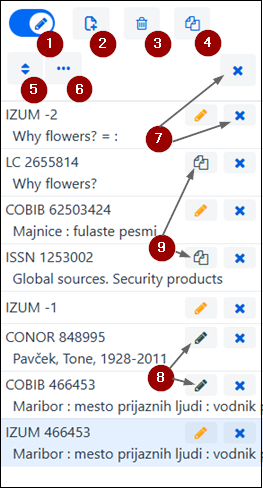
Workspace elements:
button that shows or hides the search window
 button for creating a new record (only available when the editor is active)
button for deleting a record (only available when the editor is active)
 button for deriving a new record from an existing one (only available when the editor is active)
 button for sorting records
button for additional options: showing the record in the viewer, comparing the record, selecting fields to copy to the clipboard, checking duplicates, showing the record in COBISS Plus, showing the list of libraries, adopting or unadopting a record, sending SGC records to be verified and verifying them (only available to the SGC editorial board), transferring bibliographic data to dCOBISS, viewing the request in dCOBISS, editing a limited bibliographic data set
button for removing an individual record or all records from the workspace
 button for adding a record to the editor
 button for downloading a record from foreign databases or COBISS.net
 button for downloading records from the Publishers’ portal (only available for NUK and when the editor is active)
When you add a record to the editor, the icon button turns orange  or red
  , if you are only editing a limited bibliographic data set. You can edit several records simultaneously.
Create a record by clicking the button. This will open the New record window where you must first select the appropriate database and input mask. Next, a record is loaded in the editor with empty fields and subfields with default values from the selected input mask. If you have previously defined a template for a new record, you can select it in the same window. This will load the content from the template in the editor.
If you tick the checkbox Show all under Template, the templates from all cataloguers in the same library will be displayed. If you leave the checkbox empty, you will only see the templates you created. The names of cataloguers who created the templates are automatically displayed in front of the template name (e.g., MARTINAK: E-article, VESNA: default).
If you want to create a record for a monograph or an article with the help of artificial intelligence, you must first save the photos of preliminary pages of a monograph or an article in the pdf format to your local drive. Then, click the AI draft button. This will open the Data source window, where you must first select the file type (jpg or png for a monograph or pdf for an article). After you click the Select file button, select the appropriate files on your local drive (the upper limit for monographs is three files). After you click the Send button, the editor will load a draft with the data that the artificial intelligence has recognized from the uploaded files.
Data recognition is not fully optimized yet, which is why it is advisable to check the draft of the record thoroughly and update it before saving.
Notes
The input mask in a particular database remains selected until you change it, but only until you log off from the COBISS Cat application.
When creating a record with the help of artificial intelligence, there is no need to select the input mask as it will be automatically assigned based on the uploaded files.
Tip
You can also create a record by using the <Ctrl> + <Alt> + <+> key combination.
You can delete a record from the local database and/or from COBIB (the button).
Notes
Records that have other records linked to them in terms of hierarchy via ID (subfield 4641) cannot be deleted. However, you can delete records that have records linked to them via ISSN (subfields 011as).
If the record you are deleting exists in another local database, it is deleted only from your local database. Otherwise, the record is deleted from COBIB as well.
You cannot delete authority records.
You can derive a new record from an existing bibliographic or authority record. Select a record on the workspace and click the button. For bibliographic records, the Select mask window will open, where you select an appropriate input mask. The record, which is a copy of the selected record, is loaded in the editor, where you update and edit it accordingly.
Notes
When transferring the content of the selected record to the editor, the following subfields are not transferred: 001e, 011ec, 017abdz2, 020abz, 021abz, 022abz, 70X9. The same applies to fields 992 and 993.
Fields that contain subfield 5 with the library code of another library are also not transferred to the editor (fields 012, 141, 316, etc.).
You can derive a new record from SGC authority records, whereas in the CONOR database, you can only derive a new record from corporate body records (in doing so, field 992 is not transferred).
If you click the button, you can sort the records on the workspace. You can sort them by the time added (in the same order in which they were added to the workspace), alphabetically (first by database acronym, then by title for bibliographic records or by access point for authority records), and by the record ID.
A record from the workspace can be viewed in the standard format or the COMARC format, and a record from a foreign database can be viewed in the MARC 21 format or the COMARC format (click the button and select the Show option). See also chapter Show described in the part about the search window.
When there is a record in the editor that is currently being edited (which is indicated by the pencil icon in front of the system field), your updates are visible. The status of the record before it was edited can be checked by ticking the Starting version of the record with holdings checkbox. The COMARC format also displays the holdings fields if they exist.
If a record contains web links (e.g., in subfield 856u), they are active in the displays as well.
Tip
A (new or existing) record in the editor can also be checked in the standard display format before saving.
If you ticked the Show holdings fields checkbox in the user settings (the button), the COMARC format also displays fields 996/997 and 998, but only for records that are not in the editor.
You can compare records on the workspace by clicking the button and selecting the Compare option. This will open a window with a list of records that you can compare with the selected record. The list includes all records from the workspace (including those currently being edited) and the version of the selected record from the local database or COBIB.
You can open the record in a new browser tab (the Open in new tab button) or add it to the workspace (the Add button).
Tip
Records currently being edited are indicated by a pencil icon in the compare window.
From a record on the workspace, you can copy any field and its subfields (click the button and select the Select fields to copy option). Select one or more fields in the record and click the Copy to clipboard button if you want to copy the selected fields to the clipboard. If you want to add the selected fields to a record in the editor, click the Copy to editor button. If you tick the Overwrite existing fields checkbox, the selected fields will overwrite all existing fields with the same designation when they are copied to the record in the editor.
See also chapter Paste selected (sub)field from clipboard.
Tip
It is also possible to copy any field from records from foreign databases.
Notes
The Copy to editor button and the Overwrite existing fields checkbox are not available when the search window is selected or when there are no records in the editor.
When overwriting existing fields in a record in the editor, be extra careful when copying repeatable fields (e.g., if you transfer a field 702 to a record in the editor, all existing fields 702 are first deleted, and then the field 702 you selected is added).
You can also check if a (new or existing) record in the editor is a potential duplicate of one of the records in COBIB (click the button and select the Check duplicates option).
See also chapter Check duplicates described in the part about the search window.
You can open a record from the workspace in COBISS Plus (click the button and select the Show in COBISS Plus option).
Note
Records from the WorldCat, LC/DNB/OXF, ISSN, LC/NAF and archive databases cannot be displayed in COBISS Plus.
For a bibliographic record on the workspace, it is possible to check in which local databases it can be found (click the button and select the Show list of libraries option). This will open a list with the acronym and name of the library and the e-mail address of the COBISS contact person.
Note
If the e-mail address of the COBISS contact person is missing in COLIB, the list will show the e-mail address of the principal/director/library head.
For contacting purposes, it is possible to export the list of contact addresses (the E-mails button) or the complete list of libraries (the Download button). In the former case, a txt file with a list of e-mail addresses is created, while in the latter, a csv file is created that can be opened in Excel (if you want the data displayed in columns, use the Text to Columns setting in the Data menu). Both files are saved to the Downloads folder on your local drive and can also be opened in the web browser.
A library can adopt (assume responsibility for) an authority record, or unadopt an authority record it had adopted.
Note
The CAT_NEWPN or the CAT_NEWCB privilege is required for adopting and unadopting records.
Highlight a record on the workspace, click the button and select the Adopt/unadopt record option. You will be notified that you have adopted a record. From this moment on, cataloguers from other libraries can only enter data on variant access points but cannot edit the record anymore unless they have the CAT_CONOR privilege.
Note
If a library has adopted a record, this cannot be done by another library.
Similarly, you can unadopt a record. Once you are notified that you have unadopted a record, all cataloguers can once again edit the record.
Note
If a record was adopted by another library, it is impossible to unadopt it unless you have the CAT_CONOR privilege.
Procedures for editing the SGC subject headings list are only available to the SGC editorial board (the button and options Send to verify and Verify record).
You can transfer a bibliographic record from the workspace to the dCOBISS repository (click the button and select the Transfer to dCOBISS option). This will open a new browser tab with the selected record transferred to the repository.
If a request for the creation of a bibliographic record was created in dCOBISS and if the draft of the record was already downloaded to COBISS Cat, you can check the request in dCOBISS again (click the button and select the View request in dCOBISS option). The selected record in the repository will open in a new browser tab.
Cataloguers can edit a limited set of bibliographic data in a record (subfields 100e, 330az, 539a, 610az, 675bs, 992by, 9930 to 9939). Software checks the correctness of the record before saving it, but the record is saved to the local database despite potential errors in other fields.
Select a record on the workspace, click the button and select the Edit a limited set of bibliographic data option. Records that are currently being edited this way are indicated by a red pencil icon on the workspace.
Tip
Librarians who not only have the CAT_610 privilege but also the cataloguing privilege should edit records with a limited set of data only in exceptional cases, e.g., when they don’t have the material with them or are only filling-in fields of local importance (e.g., 675, 992 and 993). In all other cases, it is preferred that they edit the complete bibliographic record, enter all other appropriate data and save the record both to COBIB and the local database.
Records remain on the workspace until you remove them. You can remove an individual record or all records at the same time. If you click the button at the top of the workspace, you can simultaneously remove all records with the button next to them (records have already been saved). When doing that, the software will inform you that any unsaved records (with the button next to them), will not be removed from the workspace. These records can only be removed once you confirm for each record individually that you want to remove it from the workspace. Any changes made to the record before that will be lost.
Note
A record that was downloaded from dCOBISS can only be removed from the workspace if you state the reason for rejection.
The button is used when you want to update a record or download it to your local database.
If you click the button, you add a record to the editor. At the same time, the record is shown in the record display. The button icon colour changes to orange , which means that the record is currently being edited and is not accessible to other cataloguers.
On your workspace, you can have multiple records that you are editing (you can switch between them by clicking the button). Any updates to an existing record that you haven’t saved to the database will be automatically deleted at 23:59 of each day and the record will once again be made available to other cataloguers (the button icon will change from orange to black). All new records that you haven’t saved yet can remain on the workspace indefinitely.
If you select a record from the local database on the workspace, the latest version of the record from COBIB will be loaded to the editor. The software will notify you if you are about to edit a COBISS2 record. First, it is recommended that you check the differences between the COBIB record and the record from the local database (the Compare button). If you find out that there are fields in the record from the local database that you would like to transfer to the COBIB record, you can select the fields and their respective subfields and copy them to the clipboard or the record editor (the Select fields to copy button), see also Select fields to copy to clipboard or editor chapter. Once you click the OK button, you can start editing the record.
Notes
Even if you select a record from your local database on the workspace, the latest version of the record from COBIB is loaded in the editor, but without the subject heading fields and classification fields. If they exist, these fields are copied from the record in the local database.
A record that is currently being edited by someone else, cannot be loaded in the editor. In this case, you will receive a notification that the record is not accessible and information on who is editing it.
A red pencil icon on the button indicates that a record with a limited set of data is being edited in the local database.
The button is used, when you want to download a record from COBISS.net or a foreign database.
If you click the button, a new record from the selected database will be added to the workspace and labelled with the acronym of the local database, a <-n> record ID, and the button. At the same time, the record will be added to the editor and displayed in the record display.
Downloading records from the Publishers’ portal is enabled for NUK (the button).
In the record display, you can view any record from the workspace or the record that is currently in the editor. You can change the record that is displayed by clicking on the appropriate place on the workspace:
button or button – the display shows the record before the updates or button – the display shows the record with the updatesClick the  button to hide or show the workspace.
In the record editor, which is the main part of the cataloguing user interface, you can edit (i.e. enter and change) data in bibliographic and authority records.
Activate the editor by clicking the button on the workspace.
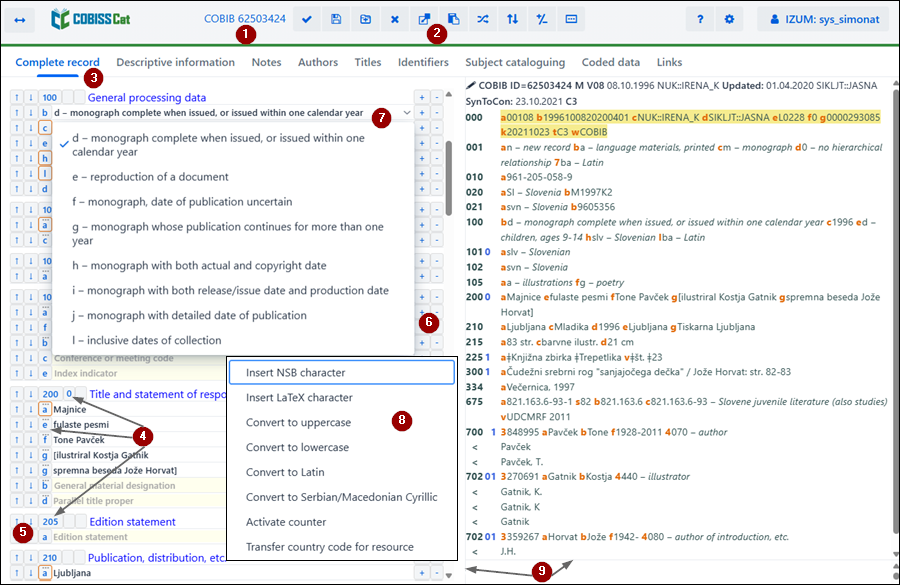
Editor elements:
database acronym and ID of the record opened in the editor (the link takes you to the record in COBISS Plus)
buttons
 for saving a record
 for adding a field
 for subfield editing options: insert NSB character, insert LaTeX character, convert to uppercase, convert to lowercase, convert to Latin, convert to Serbian/Macedonian Cyrillic, activate counter, transfer country code for resource
bar for selecting data entry group (complete record, descriptive information …)
buttons with field/subfield/indicator designations
 ,
,  buttons for moving fields/subfields
 ,
,  buttons for adding/deleting fields/subfields
input field with an opened drop-down list
shortcut menu
movable border
When creating a record, the editor contains the default fields, subfields and indicators of the selected input mask. To move between fields and subfields, use the mouse or the <Tab> key, the <Enter> key, or the arrow keys. If you use the <Shift> + <Tab> key combination, you will move one step back.
Field designations consist of three numbers, whereas subfield designations consist of a letter or a number. An orange border around the subfield designation indicates that the subfield is mandatory. An ellipsis above the field/subfield designation indicates that the field/subfield is repeatable. Some fields also have defined numeric indicator values that follow the field designation.
When displaying records in the editor, different colours are used:
The data is entered or changed in the input field of an individual subfield. If you click on the field/subfield designation, you can change the set of fields or subfields (add, copy, change the designation, or delete). Fields and subfields follow a certain order that can only be altered to a degree (the ascending order of field numbers must be retained). You can also change certain field and subfield properties, e.g., entry level, length, etc.
If you want wider input fields at certain subfields that enable you to see all of the content in cases where there is a lot of text entered, you must tick the Expand certain input fields and display content in multiple lines checkbox in the user settings (the button).
While working in the editor, you can also search different databases by clicking the button on the workspace or pressing the <F8> key. To switch back to the editor, click the button on the workspace or press the <F8> key.
In the editor, you can edit the complete record with all fields in the selected input mask displayed, or you can edit only certain groups of fields.
In bibliographic records, fields in the COMARC/B format are arranged into following groups:
In authority records, fields in the COMARC/A format are arranged into following groups:
Data is entered or changed in the input field that follows the subfield designation. Data can be typed-in, selected from the drop-down list or the list of access points in authority databases, or selected from the search results list when searching in the search window in individual subfields.
You can also enter the NSB/NSE sorting characters and LaTeX characters to the input fields. If required, you can convert the entered text in the input field to uppercase or lowercase characters, or change the script of the text (Latin to Serbian/Macedonian Cyrillic and vice versa).
Tip
Since the implementation of new options you can no longer use the right-click for copying and pasting in the shortcut menu but only the keyboard shortcuts <Ctrl> + <C> and <Ctrl> + <V>.
Coded data can be entered in multiple ways:
Finish the entry by clicking outside of the input field or press the <Enter> or the <Tab> key. With the <Enter> key, you move to the next input field, and with the <Tab> key, you move to the next field or subfield designation. If you press the <Tab> key and the spacebar, you will open the search window next to the input field (e.g., 011a, 4641, 60X3, 7XX3) without having to click the  button.
You can use the spell checker in the input field to check the correctness of the entered text. If you turned on the option to check spelling as you type in your web browser (Settings/Languages), the mistyped and incorrectly spelled words will be underlined red when entered to the input field. In some browsers (e.g. Firefox), you must select the option Check Spelling from the shortcut menu in every input field for the incorrect words to be underlined. In Chrome and Microsoft Edge browsers this is not necessary. If you want to check similar words in the dictionary, right-click the underlined word and select the correct word from the suggestions menu. You can add words that you think are correct to your personal dictionary (right-click the word and select Add to dictionary). See also the Spell checker chapter.
Entering data under authority control
Data entry in fields with activated authority control is different from data entry in other fields. Data to these fields can be downloaded from the CONOR or SGC authority control databases.
Enter the access point you are looking for in subfield 3 in fields 60X or 7XX and click the button next to the input field.
For linking author fields (7XX fields) with an appropriate authority record from the CONOR database, the Searching database CONOR window is used. For linking subject heading fields (60X fields) with an appropriate authority record from the SGC database, the Searching database SGC window is used.
Elements of the window are:
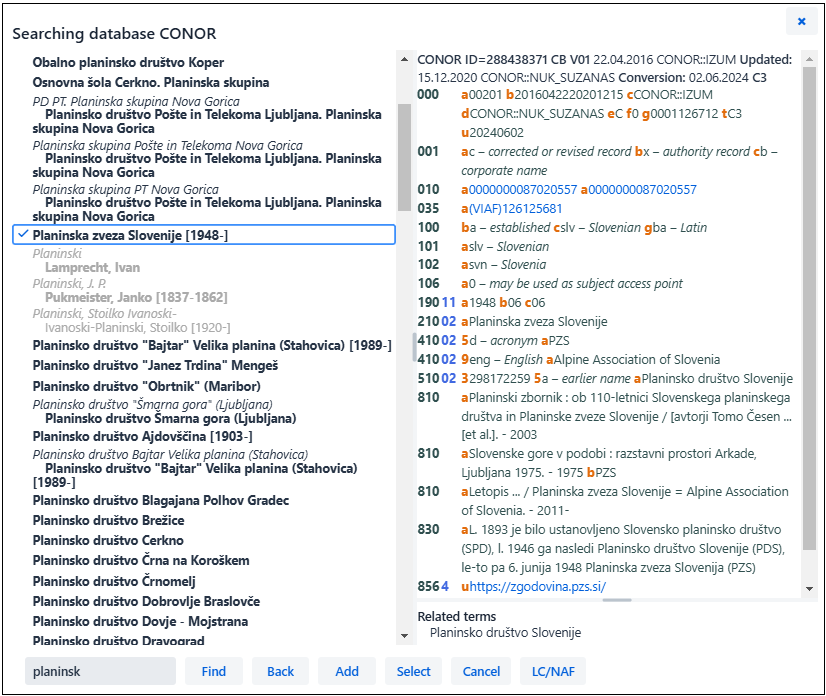
Searching in the Searching database CONOR or SGC window is a bit different from searching in the search window of a particular database. By default, a word search is performed. Phrase search is only performed if you enter the search request in quotation marks (" "). Word search looks for words that start with the same letters and not for complete matches, which is how it works in the search window. This way it includes more versions of a particular word which helps you avoid creating a potential duplicate record.
Tip
It is advisable to use word search when linking. The exception are examples in which automatic truncating retrieves too many results, e.g., when searching by initials or in the case of very short names.
Use the mouse or the arrow buttons to move through the access points list. If you press the spacebar, the selected access point will be displayed in the upper right part of the window. If you press the
If you didn’t find an authority record in the CONOR database, you can continue your search in the LC/NAF authority database. When you click the LC/NAF button, a search window will open and the search request you entered before will be transferred to it. If you find an appropriate record in the LC/NAF database, you can add it to the workspace and download it to the CONOR database.
Note
Only cataloguers with the CAT_NEWPN or CAT_NEWCB privilege can download authority records.
Special features when entering data in fields in the COMARC/A format
Source data found (810)
The citation for a source in which you found information on the authorized or variant access point can be transferred to the authority record from a COBIB record or from the record you are currently editing.
In an empty subfield 810a, click the button next to the input field to open the search window. If there is already a list of records in the search window, it contains the bibliographic records loaded on the workspace that are being edited or created (there is the button next to them). When you highlight and select a bibliographic record on the list, the appropriate data is transferred to subfield 810a. It is also possible that the list of records is empty, in which case you can enter a search request in the search window and perform a COBIB record search.
Special features when entering data in fields in the COMARC/B format
Linking fields in continuing resources (4XX)
Fields in the 4XX block that are used to show the relationship between continuing resources, contain subfields a – Title proper/Key title and x – ISSN, where you enter the (key) title and/or the ISSN of the related continuing resource.
Subfield a must be filled in only when there is no record for the related continuing resource in COBIB, or if the existing record does not contain field 530 – Key title. Also enter subfield a when you have no ISSN.
Procedure
button, which means you do not have to fill in subfield a. button to search the ISSN database. The search request is entered automatically. If you click the Select button, the key title from the selected search result from the ISSN database will be entered in subfield a.You can check if the record in the editor contains errors or deficiencies that can be detected automatically (the  button). The errors that the software has found are displayed in the bottom part of the record display. See also the Record display chapter.
Tip
You can also validate a record by using the <Ctrl> + <Alt> + <C> key combination.
When loading a record in the editor, any potential errors are displayed automatically if you ticked the Display errors when loading record in the editor checkbox in the user settings (the button).
If the record contains no errors indicated as “F” – Fatal, the software saves the record to the local database and/or COBIB (the button). This clears the editor, while the bottom edge of the cataloguing user interface displays the database to which the record was saved.
When saving the record, the software notifies you about any other potential errors or inconsistencies in the record.
Tips
You can also save a record by using the <Ctrl> + <Alt> + <S> key combination.
In the COBISS Lib application, you can add holdings data to a record that you saved to the local database. If you click the button with the database designation and username, a drop-down list will open where you select Login to COBISS Lib. This will take you to COBISS Lib without the need to enter any login data. Then, select the material the saved record belongs to in the History window (the  button in COBIS Lib).
If you want to save a record with entered data as a template for a new bibliographic or authority record for future use, click the  button. The Save as template window will open, where you enter the name of the template. You can use the same window to delete templates.
If you save a record as a template with the name DEFAULT, you can later use the data you entered as default values. You can create several templates with the name DEFAULT, but only if they are in different databases. See also the Add default value to subfield chapter.
You can exit a record in the editor without saving it. When you click the button, the software notifies you that the record will not be saved. The editor and record display are cleared, and the record in the workspace remains unchanged. If you were creating a new record, the record is also removed from the workspace.
Note
Clicking the button undoes all changes you made to the record not just the last action.
If you did not tick the checkbox next to Display notification when record editing is cancelled in user settings, no notification will be displayed after you click the button.
A record that was downloaded from dCOBISS can only be removed from the editor if you state the reason for rejection.
You can add a field to a record that is not part of the set of the selected input mask or a field that you want to repeat (the button). In the Field window, enter a field designation or select it from the drop-down list under “Field designation”, then click the Add button. Under “Field designation”, you can also enter one or more subfield designations that you want to add to a specific field (e.g. 3270aaa).
You can also add a field if you click the field designation and confirm the automatically entered field designation, or you can enter or select another field designation and click the Add button.
Copied fields or deleted fields and subfields that are saved to the fields clipboard can be added to a record.
Clicking the  button will open a window with a list of fields and subfields. The designations of copied and deleted fields on the list are displayed in bold, whereas the designations of fields in cases, when we deleted a subfield, are displayed in regular text. Select one or more fields on the list that you want to add to the record and click the Paste button. See also the Select fields to copy to clipboard or editor chapter described in the part about the workspace.
Tips
Content from the clipboard can be used more than once, but only until you log off from the COBISS Cat application.
You can also access the list of copied or deleted fields and subfields by using the <Ctrl> + <Alt> + <Insert> key combination.
In an exceptional case, you can change the input mask of the bibliographic record in the editor (the  button). You can only change the input mask M – monographs to N – non-book material and vice versa.
Fields in a record are always displayed in an ascending order according to field designations, and you can only change their order if you have more instances of the same field. Inside an individual field, you can change the order of subfields.
If you click the  button, the buttons for moving a field/subfield up and down are added to the editor in front of field and subfield designations. Another click of the button hides these buttons.
Tip
You can quickly move a field or subfield with a mouse by using the “drag & drop” method. Some browsers (e.g., Firefox) are a bit less responsive, which is why you should keep the pointer on the (sub)field designation button for an additional half a second before dragging it up or down.
You can add repeatable subfields to a field or delete subfields.
If you click the  button, the buttons for adding and deleting are added to the editor after the subfield input fields. Another click of the button hides these buttons.
Note
Buttons for adding and deleting fields cannot be removed.
There are three ways to insert the character:
buttonThere are three ways to insert the character:
buttonIn an input field, you can convert the entered text to all uppercase or all lowercase letters. Click the button and select the Convert to uppercase or Convert to lowercase option to convert the letters.
Tip
You can also convert the text you highlighted in an input field by clicking the right mouse button and selecting the Convert to uppercase or Convert to lowercase option.
In an input field, you can convert the script of the entered text (from Latin to Cyrillic or vice versa). Click the button and select the Convert to Latin or Convert to Serbian/Macedonian Cyrillic option to convert the script.
Tip
You can also convert the text you highlighted in an input field by clicking the right mouse button and selecting the Convert to Latin or Convert to Serbian/Macedonian Cyrillic option.
In the bibliographic database and in authority databases you can define counters for individual subfields. The CAT_EDITTYPE privilege is required for defining and editing counters.
In an input field of an individual subfield (e.g., 020b, 021b) it is possible to define a new counter or enter a number from an existing counter.
Based on the requirements, set up as many counters as you need for defining individual numbers.
A new counter is added by clicking the button (or the right mouse button) in an individual subfield (e.g., 020b, 021b) and selecting the Activate counter option. The Counters window will open where you click the Edit button. This will open the Cataloguing counters window.
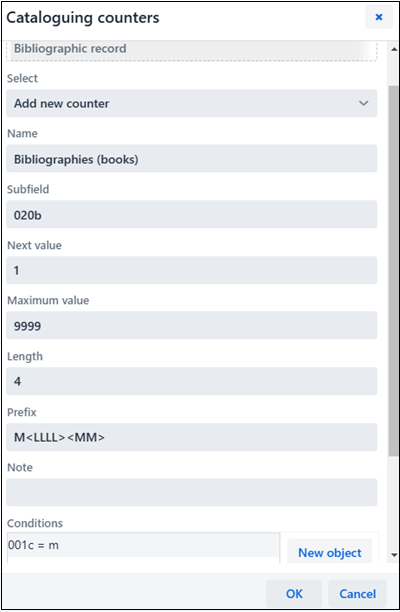
Example
If you created a counter as pictured above, the current year (e.g., 2024) and month (e.g., 09), together with the four-digit number of the counter (e.g., M2024090001) will automatically be entered in the bibliographic record for a monograph in subfield 020b after prefix M.
You can also modify or update an existing counter. In the Counters window, first select the desired counter and click the Edit button. This will open the Cataloguing counters window, where you update the data.
To the input field of an individual subfield (e.g., 020b, 021b), you can enter a number from the counter (click the button (or the right mouse button) and select the Activate counter option). The Counters window will open, where you select the appropriate counter (several counters can be defined for the same subfield) and click the Activate counter button. The number from the counter will be entered to the input field.
Notes
In the Counters window, the inactive counters are displayed in light grey.
If you defined conditions for a particular counter, the software will only offer the counter in a record that meets all required conditions (the required subfield and its value).
When cataloguing articles and component parts, you can transfer the country code from the host item record by clicking the button (or the right mouse button) and selecting the Transfer country code for resource option.
Note
The shortcut menu does not work in input fields supported by a codes list. This is why selecting the Transfer country code for resource option by right-clicking is performed in any input field in which text is entered (e.g., 200a, 210a …) and not in subfield 102a.
Clicking a specific data entry group displays only certain fields in the editor. If, for example, you select “Descriptive information” in bibliographic records, only fields from the 2XX block will be displayed in the editor. If you select “Complete record”, all fields that are defined for the selected mask will be displayed in the editor.
Fields are represented by a set of three numbers, whereas subfields are represented by a letter or a number. Some fields also have defined numeric indicator values.
Fields can be repeatable, and subfields can also be mandatory. An orange border around the subfield designation indicates that a subfield is mandatory, whereas an ellipsis above the field/subfield designations indicates repeatability.
A field is added when it is not part of the default set of fields of the selected input mask or when you want to repeat it. The same is true for a subfield.
To add a field, you can click on any field designation in the record. This will open the Field window, where the field designation of the field you clicked will be displayed under “Field designation”. If you want to add a different field, enter the preferred field designation, or select the field from the drop-down list and click the Add button. Under “Field designation”, you can also enter one or more subfield designations that you want to add to a specific field (e.g. 3270aaa).
You can use the same method to add a subfield as well. Under “Subfield designation” in the Subfield window, you can enter several subfield designations that you want to add (e.g. aedefgz).
Tip
You can also add a field or several identical fields by clicking the button. The same is true for a subfield, but you must first select the option to show buttons for adding/deleting (the button).
From a record in the editor, you can copy any field and its subfields with their content.
Click the designation of the field that you want to copy to the clipboard and then click the Copy button in the Field window. The field is saved to the field clipboard.
Tip
You can also copy fields from records on the workspace (click the button and select the Select fields to copy option), see also the Select fields to copy to clipboard or editor chapter.
If you want to use the content of a field in another field, you can change the designation of the field (e.g. you want to use a field 700 as a field 701).
Click the field designation displayed under “Field designation” in the Field window. Enter a different appropriate field designation or select one from the drop-down list and click the Change button.
You can use the same method to change a subfield designation.
You can delete a field from a record by clicking the field designation. In the Field window, click the Delete <field designation> button.
You can use the same method to delete a subfield.
Note
You cannot delete the last remaining subfield in a field. In this case, you must delete the field.
Tip
You can also delete a field by clicking the button. The same is true for a subfield, but you must first select the option to show buttons for adding/deleting (the button).
You can add a default value that you previously defined to a subfield. Click the subfield designation and in the Subfield window click the Default button. The content of the same subfield from the template DEFAULT will automatically be transferred to the subfield.
Tip
A previously defined value can also be added by using the <Ctrl> + <Alt> + <D> key combination.
Notes
First, you must enter the data that will represent the default values and save such a record as a template with the name DEFAULT.
When loading a record in the editor, the values defined on a system level are automatically transferred to an empty record.
Certain field and subfield properties on a library level can be changed by the person, who is responsible for cataloguing in the library and has the CAT_EDITTYPE privilege. There is no need for a new login to the COBISS Cat application for the changes to come into effect, you only need to refresh or reload the website (the <F5> key), or to close and reopen the record in which the field/subfield properties were changed.
The field and subfield properties must be defined for each input mask separately. Some properties affect the whole field, while others affect only certain subfields.
The following field properties can be changed:
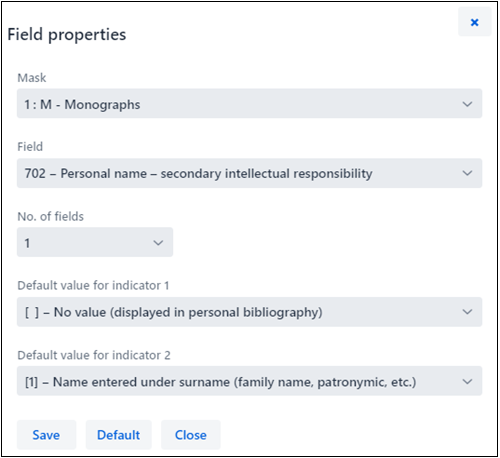
Note
If a field does not yet appear in a mask but you want to define the number of its repetitions, you must first change the entry level for at least one of the subfields of that field.
The following subfield properties can be changed:
Note
Certain properties that are globally defined cannot be changed. Example: for subfield 001c - Bibliographic level, you can neither change the length nor the record entry level.
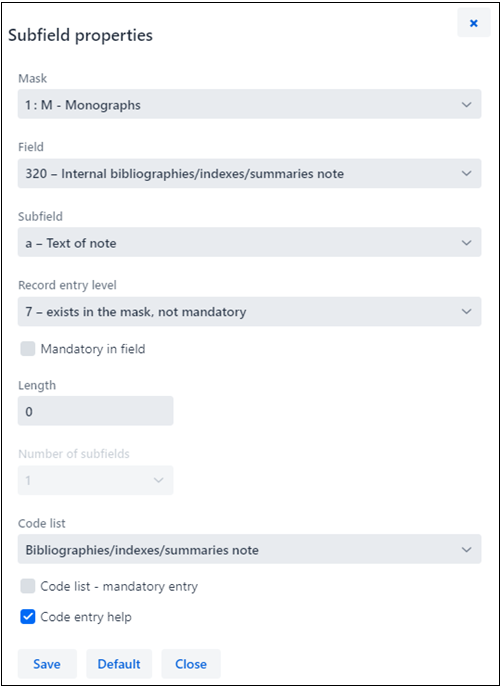
Example for defining the number of subfields
If you are defining properties of subfield 610a - Subject heading in the input mask M and type in 4 under “Number of subfields”, this means that when you enter the selected input mask, 4 empty subfields a will be created in field 610.
Tip
The following applies to the COBISS.SI system: when you want to enter text to a subfield supported by a codes list and the last word of that text incidentally matches a code from the codes list, you must enter a space after the word and confirm the input with the <Enter> key. This way the value from the codes list will not be transferred and the space at the end of the subfield will be deleted automatically when the record is saved. Example: you want to enter the text Translation of: ǂThe ǂSaint goes on to subfield 300a. Since the codes list contains the code “on” for the cover title (ovojni naslov), you must first enter a space after the text and then confirm the entry or else the word “on” will be transformed to “Ov. nasl.”.
Certain fields contain indicators that additionally explain the content of the field, the relation between this field and other fields in the record, or specify the type of data processing in reports.
A field can have up to two defined indicators for which you can set or change the value by clicking on the indicator designation and selecting the required value in the window.
If you want to move a field of subfield up, click the button. To move it down, click the button.
Tip
You can also move a field or subfield by using the “drag & drop” method. Place the mouse pointer on the field/subfield you want to move and use the left mouse button to drag it to a new location.
If you want to add a field or a subfield, click the button. If you want to delete a field or a subfield, click the button. When adding a field, the field you are currently on (with empty subfields) is duplicated, and when adding a subfield, an empty subfield with the same designation as the one you are currently on will be added.
When you are working in the COBISS Cat application, you can consult various manuals in electronic form (the  button).
During record editing, you can check the descriptions of fields and subfields in the COMARC/B and COMARC/A manuals and consult other reference manuals depending on the specific COBISS system (in the COBISS.SI system, you can consult the ZNAČKA and PREKAT manuals, whereas in all COBISS systems, you can access the ISSN Manual of the ISSN International Centre and the instructions for the COBISS Cat application).
The COBISS character map can also be of assistance when adding characters in input fields, see also the Character maps chapter, and the Unicode character search for searching Unicode characters.
For a quicker access to manuals and other instructions (e.g., for downloading records from foreign databases, tips on how to enter publication year data etc.), a link to the COBISS e-manuals portal is also available.
Tip
You can also open the COMARC manual by pressing the <F1> key.Everything cataloguers can adjust to their specific needs is located in the user settings:
layout of the cataloguing user interface (you can change the position of the editor)
moving between the , , , buttons with the <Tab> key
displaying a notification when record editing is cancelled
displaying certain input fields in expanded form and their content in multiple lines
showing holdings fields (fields 996/997, 998 are only visible for saved records in the viewer and in a new browser tab)
refreshing the view after saving a record (the changes you made to the record are no longer highlighted in yellow and the system field is immediately updated)
changing the column width in the search window (the width can be limited or custom)
displaying potential errors when loading a record to the editor
limiting the number of records (up to 100) on the workspace, with 50 being the default setting
automatic deletion of oldest records on the workspace when the number of added records exceeds the upper limit
using the OR operator when searching in identical search fields
showing images (covers, photos of authors…)
Click the button located next to the button for logging out of the user interface, and tick or untick the checkbox next to the setting you want to change in the User settings window. To apply the changes, click the Save button and refresh or reload the page (the <F5> key).
Notes
Pressing the <F5> key will reload the COBISS Cat application. This will clear the editor, and all unsaved changes in the record will be lost.
The Display notification when record editing is cancelled setting only appears in the User settings window after you cancel record editing without saving (the button) for the first time.
If you click the button with the database designation and username, a drop-down list will open where you select Login to COBISS Lib. This will take you to the COBISS Lib application without the need for any additional login, where you can continue by adding 996/997 fields and other procedures.
Record display is the right part of the cataloguing user interface, where the record from the editor or a record from the workspace is displayed. In the record display, the holdings fields are not visible.
The bottom part of the display is where the software notifications are displayed.
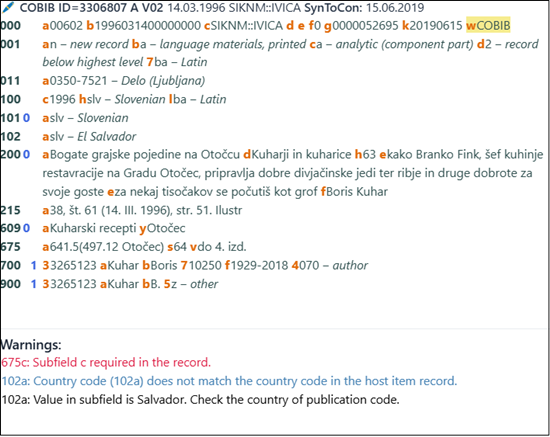
When the record you are currently editing is displayed (such a record has a pencil icon in front of the system field), all data that you added or changed is highlighted in yellow. Information about the author is supplemented by variant forms of the name from the authority database (they are introduced by the “<” character). When you validate or save the record, these variant name forms are displayed in the 90X block.
If you ticked the Refresh view after saving the record checkbox in the user settings (the button), the record in the record display is refreshed immediately after saving and the changes you made to the record are no longer highlighted in yellow.
Field numbers and field content is displayed in black, numeric indicator values are displayed in blue, and subfield designations are displayed in orange. Active web links are displayed in blue.
In the record display, you can view any record from the workspace or the record that is currently in the editor. You can change the record that is displayed by clicking on the appropriate place on the workspace:
button or button – the display shows the record before the updates or button – the display shows the record with the updatesYou can copy text from subfields from the record in the record display using the established commands for copying. You can perform a text search using the <Ctrl> + <F> key combination.
Tip
The last 25 copied or cut texts can be reused and pasted to any input field. First, use the <Windows> + <V> keys to enable the option to access clipboard history, and then select the desired text from the list.
Software controls are performed when you validate or save a record in the editor. If the record contains any errors or deficiencies, the bottom edge of the cataloguing user interface turns red, and notifications are displayed in the bottom part of the record display. Displayed first is the field and subfield designation, followed by the description of the error or deficiency. If you click on the field and subfield designation in front of the notification, you will be taken to the field that must be fixed or updated.
If you ticked the Display errors when loading record in the editor checkbox in the user settings (the button), any potential errors are displayed immediately after the record is loaded to the editor.
Notifications are displayed in different colours:
If a record contains no errors, the bottom edge of the cataloguing user interface turns green; if the record contains notifications indicated as “W” – Warning, a line in yellow is also displayed above the green one.
Despite the fact that the cataloguing user interface has changed, the process of shared cataloguing remains the same. Consult the COBISS3/Cataloguing manual, chapter 8, for help when working with records.
The basic procedures are:
searching for records in various databases
creating a record
from scratch (the New record button in the search window or the button on the workspace), if by searching it is established that the record does not exist in the local database or COBIB, and cannot be downloaded from any foreign database
by deriving it from a similar one (the button on the workspace), if by searching it is established that a record, similar to the one you want to create, exists in the local database, COBIB or COBISS.net
from a template for a new record (the button in the record editor), if you are cataloguing a large number of bibliographic resources for which most of the data is the same
updating a record (the Edit button in the search window or the button on the workspace)
downloading a record
button or the button on the workspace)>, if by searching it is established that the record does not exist in the local database, but it does exist in COBIB or COBISS.net button on the workspace), if by searching it is established that the record does not exist in the local database or COBIB, or that the record for the entity does not exist in the CONOR database, but it does exist in one of the foreign databasesKeyboard shortcuts are keys or key combinations; using them makes procedures that are usually performed with a mouse, quicker.
Hotkeys can be used in different areas of the user interface in the COBISS Cat application.
| Shortcut (hotkeys) | Procedure |
|---|---|
| <AltGr> + <Ž> | enter the LateX character (after you confirm subfield entry) |
| <AltGr> + <+> + spacebar | enter the NSB character (after you confirm subfield entry) |
| <Ctrl> + <Alt> + <C> | validate the record; equal to the button |
| <Ctrl> + <Alt> + <D> | add the default value to a subfield; equal to the Default button |
| <Ctrl> + <Alt> + <S> | save the record; equal to the button |
| <Ctrl> + <Alt> + <+> | create a record; equal to the button |
| <Ctrl> + <Alt> + <Insert> | open the list of copied/deleted fields and subfields; equal to the button |
| <Ctrl> + click a line with a search result | highlight the first record in the range of search results in the search window (be careful not to tick the checkbox next to the current number) |
| <Ctrl> + <Shift> + click a line with a search result | highlight the last record in the range of search results in the search window |
| <F1> | open the COMARC manual |
| <F8> | switch between the search window and the editor; equal to the button |
| Shortcut (general) | Procedure |
|---|---|
| <F5> | refresh page |
| <Enter> | move through subfields (input fields) in the editor, activate certain buttons, select a code from the code list and an access point from the list |
| <Tab> | move through some user interface elements; in the editor, move through field and subfield designations, input fields and search buttons |
| <Shift> + <Tab> | move backwards through user interface elements |
| spacebar | activate buttons, select an access point from the list |
| arrow keys <up>, <down> | open drop-down lists and move through them, move through the access points list |
| arrow keys <left>, <right> | move through buttons left and right; move from field designation to indicator selection |
| <Page up>, <Page down> | move to previous or next page of the active part of the window |
| <Ctrl> + mouse wheel | “zoom in/out” |
| <Windows> + <V> | open clipboard history |
There are also other general shortcuts, e.g., Windows shortcuts and shortcuts for working in a browser.
When working in the COBISS Cat application, your operating system and web browser offer some assistance with character entry and spell-checking.
For correct data entry, you will need a standard keyboard and the right keyboard language setting in your Windows system. This way you will be able to enter all letters of a specific language, other keyboard characters and characters that are entered using a combination of a character and a letter (e.g. <AltGr> + <¨> + <A> displays Ä).
When entering Unicode characters, you can use different character maps.
The Character Map is included with the Windows system and shows characters that are available for the selected script.
Type Character Map in the search box of the Windows taskbar and run the app. The characters are grouped together based on the font, with Arial being the default font. Changing the font also changes the character set. If you tick the Advanced view checkbox, you can also search by the name of the character if you know it (e.g., acute, caron, etc.). Find the appropriate character, select it, copy it, and then paste it to the input field in the search window or an input field of a subfield.
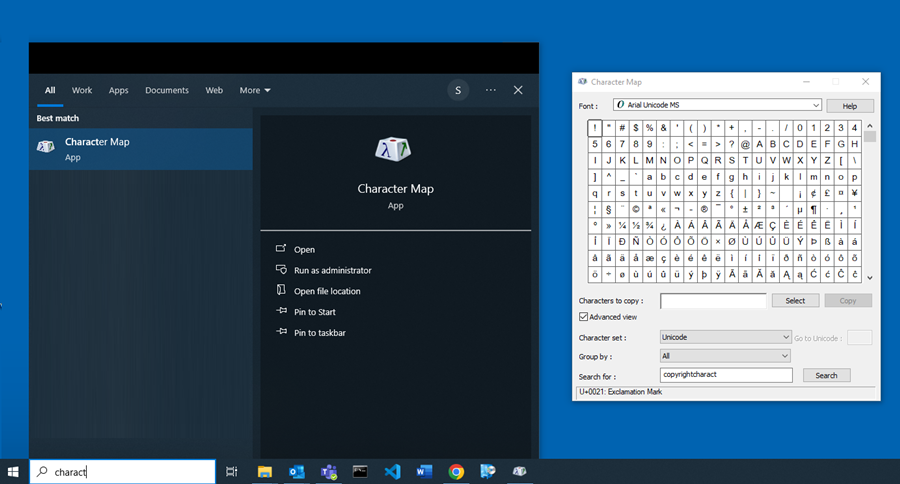
You can also use BabelMap that you download from the internet: https://www.babelstone.co.uk/Software/BabelMap.html. The advantage of this character map is that you can also enter text into the input field instead of just individual letters. With this character map, you can copy individual characters or whole texts that you entered in the Edit Buffer input field to the clipboard and then paste them to the COBISS Cat application.
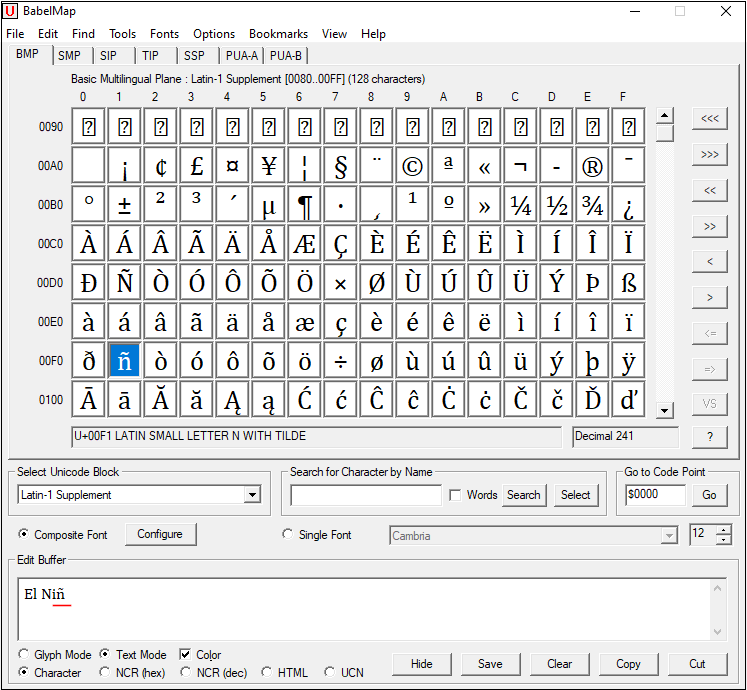
You can also use the Unicodia application to find letters in individual languages (https://www.majorgeeks.com/files/details/unicodia.html). With this character map, you can only copy individual characters to the clipboard.
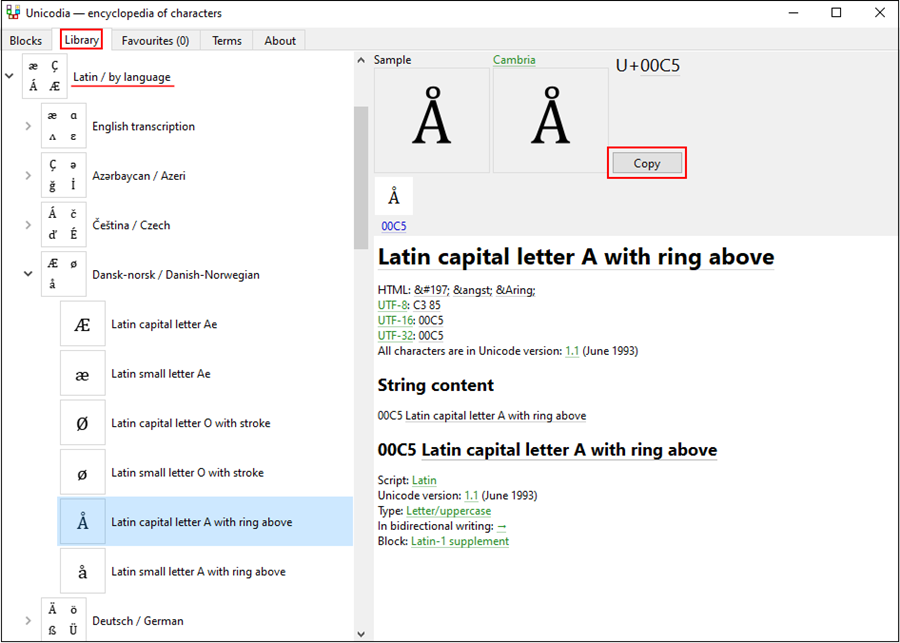
You can also use the COBISS character map with letters from the extended Latin script (carons, apostrophes, etc.): https://www.cobiss.si/knjiznicarji/CopyCharacter.htm. Click on a character to copy it to the clipboard and then press <CTRL> + <V> to paste it to an input field of your choice.
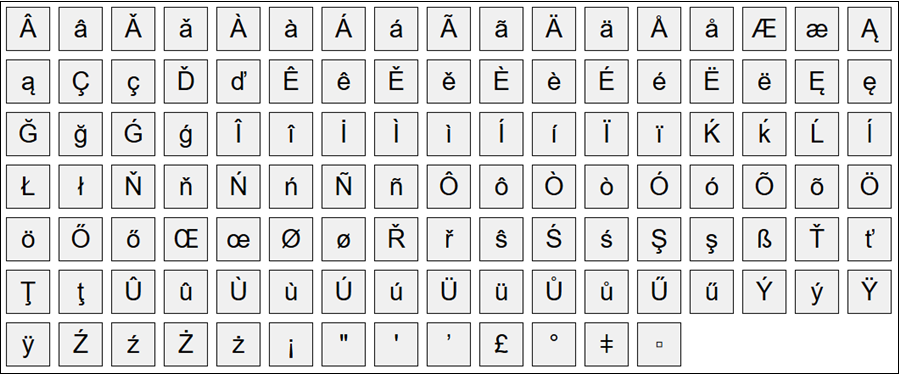
If you want, you can also create a local copy of the map and add new characters to it. The character codes are entered either in the decimal (base-ten) or the hexadecimal (base-16) numeral system, with the prefix 0x used for hexadecimal codes. First, download and save the map to your local drive. Then, open it with a program for editing text files (e.g., Notepad, Notepad++, Visual Studio Code, etc.) and enter the code of the character of your choice. Save the file after editing. We recommend bookmarking it in the browser so that it is easily accessible.
Example
You can also add characters from other scripts to the map – e.g., you can add a capital letter from Church Slavonic Cyrillic with the Unicode code A64A by entering the hexadecimal code 0xA64A to the file and saving the file. A new character will appear in the map:

The Windows system offers many language packs that enable the display of the user interface in a chosen language.
The character layout on the keyboard can be switched to that of another language without having to change the user interface language. This is useful if you occasionally enter text in a different language or script.
Type Settings in the search box of the Windows taskbar, select Time & language and then Language. Under Preferred languages, click Add a language and select a language from the list. Click Next and untick the Install language pack checkbox if you intend to use the language only for the keyboard. After clicking the Install button, the selected language is added to the taskbar.
Tip
You can switch between languages by pressing the <Windows> + <spacebar> key combination. This will change the keyboard character layout.
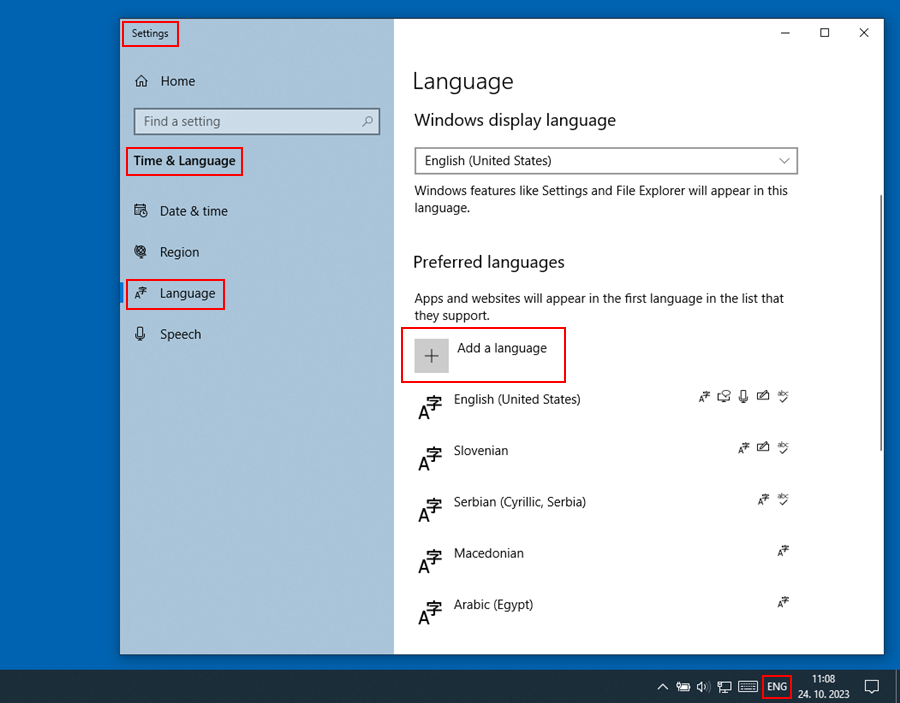
When you change the language of the keyboard to another language and are not familiar with the character layout, an on-screen keyboard can be of help.
The first and easiest method is to right-click on an empty space of the Windows taskbar and select Show touch keyboard button. The touch keyboard button will appear on the right side of the taskbar. Changing the language (<Windows> + <spacebar>) also changes the keyboard language.
If you left-click and hold certain letters on the on-screen keyboard, you will not only see the basic letter but also the letter with diacritics, such as acute, grave, caron, etc.
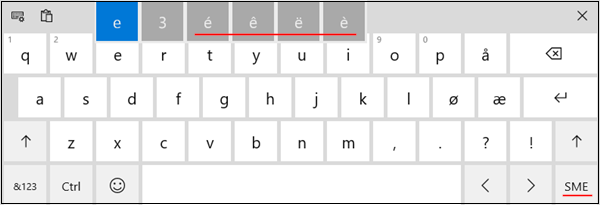
To turn on the more advanced on-screen keyboard, type Settings in the search box of the Windows taskbar, select Ease of access and click Keyboard in the left part of the window. Turn on the Use the on-screen keyboard option in the right part of the window. You can also change the language of this keyboard by using the <Windows> + <spacebar> combination. If you intend to use the keyboard regularly, pin the icon of the app to the taskbar.
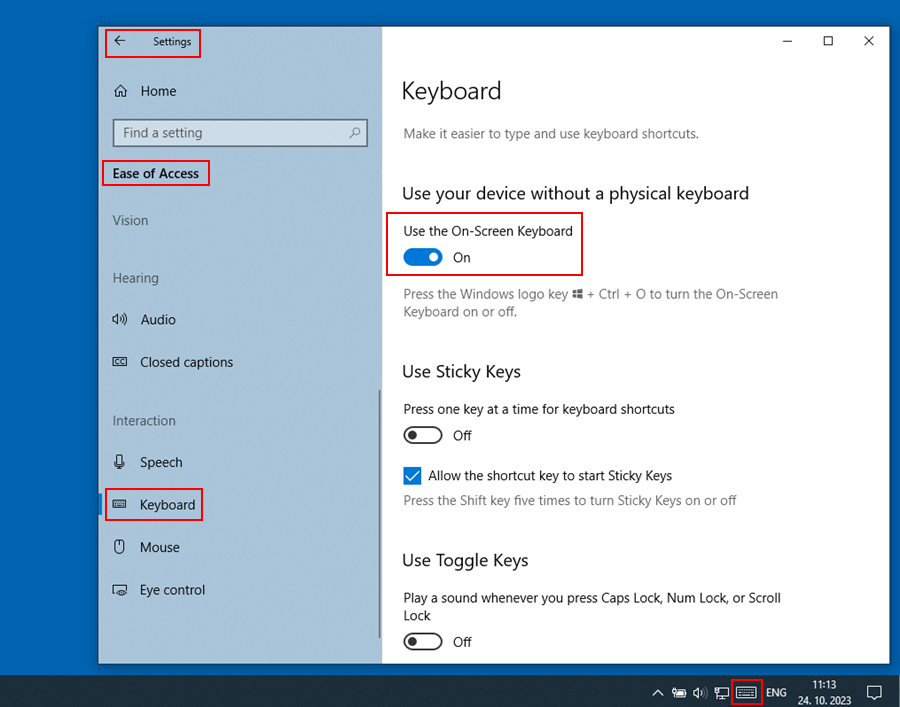
In the Chrome web browser, you can also use the Google Input Tools on-screen keyboard (https://www.google.com/intl/en/inputtools/chrome/index.html). First, you must install the Google Input Tools for Multi-languages: The Chrome Extension. The advantage of this method is that you can combine the use of the on-screen keyboard and the physical keyboard, where the physical keyboard adopts the same key layout as the on-screen keyboard. You can find the instructions on how to install and use this on-screen keyboard online, e.g., https://www.youtube.com/watch?v=-rSGDSHvSXI.
Certain foreign letters can also be entered using a combination of keys on the keyboard. Pictured below is the Slovenian keyboard with its character layout, followed by a table of shortcuts for characters you can enter with it.
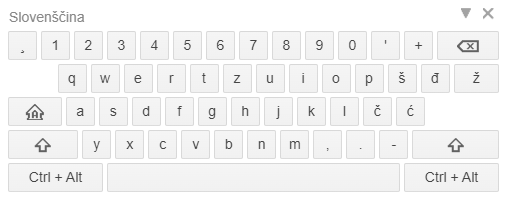
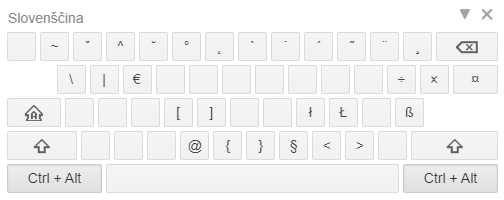
| CHARACTER | ENTRY WITH SLOVENIAN KEYBOARD | DESCRIPTION | LANGUAGE |
|---|---|---|---|
| Â â | <Ctrl>+<Alt>+<3>+<A> <Ctrl>+<Alt>+<3>+<a> | a with circumflex | French, Friulian, Norwegian, Portuguese, Romanian |
| Ă ă | <Ctrl>+<Alt>+<4>+<A> <Ctrl>+<Alt>+<4>+<a> | a with breve | Romanian |
| Á á | <Ctrl>+<Alt>+<9>+<A> <Ctrl>+<Alt>+<9>+<a> | a with acute | Czech, Icelandic, Hungarian, Portuguese, Slovak, Spanish |
| Ä ä | <Ctrl>+<Alt>+<‘>+<A> <Ctrl>+<Alt>+<’>+<a> | a with two overdots (diaeresis or umlaut) | Estonian, Finnish, German, Slovak, Swedish |
| Ą ą | <Ctrl>+<Alt>+<6>+<A> <Ctrl>+<Alt>+<6>+<a> | a with hook under it facing right (nasal) | Lithuanian, Polish |
| Ç ç | <Ctrl>+<Alt>+<+>+<C> <Ctrl>+<Alt>+<+>+<c> | c with hook under it facing left (cedilla) | Albanian, French, Friulian, Portuguese, Turkish |
| Ď ď | <Ctrl>+<Alt>+<2>+<D> <Ctrl>+<Alt>+<2>+<d> | d with caron | Czech, Slovak |
| Ě ě | <Ctrl>+<Alt>+<2>+<E> <Ctrl>+<Alt>+<2>+<e> | e with caron | Czech, Sorbian |
| É é | <Ctrl>+<Alt>+<9>+<E> <Ctrl>+<Alt>+<9>+<e> | e with acute | Czech, French, Icelandic, Italian, Hungarian, Norwegian, Portuguese, Slovak, Spanish |
| Ë ë | <Ctrl>+<Alt>+<‘>+<E> <Ctrl>+<Alt>+<’>+<e> | e with two overdots (diaeresis or umlaut) | Albanian, French |
| Ę ę | <Ctrl>+<Alt>+<6>+<E> <Ctrl>+<Alt>+<6>+<e> | e with hook under it facing right (nasal) | Lithuanian, Polish |
| Î î | <Ctrl>+<Alt>+<3>+<I> <Ctrl>+<Alt>+<3>+<i> | i with circumflex | French, Friulian, Italian, Romanian |
| Í í | <Ctrl>+<Alt>+<9>+<I> <Ctrl>+<Alt>+<9>+<i> | i with acute | Czech, Icelandic, Hungarian, Portuguese, Slovak, Spanish |
| Ľ ľ | <Ctrl>+<Alt>+<2>+<L> <Ctrl>+<Alt>+<2>+<l> | l with caron | Slovak |
| Ĺ ĺ | <Ctrl>+<Alt>+<9>+<L> <Ctrl>+<Alt>+<9>+<l> | l with acute | Slovak |
| Ł ł | <Ctrl>+<Alt>+<l> <Ctrl>+<Alt>+<k> | l with stroke | Sorbian, Polish |
| Ň ň | <Ctrl>+<Alt>+<2>+<N> <Ctrl>+<Alt>+<2>+<n> | n with caron | Czech, Slovak |
| Ń ń | <Ctrl>+<Alt>+<9>+<N> <Ctrl>+<Alt>+<9>+<n> | e with acute | Sorbian, Polish |
| Ô ô | <Ctrl>+<Alt>+<3>+<O> <Ctrl>+<Alt>+<3>+<o> | o with circumflex | French, Friulian, Norwegian, Portuguese, Slovak |
| Ó ó | <Ctrl>+<Alt>+<9>+<O> <Ctrl>+<Alt>+<9>+<o> | o with acute | Czech, Upper Sorbian, Icelandic, Italian, Hungarian, Norwegian, Polish, Portuguese, Slovak, Spanish |
| Ö ö | <Ctrl>+<Alt>+<‘>+<O> <Ctrl>+<Alt>+<’>+<o> | o with two overdots (diaeresis or umlaut) | Estonian, Finnish, Icelandic, Hungarian, German, Swedish, Turkish |
| Ő ő | <Ctrl>+<Alt>+<0>+<O> <Ctrl>+<Alt>+<0>+<o> | o with double acute | Hungarian |
| Ř ř | <Ctrl>+<Alt>+<2>+<R> <Ctrl>+<Alt>+<2>+<r> | r with caron | Czech, Upper Sorbian |
| Ŕ ŕ | <Ctrl>+<Alt>+<9>+<R> <Ctrl>+<Alt>+<9>+<r> | r with acute | Lower Sorbian, Slovak |
| Ś ś | <Ctrl>+<Alt>+<9>+<S> <Ctrl>+<Alt>+<9>+<s> | s with acute | Lower Sorbian, Polish |
| Ş ş | <Ctrl>+<Alt>+<+>+<S> <Ctrl>+<Alt>+<+>+<s> | s with hook under it facing left (cedilla) | Romanian, Turkish |
| Ť ť | <Ctrl>+<Alt>+<2>+<T> <Ctrl>+<Alt>+<2>+<t> | t with caron | Czech, Slovak |
| Ţ ţ | <Alt>+<0222> <Alt>+<0254> (numeric keypad) |
t with hook under it facing left (cedilla) | Romanian |
| Ú ú | <Ctrl>+<Alt>+<9>+<U> <Ctrl>+<Alt>+<9>+<u> | u with acute | Czech, Icelandic, Hungarian, Portuguese, Slovak, Spanish |
| Ü ü | <Ctrl>+<Alt>+<‘>+<U> <Ctrl>+<Alt>+<’>+<u> | u with two overdots (diaeresis or umlaut) | Estonian, French, Hungarian, German, Spanish, Turkish |
| Ů ů | <Ctrl>+<Alt>+<5>+<U> <Ctrl>+<Alt>+<5>+<u> | u with overring | Czech |
| Ű ű | <Ctrl>+<Alt>+<0>+<U> <Ctrl>+<Alt>+<0>+<u> | u with double acute | Hungarian |
| Ý ý | <Ctrl>+<Alt>+<9>+<Y> <Ctrl>+<Alt>+<9>+<y> | y with acute | Czech, Icelandic, Slovak |
| Ź ź | <Ctrl>+<Alt>+<9>+<Z> <Ctrl>+<Alt>+<9>+<z> | z with acute | Lower Sorbian, Polish |
| Ż ż | <Ctrl>+<Alt>+<8>+<Z> <Ctrl>+<Alt>+<8>+<z> | z with overdot | Polish |
| º | <Ctrl>+<Alt>+<5>+<spacebar> | degree symbol |
If you turn on the spell-checking option in your web browser, the correctness of the entered text in the input field of a subfield will be checked.
Settings in selected web browsers:
CHROME: Settings/Languages/ and under Spell check activate Check for spelling errors when you type text on web pages
EDGE: Settings/Languages and under Writing assistance activate Enable grammar and spellcheck assistance
FIREFOX: Settings/General and under Language activate Check your spelling as you type (you must then select the option Check Spelling from the shortcut menu in every input field of a subfield for incorrect words to be underlined)
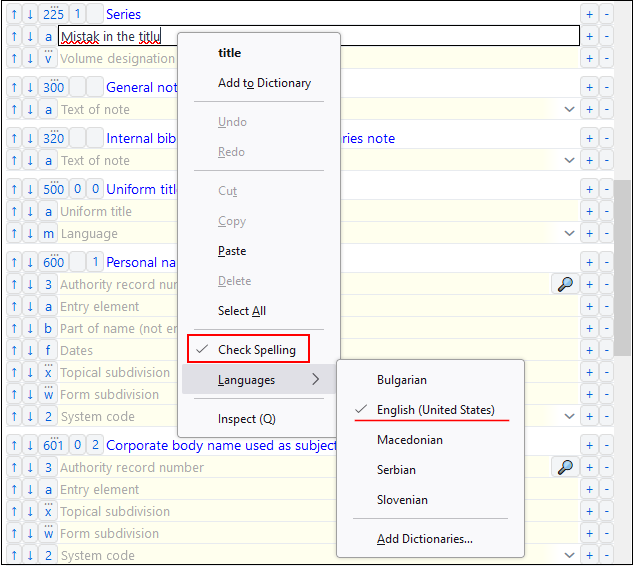
If you want the data in records to be displayed correctly, you must disable the automatic text translation in your web browser. Automatic translation (e.g. from English or German to Slovenian) affects how records are displayed.
Settings in selected web browsers:
CHROME: Settings/Languages/Google Translate/Automatically translate these languages – No languages added
FIREFOX: Settings/Language and Appearance/Translations/Set your language and site translation preferences and manage languages installed for offline translation
EDGE: Settings/Languages/Offer to translate pages that aren’t in a language I read
Working with files in the COBISS Cat application depends on web browser functionality. For example, when a file is created in the process of exporting records, you can define the saving location and the file name in the browser settings. The default saving location is usually the Downloads folder on your local drive (e.g., C:\Users\[username]\Downloads).
Settings in selected web browsers:
CHROME: Settings/Downloads/Ask where to save each file before downloading
FIREFOX: Settings/Downloads/Always ask where to save files
EDGE: Settings/Downloads/Ask me what to do with each download
When the download of a file starts, the download icon () appears in the upper right corner of the browser next to the address bar. When the download is finished, click the icon and select the appropriate file.
The appendix contains tables with search indexes in bibliographic, authority, CORES and ISSN databases. The search indexes are divided into the basic index and additional indexes. You can limit the search by using various suffixes (e.g., for the type of bibliographic resource, script, etc.).
Most fields and subfields are indexed in basic index. In relation to coded subfields, the explanations from code lists are usually also indexed.
It is possible to search the entire basic index without using a search suffix. For subfields that best show the content of the indexed document and are, therefore, usually used for searching, additional search suffixes are created. By using them, it is possible to limit your search to certain subfields only.
| Suffix | Meaning | Search | Fields/subfields |
|---|---|---|---|
| /AB | Abstract | word | 330af |
| /AU | Author – person | word | 200f, 700abcdf–702abcdf, 900abcdf–902abcdf, 903abcdf, 904abcdf |
| /CB | Author – corporate body | word | 710abgh–712abgh, 910abgh–912abgh, 916abgh |
| /CL | Series | word | 225adefhiv |
| /CP | Location of meeting/addition to corporate body name | word | 710ce–712ce, 910ce–912ce, 916ce |
| /GM | General material designation | word | 200b, 539b |
| /NM | Name of manufacturer | word | 210gh |
| /NT | Notes | word | 300a, 301a, 311a, 317a, 321ax, 323a–325a, 328adefg, 338abcdefg |
| /PM | Place of manufacture | word | 210ef |
| /PP | Place of publication | word | 210ab, 620abcd |
| /PU | Publisher | word | 210c |
| /PY | Publication year | word | 100cd, 210dh, 970k |
| /TI1 | Title | word | 200acdehi, 327a, 501ae, 503a, 510aehi, 512ae, 513aehi, 514ae, 515a, 516ae-518ae, 520aehi, 530ab, 531abc, 532a, 540a, 541a, 996h, 997h |
| /TO | Original title | word | 500ahi |
1 If the introductory phrase in subfield 996h or 997h equals “ISBN”, the content of the subfield is not indexed with /TI and TI=, but ISBN that follows this character string is indexed with BN=.
You can also find records with SGC subject headings if you search by non-preferred terms from the 4XX and 7XX fields in the SGC authority records that are not included in bibliographic records.
| Suffix | Meaning | Search | Fields/subfields |
|---|---|---|---|
| /CH | Chronological term as subject | word | 608a, 968a |
| /CS | Corporate body name as subject | word | 601abc, 961abc |
| /DU | Uncontrolled subject headings | word | 610a |
| /DW | Form subdivision | word | 600w–609w, 960w–969w |
| /DX | Topical subdivision | word | 600x–609x, 960x–969x |
| /DY | Geographical subdivision | word | 600y–609y, 960y–969y |
| /DZ | Chronological subdivision | word | 600z–609z, 960z–969z |
| /FN | Family name as subject | word | 602af, 962af |
| /FS | Form heading as subject | word | 609a, 969a |
| /GC2 | SGC subject headings | word | 60X (all subfields) |
| /GE | Keywords – NUK | word | 627a |
| /GN | Geographical name as subject | word | 607a, 967a |
| /PN | Personal name as subject | word | 600abcdf, 960abcdf |
| /SU | Subject headings | word | 600–610, 960–969 (all subfields) |
| /TN | Topical name as subject | word | 606a, 966a |
| /TS | Title as subject | word | 605ahiklnq, 965ahiklnq |
2 With the /GC suffix you limit yourself to those fields 60X that contain the “SGC” code in subfield 2.
Additional indexes contain search terms from the fields of a record that provide additional information on a bibliographic resource. When searching by additional index, enter a two-letter prefix that indicates the field and the equals sign. In additional indexes, fields can be indexed by word, phrase or by word and phrase.
| Prefix | Meaning | Search | Fields/subfields |
|---|---|---|---|
| CR= | Record creator/Record downloaded from COBISS.net | phrase | 000c/000n |
| CY= | Record downloaded from COBIB | phrase | 000h |
| DM=3 | Date of creation/Record downloaded from COBIB or from COBISS.net | phrase | 000b (position 1-8); 000m |
| DR=4 | Date of last update | phrase | 000b (position 9-16) |
| ID= | Record identification number | phrase | |
| LN= | Local number | phrase | 000g |
| RE= | Record modified by | phrase | 000d |
3 While creating a new record, the date of record creation is indexed; when downloading a record from COBIB or from the COBISS.net network to the local database, the date of record download is indexed. The date is indexed as yyyymmdd.
4 The date is indexed as yyyymmdd.
| Prefix | Meaning | Search | Fields/subfields |
|---|---|---|---|
| AU=5 | Author – person | phrase | 700abcdf–702abcdf, 900abcdf–902abcdf, 903abcdf, 904abcdf |
| CB= | Author – corporate body | phrase | 710ab–712ab, 910ab–912ab, 916ab |
| CL= | Series | phrase | 225adefhiv |
| CP= | Location of meeting/Addition to corporate body name | phrase | 710ce–712ce, 910ce–912ce, 916ce |
| GM= | General material designation | phrase | 200b, 539b |
| HE=5 | Author – uniform personal heading | phrase | 700abcdf–702abcdf, 904abcdf |
| IS= | Issue number | word | 215h |
| NM= | Name of manufacturer | phrase | 210g |
| PM= | Place of manufacture | phrase | 210e |
| PP=6 | Place of publication | phrase | 210a, 620abcd |
| PU= | Publisher | phrase | 210c |
| PY=7 | Publication year | phrase | 100cd, 970k |
| P2=8 | End date | phrase | 100d |
| TI=9 | Title | phrase | 200acdehi, 501a, 503a, 510ai, 512ae, 513ai, 514ae, 515a, 516ae-518ae, 520aehi, 530a, 531ab, 532a, 540a, 541a, 996h, 997h |
| TO= | Original title | phrase | 500ahi |
| SO=10 | Source title | phrase | 200ai |
5 Subfields a, b, c, d and f of an individual field are indexed as one phrase in the form “a, b d, c, f”. It is therefore recommended to truncate the search term with an “*” while searching by prefix AU= or HE=.
6 Subfields within field 620 are indexed as a phrase so that subfields a, b, and c are added to subfield d. Subfields are divided by “/”.
7 If the code in subfield 100b is equal to “b” or “j”, only the year in 100c is indexed. If the code in 100b is equal to “f”, “g” or “l”, then all years in the period between the year specified in 100c and the year specified in 100d are indexed. If 100d = “9999”, only the year in 100c is indexed.
8 If the code “b” is entered into subfield 100b, subfield 100d is indexed in index P2=.
9 Subfields 531ab are indexed as one phrase in the form “a b”. With reference to the indexing of subfield 996/997h see note 1.
10 Subfields 200ai in records for serials are indexed as one phrase in the form “a. i”. It is therefore recommended to truncate the search term with an "*" while searching by SO=.
| Prefix | Meaning | Search | Fields/subfields |
|---|---|---|---|
| AR= | Authority record number | phrase | 6003–6093, 7003–7023, 7103–7123 |
| BI=11 | Record marks | word and phrase | 830a, 992bx, 993 (all subfields) |
| BN=12 | ISBN | phrase | 010az, 996h, 997h |
| CD= | CODEN | phrase | 040a |
| CX= | ISSN of series | phrase | 225x |
| HI=13 | Hierarchy | phrase | 4611–4641 |
| NB=14 | National bibliography number | phrase | 020ab |
| NP=15 | Other identifiers | word and phrase | 001e, 012a, 013az, 016az, 017az, 022a, 071a, 856g |
| OI= | Legal deposit number | phrase | 021b |
| OR= | Replacement record ID | word | 001x |
| SC= | Cancelled ISSN | phrase | 011myz |
| SF= | Unverified ISSN | phrase | 011f |
| SL= | ISSN-L | phrase | 011l |
| SN= | ISSN – article | phrase | 011as |
| SP= | ISSN | phrase | 011ec |
11 Subfields 830a and 992b are indexed by word, whereas subfield 992x and all subfields of the field 993 are indexed by phrase.
12 The content is indexed without hyphens. If a ten-digit number (ten digits without hyphens) is entered into subfield 010a, a corresponding 13-digit number is generated automatically and also added into the index. If the first five signs in subfield 996h or 997h are equal to “ISBN”, the ISBN number preceded by these signs is indexed in index BN=; otherwise, subfields 996h or 997h are indexed in indexes /TI and TI=.
13 HI= is used to search for records below the highest level (subordinate records); under HI=, you must enter the identification number of the record at the highest level (host item record).
14 The contents of subfields 020a and 020b, which are separated by a space, is indexed as one phrase. Subfield b is additionally indexed, and also autonomously.
15 Subfields 001e, 013az, 016az, 017az, 022a and 856g are indexed by phrase, subfield 012a by word, whereas subfield 071a is indexed by word and phrase. The contents of subfields 013a and 013z is indexed either with hyphens or without them. If subfield 013a or 013z contains a 10-digit number (ten digits without hyphens), the corresponding 13-digit number is calculated and added to the index.
You can also find records with SGC subject headings if you search by non-preferred terms from the 4XX and 7XX fields in the SGC authority records that are not included in bibliographic records.
| Prefix | Meaning | Search | Fields/subfields |
|---|---|---|---|
| CH= | Chronological term as subject | phrase | 608a, 968a |
| CS= | Corporate body name as subject | phrase | 601ab, 961ab |
| DE=16 | Subject headings (controlled) | phrase | 600–609, 960–969 (all subfields) |
| DC=17 | UDC | phrase | 675au |
| DU= | Uncontrolled subject headings | phrase | 610az |
| DW= | Form subdivision | phrase | 600w–609w, 960w–969w |
| DX= | Topical subdivision | phrase | 600x–609x, 960x–969x |
| DY= | Geographical subdivision | phrase | 600y–609y, 960y–969y |
| DZ= | Chronological subdivision | phrase | 600z–609z, 960z–969z |
| FN= | Family name as subject | phrase | 602a, 962a |
| FS= | Form heading as subject | phrase | 609a, 969a |
| GC=18 | SGC subject headings | phrase | 60X (all subfields) |
| GE= | Keywords – NUK | phrase | 627a |
| GN= | Geographical name as subject | phrase | 607a, 967a |
| OC=19 | Other class numbers | phrase | 686a2 |
| PN=20 | Personal name as subject | phrase | 600abcdf, 960abcdf |
| SU= | Subject headings | phrase | 600–610, 960–969 (all subfields) |
| TN= | Topical name as subject | phrase | 606a, 966a |
| TS= | Title as subject | phrase | 605ai, 965ai |
16 The prefix DE= is not used to search in an independent additional index, but in the indexes PN=, CS=, FN=, TS=, TN=, GN=, CH=, FS=, DX=, DY=, DW=, DZ=. The expand function is disabled.
17 The contents of subfield 675a are indexed both as one phrase and by subphrases. Punctuation marks dividing the subphrases are space, colon, plus and quotation marks. The same is true for subfield 675u.
18 With GC=, only those 60X fields are indexed that contain the “SGC” code in subfield 2. Subfields of an individual field are indexed as one phrase and in the same order in which they appear in the database, which is why it is advisable to truncate the search term with the "*" character when searching.
19 The first word from subfield 6862 and the contents of subfield 686a are indexed as one phrase; the space is added in between. If no subfield 6862 is entered, only the contents of subfield 686a is indexed, preceded by “—” and a space.
20 With reference to the indexing of fields 600 and 960 see note 5.
| Prefix | Meaning | Search | Fields/subfields |
|---|---|---|---|
| AC=21 | Relator code | phrase | 7004–7024, 7104–7124, 9104–9124 |
| AS= | Researcher code | phrase | 7007–7027 |
| CC= | Contents code | phrase | 105bc, 110d, 140d |
| CO= | Country/locality of publication | phrase | 102ab |
| DT= | Bibliographic level | phrase | 001c |
| EA=22 | E-access | phrase | 0172, 856u |
| FC= | Institution/organization code | phrase | 7008–7028, 7108–7128 |
| FQ= | Frequency of issue | phrase | 110b |
| FR=23 | Form of release | phrase | 001b, 115agk, 116ag, 117a, 124b, 126a, 128a, 135ab |
| GP= | Government publication code | phrase | 100f |
| IC= | Illustration code | phrase | 105a, 140a |
| LA= | Language of text | phrase | 101a |
| LC= | Literature code | phrase | 105fg, 140ef |
| LO= | Language of original work | phrase | 101c |
| MC= | Microforms – codes | phrase | 130a |
| RS=24 | Record status | phrase | 001a, 998e |
| RT=25 | Type of record | phrase | 001b |
| SS= | Continuing resource status | phrase | 100b |
| TA= | Target audience code | phrase | 100e |
| TD= | Typology of documents/works | phrase | 001t |
| TY= | Type of continuing resource designator | phrase | 110a |
| UC= | UDC access | phrase | 675c |
| UG= | UDC group | phrase | 675b |
| US= | UDC statistics | phrase | 675s |
21 Instead of Boolean operator AND, search prefixes AU=, AC=, FC= and AS= may also be combined with (W). In that case, search prefixes may follow in the succession as shown above. If one of the prefixes AC= or FC= is omitted, then the operator (2W) is used. The results of such a search are records that contain the requested data only in the same field 7XX.
Examples:
AU=Kos, Vinko* (W) AC=730
You are looking for records where Vinko Kos is stated as a translator.
AU=Rozman, Ivan* (W) AC=991 (W) FC=3-2*
You are looking for records where Ivan Rozman is stated as the mentor on one of the faculties of the University of Maribor.
AU=Rozman, Ivan* (2W) FC=3-2*
You are looking for records where Ivan Rozman is stated as the author on one of the faculties of the University of Maribor.
AC=991 (2W) AS=08067
You are looking for records where the researcher with the code 08067 is stated as the mentor.
The operator AND is not always precise at such search.
Example:
AU=Gradišnik, Branko* AND AC=730
The books by the author Branko Gradišnik and the books by other authors translated by Branko Gradišnik would be found.
22 With the search request EA=1, you limit your search to records for resources with e-access only (there is subfield 0172 with the value “doi” or subfield 856u with the value of indicator 2 being 0 – Electronic resource or 1 – Electronic version).
23 The index FR= includes the code for the type of record (001b) and the code indicating a type of non-book materials:
– Subfield 115g (visual projection, motion picture – form of release): the contents of subfield are preceded by the codes “g” (code for projected, film and video materials in 001b) and “a” (code for film in 115a) or “b” (code for projected materials in 115a).
Examples:
FR=gac
Retrieving film cassettes.
FR=ga*
Retrieving films.
– Subfield 115k (videorecording – form of release): the contents of subfield are preceded by the codes “g” (code for projected, film and video materials in 001b) and “c” (code for videorecording in 115a).
Examples:
FR=gcc
Retrieving videorecordings on videocassette.
FR=gc*
Retrieving videorecordings.
– Subfield 116a (graphics – specific material designation): the contents of subfield are preceded by the code “k” (code for graphics in 001b).
Example:
FR=ke
Retrieving photonegatives (code “e”).
– Subfield 116g (graphics – functional designation): the contents of subfield are preceded by the code “k” (code for graphics in 001b).
Example:
FR=kae
Retrieving postcards (code “ae”).
– Subfield 117a (three-dimensional artefacts and realia – specific material designation): the contents of the subfield are preceded by the code “r” (code for three-dimensional artefacts and realia in 001b).
Example:
FR=raq
Retrieving toys (code “aq”).
– Subfield 124b (cartographic materials – form of cartographic item): the contents of the subfield are preceded by the code “e” (code for printed cartographic materials in 001b).
Example:
FR=ed
Retrieving maps (code “d”).
– Subfield 126a (sound recordings – form of release): the contents of the subfield are preceded by the code “i” (code for sound recordings – non-musical performance in 001b) or “j” (code for sound recordings – musical performance in 001b).
Example:
FR=ja
Retrieving musical performances on discs (code “a”).
– Subfield 128a (form of composition): the contents of the subfield is preceded by the code from subfield 001b: “c” (printed music scores), “d” (manuscript music scores) or “j” (sound recordings – musical performance).
Examples:
FR=cmr
Retrieving marches – printed music scores.
FR=jmr
Retrieving marches – sound recordings.
– Subfield 135a (electronic resources – type): the contents of the subfield are preceded by the code “l” (electronic resources) from subfield 001b and the letter “t” (type).
Example:
FR=ltd
Retrieving text electronic resources.
– Subfield 135b (electronic resources – special material designation): the contents of the subfield are preceded by the code “l” (electronic resources) from subfield 001b.
Example:
FR=li
Retrieving online electronic resources.
24 Subfield 001a is indexed in index RS=, if code “i”, “p”, “r” or “d” is entered.
Example:
RS=p
Retrieving CIP records.
Subfield 998e (acquisition indicator) is also indexed in index RS=. Prefixes SI=, RS= and AM= may be connected by the operator (W). In that case prefixes should appear as shown above. If prefix RS= is omitted, then the operator (2W) is used. The results of such a search are records that contain the requested data only in the same field 998. That is of special interest for the institutions that report for other institutions.
Examples:
RS=o
Retrieving currently subscribed to serials. For search, the code of the libraries that do not report for other institutions is of no importance.
SI=50003 (W) RS=o (W) AM=a
Retrieving currently subscribed to serials with the type of acquisition being purchased by the Central Medical Library (CMK) with library code 50003. The command is of use only in the CMK local database.
SI=50202 (W) RS=93
Retrieving desiderata for 1993 in the institution with library code 50202. The command is of use only in the local database of the institution that reports for this institution.
SI=50001 (2W) AM=a
Retrieving with the acquisition type being purchased by NUK (National and University Library, library code 50001).
25 Subfield 001b is indexed in index RT=.
Example:
RT=c
Retrieving printed music scores.
Use the /BMA prefix to limit your search to records with code “a” entered into subfield 001b and no data entered into subfield 130a.
There is also negation of the previous, /NBM, which limits your search to non-book material only.
Example:
AU=Cankar, Ivan/BMA*
The table contains a list of suffixes used for additionally limiting searches.
| Suffix | Meaning | Fields/subfields |
|---|---|---|
| /MON | Monographs | 001c = “m” |
| /SER | Serials | 001c = “s” |
| /ART | Component parts (articles, etc.) | 001c = “a” |
| /BMA | Book material | 001b = “a” and 130a do not exist |
| /NOMON | All material except monographs | |
| /NOSER | All material except serials | |
| /NOART | All material except component parts | |
| /NBM | Non-book material | |
| /year | Year of publication | 100cd, 210dh |
| /LAT | Latin script | 100l = “ba” |
| /CIR | Cyrillic script | 100l = "c*" or 100l = “oc” |
It is possible to search the entire basic index without using a search suffix.
The table contains a list of suffixes for limiting searches only to certain basic index fields.
| Suffix | Meaning | Search | Fields/subfields |
|---|---|---|---|
| /CB | Corporate body name | word | 210abcdefgh, 410abcdefgh, 510abcdefgh |
| /CP | Location of meeting/Addition to corporate body name | word | 210ce, 410ce, 510ce, 710ce |
| /MY | Date of meeting | word | 210f, 410f, 510f |
| /NT | Notes | word | 300a, 330a, 340a, 820a, 830a |
| /PN | Personal name | word | 200abcdf, 400abcdf, 500abcdf, 700abcdf |
The table contains a list of prefixes that enable the search by additional indexes.
| Prefix | Meaning | Search | Fields/subfields |
|---|---|---|---|
| AB= | Adopted records | phrase | |
| CR= | Record created by | phrase | 000c |
| DM= | Date of creation | phrase | 000b (position 1-8) |
| DR= | Date of last update | phrase | 000b (position 9-16) |
| ID= | Record identification number | phrase | |
| IS= | ISNI | phrase | 010a |
| LC= | Control numbers from other systems | phrase | 035a |
| RE= | Record modified by | phrase | 000d |
| Prefix | Meaning | Search | Fields/subfields |
|---|---|---|---|
| BI= | Record marks | word | 992b |
| CB=1 | Corporate body name | phrase | 210abcdefgh, 410abcdefgh, 510abcdefgh |
| CF= | Most frequent creator | phrase | 911b |
| CH=1 | Authorized access point – corporate body name | phrase | 210abcdefgh |
| CP= | Location of meeting/Addition to corporate body name | phrase | 210ce, 410ce, 510ce, 710ce |
| FR= | Frequency | phrase | 911c |
| MY= | Date of meeting | phrase | 210f, 410f, 510f |
| NP= | Other identifiers | phrase | 017a |
| OR= | Replacement record ID | word | 001x |
| PH=1 | Authorized access point – personal name | phrase | 200abcdf, 700abcdf |
| PN=1 | Personal name | phrase | 200abcdf, 400abcdf, 500abcdf, 700abcdf |
| RN= | Conversion note | phrase | 916x |
| VN=1 | Unlinked see reference | phrase | 915abcdf |
1 Subfields of a field are indexed as one phrase. It is therefore recommended to truncate the search term with an "*" when searching by CB=, CH=, PH=, PN= or VN=. Access points in indexes CB=, CH=, PH= and PN= are indexed with all diacritics entered into the access points.
| Prefix | Meaning | Search | Fields/subfields |
|---|---|---|---|
| AS= | Researcher’s code | phrase | 200r |
| FC= | Institution/organization code | phrase | 911a |
| LA= | Language used by person/corporate body | phrase | 101a |
| NA= | Nationality | phrase | 102a |
| RS= | Record status | phrase | 001a |
The table contains a list of suffixes for additionally limiting searches.
| Suffix | Meaning | Fields/subfields |
|---|---|---|
| /CBR | Corporate body name record | 001c = “b” |
| /PNR | Personal name record | 001c = “a” |
It is possible to search the entire basic index without using a search suffix.
The table contains a list of suffixes for limiting searches only to certain basic index fields.
| Suffix | Meaning | Search | Fields/subfields |
|---|---|---|---|
| /AT1 | Name/title | word | 240at, 440atjxyz, 740at |
| /CB1 | Corporate body name | word | 210abcdefghxz, 410abcdefghjxz, 710abcdefghxz |
| /DJ | Form subdivision | word | 2XXj, 4XXj, 7XXj |
| /DX | Topical subdivision | word | 2XXx, 4XXx, 7XXx |
| /DY | Geographical subdivision | word | 2XXy, 4XXy, 7XXy |
| /DZ | Chronological subdivision | word | 2XXz, 4XXz, 7XXz |
| /ET1 | Conventional name/title | word | 243at, 443atjxyz, 743at |
| /FN 1 | Family name | word | 220acf, 420acfjxyz, 720acf |
| /FS1 | Form, genre or physical characteristics | word | 280axyz, 480axyz, 780axyz |
| /GN1 | Geographical name | word | 215axz, 415ajxyz, 715axz |
| /NS | Unlinked related access point | word | 950a3 |
| /NT | Notes | word | 300a, 305ab, 310ab, 320a, 330a, 340a, 356a, 820a, 830a |
| /PN1 | Personal name | word | 200abcdf, 400abcdfgjxyz, 700abcdf |
| /SE | Authorized access point in English | word | 700abcdf, 710abcdefghxz, 715axz, 720acf, 730ahiklmnqrsuw, 740at, 743at, 750axyz, 780axyz |
| /SF2 | Access point from another system | word | 400abcdfgjxyz3, 410abcdefghjxz3, 415ajxyz3, 420acfjxyz3, 430ahiklmnqrsuwjxyz3, 440atjxyz3, 443atjxyz3, 450ajxyz3, 480axyz3 |
| /SH | Authorized access point | phrase | 200abcdf, 210abcdefghxz, 215axz, 220acf, 230ahiklmnqrsuw, 240at, 243at, 250axyz, 280axyz |
| /SU1 | Access point | word | 200abcdf, 400abcdfgjxyz, 700abcdf, 210abcdefghxz, 410abcdefghjxz, 710abcdefghxz, 215axz, 415ajxyz, 715axz, 220acf, 420acfjxyz, 720acf, 230ahiklmnqrsuw, 430ahiklmnqrsuwjxyz, 730ahiklmnqrsuw, 240at, 440atjxyz, 740at, 243at, 443atjxyz, 743at, 250axyz, 450ajxyz, 750axyz, 280axyz, 480axyz, 780axyz |
| /TN1 | Topical subject | word | 250axyz, 450ajxyz, 750axyz |
| /UT1 | Title | word | 230ahiklmnqrsuw, 430ahiklmnqrsuwjxyz, 730ahiklmnqrsuw |
1 With suffixes /AT, /CB, /ET, /FN, /FS, /GN, /PN, /SU, /TN, /UT your search is limited only to the fields 4XX that do not include subfield 2.
2 With suffix /SF your search is limited only to the fields 4XX that include subfield 2.
The table contains a list of prefixes that enable the search by additional indexes.
| Prefix | Meaning | Search | Fields/subfields |
|---|---|---|---|
| CR= | Record creator | phrase | 000c |
| DM= | Date of creation | phrase | 000b (position 1-8) |
| DR= | Date of last update | phrase | 000b (position 9-16) |
| ID= | Record identification number | phrase | |
| RE= | Record edited by | phrase | 000d |
| Prefix | Meaning | Search | Fields/subfields |
|---|---|---|---|
| AT= | Name/title | phrase | 240at, 440atjxyz, 740at |
| CB=3 | Corporate body name | phrase | 210abcdefghxz, 410abcdefghjxz, 710abcdefghxz |
| DJ= | Form subdivision | phrase | 2XXj, 4XXj, 7XXj |
| DX= | Topical subdivision | phrase | 2XXx, 4XXx, 7XXx |
| DY= | Geographical subdivision | phrase | 2XXy, 4XXy, 7XXy |
| DZ= | Chronological subdivision | phrase | 2XXz, 4XXz, 7XXz |
| ET=3 | Conventional name/title | phrase | 243at, 443atjxyz, 743at |
| FN=3 | Family name | phrase | 220acf, 420acfjxyz, 720acf |
| FS=3 | Form, genre or physical characteristics | phrase | 280axyz, 480axyz, 780axyz |
| GN=3 | Geographical name | phrase | 215axz, 415ajxyz, 715axz |
| NS= | Unlinked related access point | phrase | 950a3 |
| OS= | Control numbers from other systems | phrase | 035a, 4XX3 |
| PN=3 | Personal name | phrase | 200abcdf, 400abcdfgjxyz, 700abcdf |
| SE= | Authorized access point in English | phrase | 700abcdf, 710abcdefghxz, 715axz, 720acf, 730ahiklmnqrsuw, 740at, 743at, 750axyz, 780axyz |
| SF=5 | Access point from another system | phrase | 400abcdfgjxyz, 410abcdefghjxz, 415ajxyz, 420acfjxyz, 430ahiklmnqrsuwjxyz, 440atjxyz, 443atjxyz, 450ajxyz, 480axyz, 4XX3 |
| SH=4 | Authorized access point | phrase | 200abcdf, 210abcdefghxz, 215axz, 220acf, 230ahiklmnqrsuw, 240at, 243at, 250axyz, 280axyz |
| SU=3 | Access point | phrase | 200abcdf, 400abcdfgjxyz, 700abcdf, 210abcdefghxz, 410abcdefghjxz, 710abcdefghxz, 215axz, 415ajxyz, 715axz, 220acf, 420acfjxyz, 720acf, 230ahiklmnqrsuw, 430ahiklmnqrsuwjxyz, 730ahiklmnqrsuw, 240at, 440atjxyz, 740at, 243at, 443atjxyz, 743at, 250axyz, 450ajxyz, 750axyz, 280axyz, 480axyz, 780axyz |
| TN=3 | Topical subject | phrase | 250axyz, 450ajxyz, 750axyz |
| UT=3 | Title | phrase | 230ahiklmnqrsuw, 430ahiklmnqrsuwjxyz, 730ahiklmnqrsuw |
3 Only the fields 4XX that do not include subfield 2 are indexed with AT=, CB=, ET=, FN=, FS=, GN=, PN=, SU=, TN=, UT=. Subfields of a field are indexed as one phrase and in the same order as they appear in the database. It is therefore recommended to truncate the search term with an "*". Access points are indexed with all diacritics entered. Without diacritics they are not retrieved.
4 The subfields of an individual field are indexed as one phrase and in the same order as they appear in the database.
5 Only the fields 4XX that include subfield 2 are indexed with SF=. Subfields of a field are indexed as one phrase and in the same order as they appear in the database. Subfield 3 is an exception; it is indexed as an independent phrase.
| Prefix | Meaning | Search | Fields/subfields |
|---|---|---|---|
| AR= | Related authority record number | phrase | 5XX3 |
| BI= | Record marks | word | 992b |
| FA=6 | Broader term record number | phrase | 5XX3 |
| OR= | Replacement record ID | word | 001x |
6 Subfields 3 of the fields 5XX that include code “g” in subfield 5 are indexed with FA=.
| Prefix | Meaning | Search | Fields/subfields |
|---|---|---|---|
| GA= | Geographic area code | phrase | 160ab |
| LA= | Language used by person/corporate body | phrase | 101a |
| NA= | Nationality | phrase | 102ab |
| RS= | Record status | phrase | 001a |
| SS= | System code | phrase | 4XX2, 7XX2 |
| UC= | UDC | phrase | 675a |
The table contains a list of suffixes used for additionally limiting searches.
| Suffix | Meaning | Fields/subfields |
|---|---|---|
| /AR | Authority record | 001b = “x” |
| /CBR | Corporate body name record | 001c = “b” |
| /ETR | Conventional name/title record | 001c = “i” |
| /FNR | Family name record | 001c = “e” |
| /FSR | Form, genre or physical characteristics record | 001c = “l” |
| /GER | General explanatory record | 001b = “z” |
| /GNR | Geographical name record | 001c = “c” |
| /NTR | Name/title record | 001c = “h” |
| /PNR | Personal name record | 001c = “a” |
| /RR | Reference record | 001b = “y” |
| /TNR | Topical subject record | 001c = “j” |
| /UTR | Title record | 001c = “f” |
It is possible to search the entire basic index without using a search suffix.
The table shows the list of suffixes for search limiting by selected fields of the basic index only.
| Suffix | Meaning | Search | Fields/subfields |
|---|---|---|---|
| /AU | Author – person | word | 702ab |
| /CB | Author – corporate body | word | 712ab |
| /TI | Title | word | 200ahi |
The table contains a list of prefixes that enable searching by additional indexes.
| Prefix | Meaning | Search | Fields/subfields |
|---|---|---|---|
| AC= | Relator code | phrase | 7024 |
| AR= | Authority record number | phrase | 7023 |
| AS= | Researcher code | phrase | 7027 |
| AU= | Author – person | phrase | 702ab |
| CB= | Author – corporate body | phrase | 712ab |
| CR= | Record created by | phrase | 000c |
| DM= | Date of creation/downloading | phrase | 000b (position 1-8) |
| DR= | Date of last update | phrase | 000b (position 9-16) |
| FC= | Institution/organisation code | phrase | 7028, 7128 |
| PY= | Time interval | phrase | 7020, 7120 |
| SP= | ISSN | phrase | 011ec |
| TI= | Title | phrase | 200ahi |
| ID= | Record ID | phrase |
The table contains a list of prefixes that enable searching by additional indexes.
| Prefix | Meaning | Search | Fields/subfields |
|---|---|---|---|
| AT= | Abbreviated key title | word and phrase | 210ab |
| CB= | Issuing body | word and phrase | 710ab, 711a, 720a |
| CC= | National ISSN Centre code | phrase | 0222 |
| CO= | Country | phrase | 044c |
| DC= | UDC | phrase | 080ax |
| FQ= | Frequency | phrase | 008/18 |
| KT= | Key title | word and phrase | 222ab |
| LA= | Language | phrase | 008/35-37 |
| LN= | Linked ISSN | phrase | 760x, 762x, 765x, 767x, 770x, 772x, 775x, 776x, 777x, 780x, 785x, 787x |
| LT= | Linked titles | word and phrase | 760t, 762t, 765t, 767t, 770t, 772t, 775t, 776t, 777t, 780t, 785t, 787t |
| ME= | Medium code | phrase | 007/0-1 |
| PP= | Place of publication | word and phrase | 260a |
| PU= | Publisher | word and phrase | 260b |
| SL= | ISSN-L | phrase | 022l |
| SN= | ISSN | phrase | 022a |
| SS= | Publication status | phrase | 008/6 |
| TI= | Title | word and phrase | 245anp, 246anp |
| TY= | Type of continuing resource | phrase | 008/21 |
| Y1= | Start date | phrase | 008/7-10 |
| Y2= | End date | phrase | 008/11-14 |
When saving records to bibliographic databases and both authority databases, software controls are performed that serve as the basis for software notifications.
Software notifications indicate:
Some controls that indicate errors in fields with authority control (70X) in bibliographic records require editing of data in authority records or linking with the appropriate authority record.
Legend
In some cases, angle brackets contain field/subfield/indicator/ID designations that are replaced with the value from the record when the check is performed. Three questions marks (???) are replaced with the corresponding field/type/ID number in the notification, and four question marks (????) are replaced with the corresponding field number and subfield designation.
| Status | Notification | Description |
|---|---|---|
| F | A type that was confirmed cannot be changed. | Content of subfield 001t must not be changed or deleted if the record contains subfield 000s. |
| F | Accession number does not exist. | Subfield 992y in a record for a topical issue must begin with an accession number, which is entered in subfield 997f with holdings for the corresponding serial. Accession number in subfield 992y can be followed by a comma and some additional text. |
| F | Alternative numbering is entered incorrectly (215rqp). | If field 215 contains subfield q, it must also contain subfield r. If field 215 contains subfield p, it must also contain subfields q and r. |
| W | Article publication date (100cd) does not match the period in which the resource was being published. | Only records with 011a and 100b = “d”, “g”, or without 100b are checked. The year in 100cd is compared to year in 100cd in records that are retrieved when searching with SP = <011a>, but only if the retrieved records contain 100b = “a”, “b” or “c”. The year in 100cd in the checked record must be more recent or equal to the year in 100c and earlier or equal to the year in 100d in retrieved records. |
| F | Article with type “???” must be published in a serial. | If 001t = “1.01”, “1.02” or “1.03”, the record must contain subfield 011a, whereas searching with SP=011a in the shared database must retrieve a record that contains code 001c = “s”. |
| F | At least two ??? fields must exist for continuing resources to be properly linked. | Record can never contain only one field 436, 446 or 447. |
| F | Bibliographic level (001c) does not match the code in subfield 110a. | The matching of 110a and 001c is checked: – if 110a = “e”, then 001c = “i” – if 110a = “a”, “b” or “c”, then 001c = “s” |
| W | Check entry correctness! The record ID=<ID> contains the same DOI. | In records with 001t = 1* and 0172 = doi, the search NP = <017a> is performed. Search result can only be the record you are coming from otherwise notification is displayed. |
| W | Check indicator values. | If 001c = “d” and the record contains field 856, the indicator value must be “42”. |
| I | Check language code! | Notification is displayed if any of subfields 101 contain code “got” or “ang”. |
| W | Check publication date 1 and publication date 2 (100cd)! | The content of subfield 100c is checked, which should be a number between 1000 and the current year + 3. Instead of digits, it is possible to enter the “?” character, which functions as the digit 0. In the same way 100d is checked, if it exists, but only if 100b ≠ “j” and if 100d ≠ “9999”. |
| F | CIP record (001a = “p”) can only contain a type designation in 001t if it has a DOI in 017. | If 001a = “p” and the record contains subfield 001t, it must also contain field 017. |
| W | Code deleted from the code list. | It is checked if the code in subfield was cancelled. |
| F | Code DVD-Video as videorecording (115a = “c”) and videodisc (115k = “b”). | If 115l = “k”, then 115a = “c” and 115k = “b”. |
| W | Code for proceedings, festschrift, etc. missing (105b = “z”). | If 105c = “1” or 105d = “1”, then 105b = “z”. |
| W | Code in subfield 001b is different to code in subfield 001b in host item record. Please check if these are really two different types of records. | Only records that contain subfield 011a or 4641 are checked. Subfield 001b must match those in records that are retrieved when searching with SP = <011a> or ID = <4641>, unless the retrieved record contains 001b = “m”. |
| F | Code is not included in the code list. | The correctness of coded subfield is checked. |
| W | Codes in subfields 121a and 124b must match. | If 124b contains one of the codes “a”, “b”, “d”, “f”, “g”, “i” or “j”, it is checked if 121a = “a”. If 124b contains one of the codes “c” or “e”, it is checked if 121a = “b”. |
| F | Component part related to proceedings must be a conference contribution. | Only records with both subfield 001t and 4641 filled in are checked. If searching with ID = <4641> retrieves a record that contains one of the codes “2.30”, “2.31” or “2.32” in subfield 001t, then subfield 001t in the checked record must contain one of the following codes: “1.06”, “1.07”, “1.08”, “1.09”, “1.10”, “1.11”, “1.12”, “1.13”, “1.19”, “1.20”, “1.21”, “1.22”, “1.23”, “1.24”, “1.25”. |
| F | Component parts with type “???” must be related to a monograph (4641) or web encyclopaedia (001t = “2.06”). | Only records with 001t = “1.16” or “1.17” are checked, but only if they do not contain subfield 4641. All such records must contain subfield 011a, and searching with SP = <011a> in COBIB must retrieve a record with 001t = “2.06”. |
| F | Connection with host item missing (011a or 4641). | If 001c = “a”, at least one of the conditions must be met: – subfield 011a exists – subfield 4641 exists – subfields 000e = “only” and 992v exist And vice versa: if any of the listed conditions are met, then 001c = “a”. |
| F | Continuing resource of unknown status (100b = “c”). Incorrect publication date 2. | If 100b = “c”, then 100d = “????”. |
| F | Control characters for sorting (NSB/NSE) and for LaTeX character must occur in pairs. | The NSB/NSE character and the LaTeX character must occur in a pair in a subfield. |
| W | Country code (102a) does not match the country code in the host item record. | Only records with 001c = “a” are checked. Such record must contain at least one of the subfields 011a and 4641. If a record contains subfield 102a, the same subfield with matching content must exist in all records that are retrieved when searching with SP = <011a> or ID = <4641>. |
| W | Enter qualification in subfield 010b. | If field 010 is repeated in a record, it is checked if all fields 010 but one contain subfield b. The exception are pairs of fields 010 with 10- and 13-digit ISBNs (positions 1–9 in the 10-digit number match positions 4–12 in the 13-digit number), where none of the fields require subfield b. |
| W | Enter Roman numerals only in subfield ???d. | Notification is displayed if any of subfields 600d, 70Xd or 90Xd contains a number. |
| F | Entry of non-permitted character. | The set of permitted characters is checked. |
| I | Equals sign followed by a space “=” is displayed automatically in front of the subfield. | Notification is displayed if subfields 200d, 205d or 225d contain the equals sign in the first place. |
| F | Field ??? iis for sound recordings and printed music only (001b= “c”, “d”, “i”, “j”). | If 125, 127 or 128 exists, then 001b = “c”, “d”, “g”, “i”, “j”, “l” or “m”. |
| F | Field ??? is for cartographic materials only (001b= “e”, “f”). | If 120, 121, 123, 124 or 206 exists, then 001b = “e”, “f”, “l” or “m”. |
| W | Field ??? is for electronic resources only (001b= “l”). | If 135, 230, 336 or 337 exists, it is checked if 001b = “l” or “m”. |
| F | Field ??? is not repeatable. | In embedded fields, only the following non-repeatable fields can be embedded: – in 421: 200, 205, 208, 210 – in 423: 200, 503, 700, 710 – in 481: 200, 205, 210 – in 482: 200, 205, 210 – in 488: 200, 503, 700, 710 |
| F | Field ??? is repeatable only for the parallel form of the personal name. | If field 700 is repeated, all repeated fields must contain identical subfield 3. |
| F | Field 017 must contain subfield 2 and subfield a or z. | Field 017 must contain subfield 2 and at least one of the subfields a or z. |
| F | Field 071 is used for sound recordings, videorecordings and printed music (001b = “c”, “g”, “i”, “j”). | If 071 exists, one of the codes in 001b must be “c”, “g”, “i”, “j”, “l” or “m”. |
| F | Field 115 is used for visual projections, videorecordings and motion pictures only (001b = “g”). | If 115 exists, then 001b = “g”, “l” or “m”. |
| F | Field 116 is for graphics only (001b= “k”). | If 116 exists, then 001b = “k”, “l” or “m”. |
| F | Field 117 is for three-dimensional artefacts and realia only (001b= “r”). | If 117 exists, then 001b = “r” or “m”. |
| F | Field 126 is for sound recordings only (001b= “i”, “j”) | If 126 exists, then 001b = “i”, “j” or “m”. |
| W | Field 130 is used for microforms. Check subfield 001b. | If field 130 exists, it is checked if one of the codes in subfield 001b is: “a”, “b”, “c”, “d”, “e”, “f”, “k”, “m”. |
| F | Field 916 can only exist in a record if subfield 71X3 is filled in as well. | If field 916 exists, at least one subfield 71X3 must be filled in. |
| F | Field 970 cannot be changed because subfield 001t in the record is verified. Typology can be unlocked by the competent central specialised information centre. | The contents of field 970 must not be changed or deleted if subfield 000s exists. |
| F | Field 9X0 cannot be used without field 7X0. | If field 900 exists, field 700 is also mandatory. If field 910 exists, field 710 is also mandatory. |
| F | Field does not exist in the mask. | The presence of a certain field in the selected mask is checked. |
| F | Field is for printed music only (001b= “c”, “d”). | If 208 exists, 001b must contain one of the codes “c”, “d” or “m”. |
| W | Field is for textual material (001b = “a” or 001b = “b”). | If field 105 exists, it is checked if 001b contains one of the codes “a”, “b”, “l” or “m”. If field 106 exists, it is checked if 001b contains one of the codes “a”, “b” or “m”. |
| F | Field is not correctly linked with field ???. | In fields 901, 902, 911, 912 and 96X either subfield 3 or 6 is mandatory. A corresponding 7XX or 60X field must contain subfield 3 or 6 with identical content. If field 900/910 contains subfield 3, field 700/710 must contain subfield 3 with identical content. If field 900/910 does not contain subfield 3 neither can field 700/710. |
| F | Field must contain subfield a, always in the first place. | The following fields are checked: 071, 115, 116, 200, 205, 225, 5XX, 6XX (except for 610, 620 and 675), 7XX, 90X, 91X, 96X. They must contain subfield a in the first place unless subfield 3 also exists. |
| W | Field not allowed in a record for a performed work. | If 001c = “d”, then the only fields from the 1XX block that can be present in the record are 100, 101 and 102, and from the 2XX block only field 200. |
| F | Field not repeatable (also check embedded fields). | The repeatability of a certain field is checked. |
| W | Fields 700 and 710 are not used if there are more than 3 authors. | If a record contains field 700 (710), it can contain a maximum of two fields 701 (711). |
| F | Fields 700 and 710 cannot be used in a record at the same time. | Fields 700 and 710 cannot be used in a record at the same time. |
| I | For analytical description of a continuing resource, subfield 011e or subfield 011c must be filled in. | Notification is displayed if f is the only subfield in field 011. |
| W | For non-book material it is advisable to enter at least basic coded data. | If 001c ≠ “a”, then following subfields must exist: – if 001b = “g”, then subfield 115a and one of subfields 115g and 115k – if 001b = “k”, then subfield 116a – if 001b = “r”, then subfield 117a – if 001b = “e” or “f”, then subfield 124b – if 001b = “i” or “j”, then subfield 126a – if 001b = “l”, then subfield 135b |
| W | For scientific articles and other component parts it is mandatory to enter bibliography data in subfield 320a. | Field 320 is mandatory in records that meet one of the following conditions: – if subfield 001t contains one of the codes “1.01”, “1.02”, “1.03” or “1.16” – if subfield 001t contains code “1.06” or “1.08”, and subfield 970g contains code “1” or “2” – if subfield 4641 exists, and searching with ID = <4641> retrieves a record that contains one of the codes “2.31” or “2.32” in subfield 001t |
| F | Heading missing: personal (field 700), corporate (field 710) or title (value of indicator 1 in field 200). | If none of the fields 700, 710 or 532 exist and the record contains field 200, then 200ind1 = 1. |
| F | Hierarchical level (001d) does not match the bibliographic level (001c). | Depending on 001c, subfield 001d must contain the appropriate code: – if 001c = “d”, then 001d = “0” – if 001c = “a”, then 001d = “2” – if 001c = “i” or “s”, then 001d = “0” ali “1” |
| W | Host item of the component part with type “1.16” must contain type data as well. | Only records with 001t = “1.16” and subfield 4641 filled in are checked. Searching with ID = <4641> must retrieve a record that contains subfield 001t. |
| F | If 115a = ?, subfield 115? is not filled in. | If field 115 contains any of the subfields prstuvz123, then 115a = “a”. If field 115 contains subfield k or l, then 115a = “c”. |
| F | If a record (471) is linked to a record for research data, the latter must contain the information on the type of research data (001t = “2.20”) entered. | If the record contains subfield 4711, then search ID=<4711> is performed. Search must retrieve one record. If that record contains 001t, then 001t = “2.20”. |
| F | If field 020 contains a number from the national bibliography, the field content cannot be changed. | If 100h = “slv” and 020a =“SI” and the same field 020 also contains subfield b, the contents of field 020 must not be changed. |
| F | If subfield 970g is filled in, subfields 970a and 970d must also be filled in. | If subfield 970g exists, subfields 970a and 970d must also exist. |
| F | If subfield 970g is filled in, the record must have the typology for a conference contribution in subfield 001t. | If subfield 970g exists, subfield 001t must contain one of the codes “1.06”, “1.07”, “1.08”, “1.09”, “1.10”, “1.11”, “1.12” or “1.13”. |
| F | If the continuing resource is still being published (100b = “a”), the publication date 2 is unknown (100d = “9999”). If the resource is not published anymore (100b = “b”), you must enter the end date. | If 100b = “a”, then 100d = “9999”. If 100b = “b”, then 100d ≠ “9999”. |
| F | Illustration codes (105a, 140a) must match the data in subfield 215c. | Subfield 215c is mandatory in records that meet the following conditions: – 001a ≠ “p” – subfield 105a exists with a code other than “f” and “y” One of subfields 105a ≠ “y” and 140a ≠ “ay” is mandatory in records that meet the following conditions: – subfield 215c exists – 001b = “a” – 001c = “m” – subfield 130 does not exist |
| I | In field 200, value of indicator 1 is 1, although author heading exists in record. | Notification is displayed if the following conditions are met: – 200ind1 = 1 – 001b = “a” – field 700 or 710 exists |
| F | In records for articles of the type “1.03” – other scientific articles published after 2024, subfield 970h must be filled-in. | If 001t = “1.03” and 100c >= 2025, then the record must contain subfield 970h. |
| F | In records for research data (001t = “2.20”) that were published after 2024, information on the type (971a) and form of research data (971b) is mandatory. | If 001t = “2.20” and 100c >= 2025, subfields 971a are 971b are mandatory. |
| W | In the first or only field 210, the value of indicator 1 must be blank. | First field 210 must have ind1 = " ". |
| W | In this field you can either use only subfield a or (when indicator 2 has value 1) other subfields (without subfield a). | If 338ind2 = " ", the field can contain only one subfield a. If 338ind2 = 1, the field cannot contain subfield a. |
| F | Incorrect date. | The correctness of date entry is checked. |
| F | Incorrect form heading. Field 710 must be present with indicator values 01. | If a record contains field 503, it must also contain field 710 with ind1 = 0 and ind2 = 1. |
| W | Incorrect indicator 2. | Fields 600 and 70X must have ind2 = 1 if the field contains subfield b, and ind2 = 0 if there is no subfield b. |
| F | Incorrect indicator. | If field 101 contains subfield c, then ind1 ≠ 0. |
| F | Incorrect ISBN. | Subfield 010a must contain an ISBN with the correct control number. |
| F | Incorrect ISMN. | Subfield 013a must contain an ISMN with the correct control number. |
| F | Incorrect ISSN. | Subfield 011c must contain an ISSN with the correct control number. |
| F | Incorrect ISSN. | Subfields 011efl must contain an ISSN with the correct control number. |
| W | Incorrect ISSN. Contact the national ISSN centre for allocation. | Subfields 011cef cannot contain a “0000-0000” string. |
| F | Incorrect link. | Subfield 001x can only contain an ID of another COBIB record or “-”. If it contains the replacement record ID, the following conditions must be met: – searching with OR = <ID> does not retrieve any results – searching with ID = <001x> in the same database retrieves one record – in the retrieved record 001a ≠ “d” |
| W | Incorrect locality code. | Field 102 can only contain subfield b if there is no subfield a, or if subfield a contains one of the codes “srb” or “bih”. For “srb”, 102b can contain codes “ko”, “cs” and “vj”, and for “bih” it can contain codes “br”, “fb” and “rs”. |
| F | Incorrect order of subfields in field ???. | Fields 600, 70X and 90X that contain no subfield 3 are checked. Subfields cdf are permitted only after subfields a and b. |
| W | Incorrect URL. | Subfields 321u and 856u must contain the correct URL. |
| F | Indicator 2 can have value 0 only for an online resource (135b = “i”). | If 856ind2 = 0, then 135b = “i”. |
| F | Indicators must be uniform for note display (indicator 2). | All fields 436 (or 446 or 447) in the record must have the same ind2 value. |
| F | Information on the type of research data (971a) and the form of research data (971b) can only be entered in a record for research data (001t = “2.20”). | If the record contains 971a or 971b, then 001t = “2.20”. |
| F | Invalid character detected, check the correctness of the DOI entered. | If 0172 = “doi”, the whole structure in subfield 017a is checked. Valid characters: letters of the English alphabet a–z and A–Z; numbers 0–9; punctuation marks - . _ ; ( ) /. Every doi must also start with “10.” and contain at least one “/”. Only numbers and “.” can precede the first “/”. The control type is F if 100c>2009, otherwise it is W. |
| F | Invalid indicator value. | The validity of entered indicator value is checked. |
| F | ISSN (011c, e or f) missing. | At least one of subfields 011e, c or f must exist, if at least one of the following conditions is met: – 001c = “s” – 001c = “i” and 100b = “a”, “b” or “c” |
| F | ISSN of series/subseries/supplement missing. | If a record contains any of subfields 215opqrs, it must also contain subfield 011s. |
| F | It is not allowed to embed subfield ???? into the field. | Only certain subfields can be embedded into embedded fields: – 421: 200abcdefghiz, 205abdfg, 206a, 208ad, 210abcdefgh, 215acde, 225adefhivxz, 230a, 300a, 337a, 500abhiklmnqrstuv – 423, 488: 200abehi, 500abhi, 503aj, 510aehiz, 700abcdef478, 701abcdef4678, 702abcdef4678, 710abcdfegh48, 711abcdfegh48, 712abcdfegh48, 900abcdef, 901abcdef6, 902abcdef6, 910abcdfegh48, 911abcdfegh468, 912abcdfegh468 – 481, 482: 200abcdefghiz509, 205abdfg, 210abcdefgh |
| W | Key title is added along with ISSN. | If a record contains field 530 or 531, it must also contain subfield 011e or 011f. |
| W | Language codes in subfields 101abc must differ from each other. | If 101ind1 = 1, the codes in subfields 101abc, if they exist, must differ from each other. |
| W | Language codes in subfields 101efg must be different from the code in first subfield 101a. | In field 101, the contents of subfields efg must differ from the contents in first subfield a. |
| W | Note in 856z must be preceded by a filled in subfield 856g (URN), 856u (URL) or 856q (electronic format type), unless the resource is no longer accessible. | If field 856 contains subfield z, it must be immediately preceded by subfield q, g or u. |
| F | Numbering is entered incorrectly (215hig). | If field 215 contains subfield i, it must also contain subfield h. If field 215 contains subfield g, it must also contain subfields i and h. |
| F | Only fill in subfield in records that are not linked to a record for a monograph (subfield 4641 does not exist). | Subfields 970g and 4641 cannot exist simultaneously. |
| F | Publication date 2 (100d) missing. | Subfield 100d is mandatory if 100b = “a”, “b”, “c”, “g” or “j”. |
| F | Publication date 2 (100d) must be more recent than publication date 1 (100c). | If one of the codes in 100b is “f” or “g”, the year in 100d must be more recent than in 100c. If one of the codes in 100b is “b” or “l”, the year in 100d must be more recent than or equal to 100c. Instead of digits, it is possible to enter the “?” character, which in 100c functions as the digit 0, and in 100d as the digit 9. |
| F | Record contains an unlinked field 910. | If a record contains field 910 without subfield 3, it must also contain field 710 without subfield 3. |
| F | Record for 001t = “2.20” or “2.21” must contain the code for electronic resource (001b = “l”). | If 001t = “2.20” or “2.21”, then 001b = “l”. |
| W | Record for electronic resource (001b = “l”) must include either field 017, 337 or 856, or an ELINKS link. | If 001b = “l” and 001c ≠ “a”, the record must contain one of the fields 017, 337 or 856, or contain a record in ELINKS with an ID of a verified record in subfield 0013, which can be checked in ELINKS by searching with CI = <ID>. |
| F | Record for event 001b = “u” must have bibliographic level 001c = “d”. | If 001b = “u”, then 001c = “d”. |
| F | Record for scientific monograph (001t = “2.01”) must have data in subfield 105e. | If 001c = “m” and 001t = “2.01”, subfield 105e is mandatory. |
| W | Relator code (70X4) missing. | Fields 70X must always contain subfield 4. |
| F | Repeated subfield ???f must start with an equals sign. | If any of the fields 200, 205, 225 contain a string of several subfields f (with no other subfields in between), all subfields f except for the first one in such a string must start with the “=” character. One field can contain more than one such string. |
| F | Reproduction was published before original? Check 100bcd! | If the code in 100b is “e”, the year in 100c must be more recent than or equal to 100d. Instead of digits, it is possible to enter the “?” character, which in 100c functions as the digit 9, and in 100d as the digit 0. |
| F | Scientific article (001t = “1.01”, “1.02”, “1.03”) should not be related to a serial with subfield 110a = ???. | Records with 011a are checked. If 001t = “1.01”, “1.02” or “1.03”, the record retrieved when searching with SP = <011a> cannot contain codes “c” or “z” in subfield 110a. |
| I | Scientific monograph (001t = “2.01”) requires an ISBN (010a). | If 001t = “2.01”, record must contain subfield 010a. |
| W | Script in subfield 100l does not match the language in subfield 101g or 101a. | The matching of code in subfield 101g (or first subfield 101a if subfield 101g does not exist) and code in subfield 100l is checked: – if 101g(a) = “ger”, “eng”, “ita”, “spa”, “fre”, “scr”, “slv”, “bos”, “alb”, “hun”, “slo”, “cze”, “pol”, “dut”, “fin”, “por”, “swe”, “nor” or “dan”, then 100l must contain code “ba” – if 101g(a) = “scc” or “srp”, then 100l must contain code “cb” or “ba” – of 101g(a) = “mac”, then 100l must contain code “cc” – of 101g(a) = “rus”, “bel”, “bul”, “mol”, “mon”, “ukr”, “bug”, “taj”, “tar”, “tut” or “tuk”, then 100l must contain code “ca” – if 101g(a) = “kir”, “kaz”, “oss”, “uzb” or “aze”, then 100l must contain one of the codes “ba” or “ca” or “fa” – of 101g(a) = “che” or “rum”, then 100l must contain code “ca” or “ba” – if 101g(a) = “chu”, then 100l must contain code “oc” – if 101g(a) = “grc” or “gre”, then 100l must contain code “ga” – if 101g(a) = “jpn”, then 100l must contain code “da” – if 101g(a) = “chi”, then 100l must contain code “ea” – if 101g(a) = “heb”, “yid”, “jrb” or “lad”, then 100l must contain code “ha” – if 101g(a) = “ara”, “per”, “oto”, “may”, “pus”, “urd” or “ira”, then 100l must contain code “fa” – if 101g(a) = “kor”, then 100l must contain code “ka” – if 101g(a) = “tha”, then 100l must contain code “ia” – if 101g(a) = “hin”, “mar” or “nep”, then 100l must contain code “ja” – if 101g(a) = “san”, then 100l must contain code “ja” or “ia” |
| F | Script of the heading does not match script of the work. | CONOR with incorrect script in 200 according to 100l: – if 100l = “c*” or “oc”, all fields 70X with subfield 3 are checked. If any of them does not contain subfield s = "c*“, another field with identical number and identical content in subfield 3 and with subfield s =”c*" must exist. – if 100l ≠ “c” and 100l ≠ “oc”, all 70X fields with subfield 3 are checked. If any of them does not contain subfield s = “ba”, another field with identical number and identical content in subfield 3 and with subfield s = “ba” must exist. |
| F | Subfield 011a missing. | If field 011 contains subfield s, it must also contain subfield a. |
| W | Subfield 101c missing. If you do not know the original language, enter the code “und”. | If 101ind1 = 1, field 101 must contain subfield c. |
| W | Subfield 3 is missing. | In records that are downloaded to COBIB from other systems, it is mandatory to link unlinked 70X fields. This means that in 70X fields with subfield a, subfield 3 is mandatory as well. |
| F | Subfield 3 is missing. | The content of subfields 70Xabcdf should not be changed until there is subfield 3 in the field as well. |
| W | Subfield 7024 contains relator code ???. Check the entry in subfield 105b. | If subfield 7024 contains one of the codes “991”, “992”, “993” or “994”, one of the subfields 105b must begin with “m” or “p”. |
| F | Subfield 970h is only filled-in in records for articles of the type “1.03” – other scientific articles. | If the record contains subfield 970h, then 001t = “1.03”. |
| F | Subfield a in field ??? missing. | If field 4XX contains subfield x but no subfield a, a COBIB search with SP = <4XXx> must retrieve a record containing field 530. |
| F | Subfield a is mandatory in the field. | Fields 327, 330 and 610 must always contain subfield a. |
| F | Subfield can only be used for linking with a monograph. | If subfield 4641 exists, it must contain ID of a record that contains subfield 001c = “m” or 001c = “i”. |
| W | Subfield contains a number. Check entry. | Notification is displayed if any of subfields 600c, 70Xc or 90Xc contains a number. |
| W | Subfield d entered into field ??? so check the value of indicator 2. | If field 70X or 600 contains subfield d, it is checked if ind2 = 0. |
| F | Subfield does not exist in the mask. | The presence of a certain subfield in the selected input mask is checked. |
| F | Subfield f missing. | If field 200 or 205 contains subfield g, the same field must also contain subfield f. |
| F | Subfield in field missing. | The presence of a certain subfield in a field is checked. |
| F | Subfield is too long. Subfield is too short. |
When subfield text length is limited, the length is checked. |
| F | Subfield not repeatable. | The repeatability of a certain subfield is checked. |
| F | Subfield required in the record. | The presence of subfields that are mandatory in the record is checked. |
| F | The contents in subfields 001a and 001x do not match. | If 001a = “d”, subfield 001x must exist and vice versa: if 001x exists, then 001a = “d”. |
| F | The contents in subfields 115a and 115g do not match. | Subfields 115ag must match: – if 115a = “a” and the field also contains subfield g, 115g must contain one of the codes “a”, “b”, “c”, “d”, “u” or “z” – if 115a = “b” and the field also contains subfield g, 115g must contain one of the codes “g”, “h”, “i”, “j”, “k”, “l”, “u” or “z” – if 115a = “c”, the field must not contain subfield g Subfield a must be filled in if subfield g is present. |
| F | The home library code must be entered into the subfield. | Subfield 5 in fields 012, 141, 316, 317, 318, 481, 482, 702 and 712 can only contain the home library code. |
| W | The number of authors in the record is larger than the number of research group members. Check both numbers! | The number entered in 970b is checked (or the total number of filled in subfields 70X4 with code “070”, if there is no subfield 970b), and the number entered in subfield 970f (or the total number of filled in subfields 7024 with code “927”, if there is no subfield 970f). The first number must be smaller. |
| F | The relator code 927 is only given to those research contributors that are not also authors. | Records with subfield 7024 = “927” are checked. If the record contains another 70X field with subfield 3 that is equal to the one in field with 7024 = “927”, the field must not contain subfield 4 with the code “070”. |
| F | The same author is entered in the host item record as well. Remove the item from personal bibliography by selecting value “2” of indicator 1. | Only records with both subfield 001t and 4641 filled in are checked. If searching with ID = <4641> retrieves a record that contains subfield 001t, and if both records contain fields 70X that match in all subfields abcdf4 (different fields can match, e.g., 700 and 701), then one of the matching fields must contain 70Xind1 = 2. |
| W | The same form of name is entered into repeated fields 701/702. | Notification is displayed if a record contains two identical fields 701 or 702. |
| F | The total number of authors in subfield 970b must be higher than the number of authors in fields 70X. | If 970b exists, the number entered must be larger than the total number of subfields 70X4 with code “070”. |
| F | The total number of research contributors, entered into subfield 970f, must not be smaller than the number of research contributors, entered into fields 702. | If 970f exists, the number entered must be larger than the total number of subfields 7024 with code “927”. |
| F | The type of publication date code 100b= “j” requires exact date in subfield 100d. | If 100b = “j”, then 100d must contain date in the form MMDD: – MM is a two-digit number for month (leading zero is mandatory, it can also be “0?” or “1?”) – DD is a two-digit number for day (leading zero is mandatory, it can also be “1?”, “2?”, “3?” or “??”) |
| F | The typology code does not match the bibliographic level code. | First character from 001t and 001c is checked: – if 001t = “1*”, then 001c = “a” – if 001t = “2*”, then 001c = “m” or 001c = “i” – if 001t = “3*”, then 001c = “d” |
| W | There is no record with this number in COBIB and ISSN. | Subfields 225x, 321x and non-embedded subfields 4XXx can only contain a correct ISSN. Record with this ISSN must also be entered either to COBIB (search with SP = <ISSN>) or to the ISSN database (search with SN = <ISSN>). |
| W | Type “???” requires appropriate code in subfield 105b. | Subfields 001t and 105b must match: – if 001t = “2.03”, then 105b must contain either code “j3” or “j” – if 001t = “2.04”, then 105b must contain one of the codes “j1”, “j2” or “j” – if 001t = “2.08”, then 105b = “m” or “mb31” – if 001t = “2.09”, then 105b = “m2” or “mb22” – if 001t = “2.11”, then 105b = “m5”, “m6”, “mb11”, “mb12”, “mb13”, “mb14”, “mb15”, “mb16” or “mb21” |
| F | Type “???” requires appropriate code in subfield 105b. | If 001t = “2.07” and 105b exists, then 105b = “a”. |
| F | Type of publication date code (100b) does not match the bibliographic level code (001c). | It is checked if 001c and 100b match: – if 100b = “a”, “b” or “c”, then 001c = “s” or “i” – if 100b = “d”, “e”, “f”, “g”, “h”, “i” or “j”, then 001c ≠ “s” – if 100b = “l”, then 001c = “c” |
| F | Typology is (generally) not used in records for integrating resources, with the possible exception of web proceedings, web encyclopedias and updating loose-leafs. | If a record with 001c = “i” has subfield 001t filled in, one of the two conditions must be met: – 001b = “l” and 110a = “g” or “f” and 001t = “2.06”, “2.26”, “2.27”, “2.30”, “2.31” or “2.32” – 110a = “e” in 001t = “2.01”, “2.02”, “2.06” or “2.25” |
| W | Under offprint (105b=“8”), the note about offprint is missing (324). | If subfield 105b contains code “8”, it is checked if field 300 or 324 also exists. |
| I | Value in subfield is Salvador. Check the country of publication code. | Notification is displayed if 102a = “slv”. |
| F | Warning: duplicate ISSN, check record with ID = <ID>. | Records with 001c = “s” and records with 001c = “i” are checked. The following searches can retrieve only one result: – if 011e ≠ “0000-0000”, searching with SP,SF = <011e> should not retrieve any other record – if 011c ≠ “0000-0000”, searching with SP,SF = <011c> should not retrieve any other record – if 011f ≠ “0000-0000”, searching with SP,SF = <011f> should not retrieve any other record In these records, one of subfields 011ecf is mandatory. |
| W | Warning: may be a duplicate record (??? similar records: <ID>). | Records with 001c ≠ “s” are checked. It is checked if searching with (LA = <101a> and TI = <200a> and AU = <700a, b*> and PY = <100c> and DT = <001c>) or BN = <010a> retrieves any other records. |
| F | Wrong ID. | The correctness of the entered record ID is checked. |
| F | You can only enter an ISSN or internal number for a continuing resource for which a record in COBIB already exists. | Subfields 011a and 011s are only allowed to contain content entered in subfield 011e or 011c of another record. The exception is the number “0000-0000”, which is not allowed in subfields 011a and 011s. |
Legend
In some cases, angle brackets contain field/subfield/indicator/ID/access point (AP) designations that are replaced with the value from the record when the check is performed. Three questions marks (???) are replaced with the corresponding field/type/ID number in the notification, and four question marks (????) are replaced with the corresponding field number and subfield designation.
| Status | Database | Notification | Description |
|---|---|---|---|
| F | C | A record with an identical number is already in the database. | Searching with LC = <035a> should not retrieve another record. |
| F | S | Access point <AP> exists also in the record with ID = <ID>. | Searching with SH = <AP4XX> and SU = <AP2XX> should only retrieve records with 001a = “d”. |
| W | C | Access point <AP> is in the record with ID = <ID> as well. | Searching with PH = <AP400>, CH = <AP410>, PN = <AP200> and CB = <AP210> should only retrieve records with 001a = “d” or 001a = “r”. |
| W | S | Access point is already in record with ID = <ID>. Correct accordingly! | Searching with OS = <9503>, SF = <950a> and SH = <950a> should not retrieve another record. |
| F | S | According to the code in field 001c, there must be a field ???. | The matching of code in subfield 001c with the existence of a 2XX field is checked: – if 001c = “a”, then field 200 must exist – if 001c = “b”, then field 210 must exist – if 001c = “c”, then field 215 must exist – if 001c = “e”, then field 220 must exist – if 001c = “f”, then field 230 must exist – if 001c = “h”, then field 240 must exist – if 001c = “i”, then field 243 must exist – if 001c = “j”, then field 250 must exist |
| F | C | Additional record for authorized access point in domestic language must include language code (2009). | If field 700 is repeated, field 200 must contain subfield 9. |
| W | C, S | Authorized access point %1 in record with ID=%0 also contains the same name. | Notification is displayed when database contains records with the same name in 200ab, where some records do not contain subfields 200cdf, and some do. |
| F | C | Authorized access points in both scripts must contain the same researcher code. | If a field 200 that contains subfield r is repeated, both fields must have the identical subfield 200r. |
| W | C, S | Code deleted from the code list. | It is checked if the code in subfield was cancelled. |
| F | C, S | Code is not included in the code list. | The correctness of coded subfield is checked. |
| W | C | Corrected record (001a = “c”) should not be marked as incomplete (001g = “3”). | If 001a = “c”, then the field should not contain subfield g. |
| W | C | Enter initials in subfield a. | If subfield a in any of the fields 200, 400, 500 or 700 contains only an initial (one letter and a full stop), field should not contain subfield b. |
| W | C | Entry of access point in Cyrillic recommended. | If subfield 2007 = “ba” exists, another field 200 must exist with subfield 2007 the content of which begins with “c”. |
| F | C, S | Entry of non-permitted character. | The set of permitted characters is checked. |
| F | C, S | Field ??? cannot be deleted. | Fields 801 and 035 cannot be deleted if the content of subfield 035a begins with the designation “(DLC)” or “(NNHWW)”. |
| F | S | Field 160 missing. | If 001b = “y” and if subfield 250y exists, field 160 must exist as well. |
| F | C, S | Field 835 is only used in records with code “d” or “r” in subfield 001a. | If field 835 exists, then 001a = “d” or “r”. |
| F | C, S | Field does not exist in the mask. | The presence of a certain field in the selected mask is checked. |
| F | C | Field for related access point in domestic language must contain language code (7009). | If field 200 is repeated and field 700 also exists, field 700 must contain subfield 9. |
| F | C | Field is repeatable only for the parallel form of the personal name. | A record can contain a maximum of two fields 200 and a maximum of two fields 700. |
| F | C, S | Field must contain all three subfields (a, b, n). | If field 990 exists, all three subfields a, b and n are mandatory. |
| F | C, S | Field not repeatable (also check embedded fields). | The repeatability of a certain field is checked. |
| F | C, S | Fields 150 and 210 do not match. In case of a meeting or a conference, enter code “1” into subfield 150b and fill in at least one of subfields 210def. | If 150b = “1”, then one of subfields 210edf must exist, and vice versa. |
| F | C | Fields differ in structure. | If field 200 is repeated, both fields require the same subfield structure (same subfields in the same order). The same is true for field 700. |
| F | C | Identical authorized access point is also in record with ID = <ID>. | Searching with PH = <AP200> and CH = <AP210> should not retrieve another record. |
| F | S | Identical authorized access point is also in record with z ID = <ID>. | Searching with SH = <AP2XX> should not retrieve another record. |
| F | C | Identical researcher code in record with ID = <ID> as well. | Searching with AS = <200r> should not retrieve another record. |
| I | C | Identical variant access point exists in other records as well. | Notification is displayed if searching with PN = <AP400> or CB = <AP410> retrieves other records. |
| W | C, S | If you have the privilege for creating full authority records, check the code in subfield 120b. | If any of subfields 200cdf exist, then 120b = “a”. |
| F | C, S | In a corrected or revised record (001a = “c”), the authorized access point cannot have the “provisional” status (100b = “c”). | If “001a =”c“, then 100b =”c" is not allowed. |
| W | C, S | In fields 2XX, 4XX and 7XX, subfields with numeric designation are added in front of subfield a in ascending order. | Subfields with a numeric designation (with the exception of subfield 4) must be added in front of subfield 2XXa, 4XXa and 7XXa, and sorted in ascending order. |
| F | C | In the case of authorized access points in two scripts, the script code of the first access point must match the script code of the cataloguing language. | If the content of 100g begins with “c” and field 200 is repeated, the subfield 7 in the first field 200 must begin with “c”. |
| F | S | In the field, either subfield a or subfield b must be filled in, not both subfields simultaneously. | Only one subfield should be filled in, either 152a or 152b. |
| F | C | In the record with parallel access points there can only be one field 700. | If field 200 is repeated, field 700 should not be repeated. |
| F | S | Incorrect combination of subfields 2, 3, 5 and 8. | Fields 4XX with subfield 5 = “n” should also contain subfields 2, 3 and 8. Fields 4XX without subfield 5 or with subfield 5 ≠ “n” should not contain subfields 2, 3 and 8. |
| F | C, S | Incorrect date in subfield. | Subfields 190b and 191b can only contain numbers between 1 and 12. Subfields 190c and 191c can only contain numbers between 1 and 31. |
| F | C, S | Incorrect date. | The correctness of date entry is checked. |
| W | C, S | Incorrect indicator 2. | Fields 200, 400, 500 and 700 must have ind2 = 1 if field contains subfield b, and ind2 = 0 if there is no subfield b. |
| W | C, S | Incorrect locality code. | Field 102 can only contain subfield b if there is no subfield a, or if subfield a contains one of the codes “srb” or “bih”. For “srb”, 102b can contain codes “ko”, “cs” and “vj”, and for “bih” it can contain codes “br”, “fb” and “rs”. |
| F | C, S | Incorrect order of subfields in field. | Subfields cdf in fields 200, 400, 500, 700 are only allowed after subfields a and b, and subfields bcdefgh in fields 210, 410, 510 after subfield a. |
| F | C, S | Invalid indicator value. | The validity of entered indicator value is checked. |
| W | C, S | It is advisable to add an access point source. | Notification is displayed if 001b = “x” and neither subfield 810a nor subfield 815a exists. |
| W | C, S | It is advisable to enter year of birth as well. | If 120b = “a” and the value in 101a is equal to that in 100c, subfield 190a must be filled in as well. |
| F | S | Local geographic area codes are entered with codes “e-xv—”, “e-au—”, “e-ci—”, “e-hu—” or “e-it—”. Codes in subfields 160a and 160b must match in the first four characters. | If field 160 exists, subfield 160b can only be filled in when subfield 160a contains one of the codes “e-xv—”, “e-au—”, “e-ci—”, “e-hu—” or “e-it—”, and the first four characters in both subfields must match. |
| F | C, S | Record contains two identical access points (<AP>). | Fields 2XX, 4XX, 5XX, 7XX that contain no subfield 2 are checked. Each of these fields must contain a different access point. |
| W | C | Record with a researcher code must refer to one person only. If you have the privilege for creating full authority records, update the record (120b= “a”). | If subfield 200r exists, then 120b = “a”. |
| F | C | Record with ID = <ID> does not exist. | In subfield 990b, you are only allowed to enter a COBIB record ID. |
| F | C, S | Record with ID = <ID> does not exist. Subfield 001x must not contain ID of the record marked as deleted or split. Incorrect link. |
In 001x and 990n, you are allowed to enter IDs separated with commas (or one ID), all of whom must meet the following conditions: – searching with = <ID001x> in the same database retrieves one record – retrieved record contains the same code in subfields 001b and 001c as the checked record – retrieved record has 001a ≠ “d” and 001a ≠ “r” – retrieved and checked record have a field from the 2XX block with an identical number Additional search with OR = <ID> should not retrieve any results. |
| F | S | Record with identical number already exists in the database. | Searching with OS = <035a> should not retrieve another record. |
| W | C, S | Records marked as deleted or split must not contain fields 990. | If 001a = “d” or “r”, then the field should not contain field 990. |
| F | C | Repeat field for alternative form of authority access point in another script only. Script code is mandatory. | If field 200 is repeated, both fields must contain subfield 7. One must contain the code “ba”, and the other a different code. |
| F | S | Several identical subfields in the record. | Record should not contain several identical subfields 3 in fields 4XX and 950. |
| F | S | Subfield ???? can be entered into fields that include also subfield 2. | Only records with 001b = “x” are checked. In fields 400, 410, 420, 430 and 443 that do not contain subfield 2, subfields j, x, y and z are not allowed. In field 415 that does not contain subfield 2, subfields j and y are not allowed. In field 450 that does not contain subfield 2, subfields j and z are not allowed. |
| F | S | Subfield 5 missing. | In 5XX fields and in field 950, subfield 5 is mandatory. |
| F | C, S | Subfield a is mandatory in field. | In fields 160, 190, 191, 2XX, 3XX (except for 340), 4XX, 5XX, 675, 686, 7XX, 810 and 990 subfield a is mandatory. |
| F | C | Subfield a or subfield 3 is mandatory in the field. | Subfield a or subfield 3 is mandatory in field 340. |
| W | C, S | Subfield contains a number. Check entry. | Notification is displayed if any of subfields 200cd, 400cd, 500cd or 700cd contain a number. |
| F | C, S | Subfield does not exist in the mask. | The presence of a certain subfield in the selected input mask is checked. |
| F | C, S | Subfield in field missing. | The presence of a certain subfield in a field is checked. |
| F | C, S | Subfield is too long. Subfield is too short. |
When subfield text length is limited, the length is checked. |
| F | C, S | Subfield not repeatable. | The repeatability of a certain subfield is checked. |
| F | C, S | Subfield required in the record. | The presence of subfields that are mandatory in the record is checked. |
| F | S | The authorized and the linked access point are both the broader term of the other. Check 5XX fields with subfield 5 = ”g” in linked records and correct accordingly! | Field 5XX with subfield 3 and 5XX5 = “g” is checked. The record that is retrieved when searching with ID = <5XX3> should not contain a 5XX field with the ID of the checked record in subfield 3 and code “g” in subfield 5. |
| F | C, S | The content of subfields 001a and 001x does not match. | 001a and 001x must match: – If 001a = “d”, then 001x must contain an ID of one authority record. And vice versa: if 001x contains one ID, then 001a = “d”. – If 001a = “r”, then 001x must contain IDs of two or more authority records separated by a comma. And vice versa: if 001x contains several IDs, then 001a = “r”. |
| F | S | The contents in subfields 250n and 250m do not match. | The first character in the two-character code in subfield 250m must match the code in subfield 250n. |
| F | C, S | The date of birth in field 190 is later than the date of death in field 191. | If field 191 exists and 190ind2 = 1, then 191a must contain a more recent year than 190a. Instead of digits, it is possible to enter the “?” character, which in 190a functions as the digit 0, and in 191a as the digit 9. |
| F | S | The same authorized access point in English exists also in record with ID = <ID>. | Searching with SE = <AP7XX> should not retrieve another record. |
| F | C | The script of the authorized access point in the authority record does not match the script of the title proper in all related bibliographic records. Add a parallel access point or correct the code in 2007. | Records with one field 200 that contains subfield 7 are checked. Code in 2007 must match the code in subfield 100l in those COBIB bibliographic records that are retrieved when searching with AR = <ID>: – if subfield 2007 begins with “c”, then 100l must also begin with “c” or 100l = “oc” – if 2007 = “ba”, then 100l should not begin with “c” nor should it be 100l = “oc” |
| I | C, S | The value in subfield is Salvador. Check the nationality code. | Notification is displayed if 102a = “slv”. |
Legend
In some cases, angle brackets contain field/subfield/indicator designations that are replaced with the value from the record when the check is performed.
| Status | Notification | Description |
|---|---|---|
| W | Code deleted from the code list. | It is checked if the code in subfield was cancelled. |
| F | Code is not included in the code list. | The correctness of coded subfield is checked. |
| F | Entry of non-permitted character. | The set of permitted characters is checked. |
| F | Field does not exist in the mask. | The presence of a certain field in the selected mask is checked. |
| F | Field not repeatable (also check embedded fields). | The repeatability of a certain field is checked. |
| F | Incorrect ISSN. | Subfield 011c must contain an ISSN with the correct control number. |
| F | Incorrect period entry. | Subfield 7X20 must contain a time period in one of the three possible forms: – <year> – <year>– – <year1>–<year2> Values <year>, <year1> and <year2> must be numbers between 1800 and 2100. <year1> must precede <year2>. |
| F | Invalid indicator value. | The validity of entered indicator value is checked. |
| F | Subfield does not exist in the mask. | The presence of a certain subfield in the selected input mask is checked. |
| F | Subfield in field missing. | The presence of a certain subfield in a field is checked. |
| F | Subfield is too long. Subfield is too short. |
When subfield text length is limited, the length is checked. |
| F | Subfield not repeatable. | The repeatability of a certain subfield is checked. |
| F | Subfield required in the record. | The presence of subfields that are mandatory in the record is checked. |
| F | You can only enter a valid ISSN of a continuing resource for which a record in COBIB already exists. | Subfield 011e must contain an ISSN with the correct control number. Searching with SP = <011e> in COBIB must retrieve 1 record. |
For some types of material, data is available that is useful when creating bibliographic records. This could be data by publishers, but could also be data from other resources, such as academic repositories.
Such data is collected in the METADAT database, from where the libraries can download it to COBIB. To enter data to METADAT, libraries that wish to use this data for cataloguing, make an arrangement with the provider of this data and IZUM.
Providers must arrange the download of their data to METADAT and make sure the data is converted into the appropriate format. The data structure from various resources varies so a separate conversion must be prepared for each provider.
The data of each provider is only visible to libraries that catalogue the material of that provider.
To access the METADAT database, the CAT_METADAT privilege is required.
On the database list, the METADAT database is only visible in libraries with the arrangement to use METADAT and only to cataloguers with the CAT_METADAT privilege.
Searching for METADAT records is slightly different than searching for records in other databases, and the search window is adapted as well (most buttons are unavailable as are the advanced search, sorting options, queries, etc.). When you select the METADAT database on the drop-down list, the list of records from this database will be displayed immediately. If you want to limit the displayed list of records, for example, by a word from the title, year, etc., you can enter any string of characters from the record in the expert search input field. But you cannot use truncation characters.
On the search results list, the data on the record in the METADAT database is displayed:
After you select a record on the search results list, you can add it on the workspace (the Add button), load it in the editor (the Edit button) or check it (the Show button).
METADAT records on the workspace are denoted with the METADAT acronym and a METADAT-ID.
If you highlight a METADAT record on the workspace, you can check the record in the ISBD or the COMARC format (the button and Show), compare it with other records (the button and Compare), or copy fields from it that you need in another record (the button and Select fields to paste to clipboard). You can also delete METADAT records (the button).
If you click the button, the record is downloaded from the METADAT database, whereby the acronym on the workspace changes from METADAT to the acronym of the local database, and the METADAT-ID is replaced with the ID of a new record <-n>.
The buttons above the record editor function identically for METADAT records as they do for records from other databases, with the exception of the button for changing the mask. By default, records from the METADAT database are loaded in the editor in the mask N - non-book materials, except for records for textual material (001b = “a” or 001b = “b”), which are loaded in the mask M. If you click the button, you can change the input mask to any other mask, not just to mask M.
When you update and save the record, it is entered to the local database and COBIB, and is no longer visible in METADAT.
Note
When you update a METADAT record, saving temporarily to METADAT is no longer possible. Although the record can stay on the workspace for any period of time, it is locked until midnight, when it once again becomes accessible to all cataloguers.
You can use the record display to view the METADAT record from the workspace or a record that was downloaded from the METADAT database and is in the editor. Downloaded records have the METADAT-ID entered in subfield 000w in the system field.
You can define different formats in which to display search results in the search window. If you click the button, the Editing hit list formats window will open with a list of formats that were previously defined. In the beginning, the list is empty.
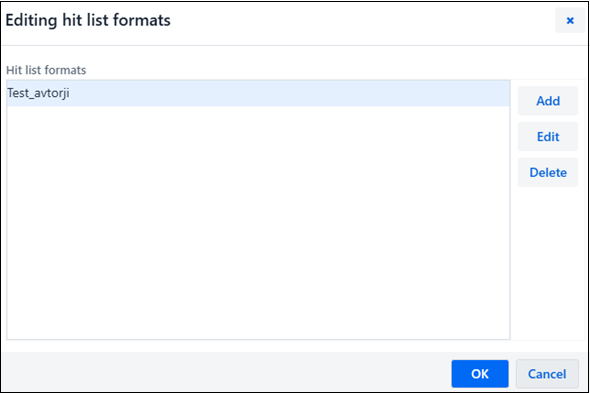
Note
The defined search results formats are linked to a username.
You can update the list of search results formats by adding a new format or by editing an already defined format.
Start from the Editing hit list formats window.
To add a new search results format, click the Add button; to change an already defined format that you selected on the list, click the Edit button. The Hit list format window will open.
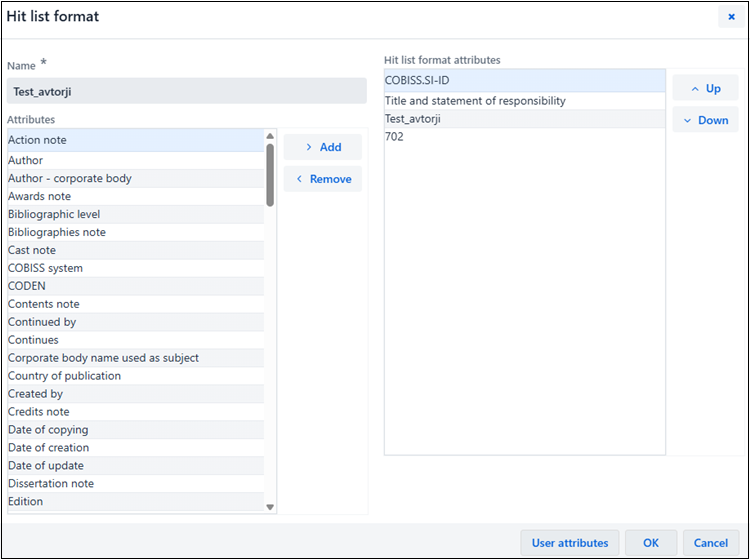
Under “Name”, enter or change the format name.
Define the format attributes.
If you want to add an attribute to the search results format attributes, select it in the “Attributes” list and click the Add button.
If you want to remove an attribute from the search results format attributes, select it in the “Attributes” list and click the Remove button.
If necessary, sort the search results format attributes. To move an attribute up or down, select it and click the Up or Down button.
Tip
If you want to define additional attributes or change or delete the additionally defined attributes, click the User attributes button.Click the OK button.
The lists of predefined attributes with the corresponding fields and subfields from which data can be displayed in search results formats in bibliographic databases, authority databases and the CORES database are described in the Search results format attributes chapter.
Note
User attributes that you defined in the COBISS Lib application or COBISS3 software have the CLIB prefix on the list of attributes. These attributes cannot be changed in the COBISS Cat application.
You can delete search results formats in the Editing hit list formats window.
In addition to predefined attributes, you can also define your own attributes for search results formats by clicking the User attributes button in the Hit list formats window. The User attributes window will open.
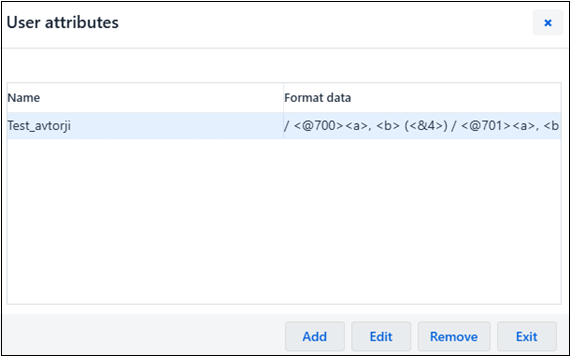
Start from the User attributes window. In the beginning, the list is empty. For the previously defined attributes, the following data is displayed:
To add a new user attribute, click the Add button, to change a predefined user attribute that you selected in the list, click the Edit button.
The Hit list format attribute window will open.
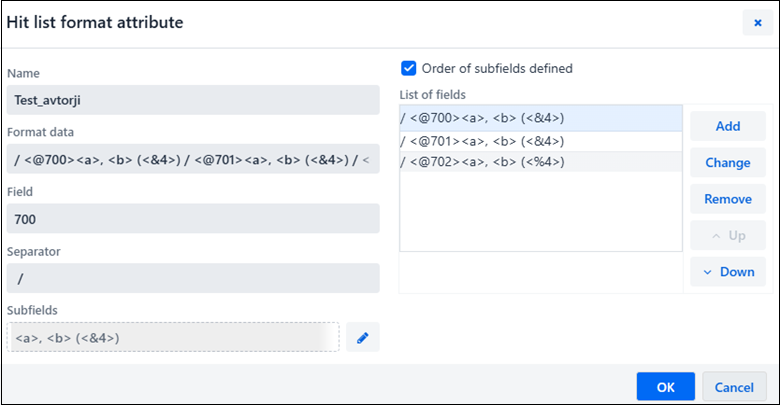
The “List of fields” contains fields that were already added to the attribute. In the beginning, the list is empty. It is not possible to enter data directly into the list. The list can be updated. If you select a row in the list, the data is transferred to the entry fields under “Field”, “Separator”, “Subfields” and “Order of subfields defined”.
Under “Format data” the whole format defined by the user is displayed. In the beginning, the field is empty.
Under “Name”, enter or change the attribute name.
Under “Field”, enter the field number.
Under “Separator”, enter what you want to add before the field in the display. You can enter one or more characters. The default separator is the " / " character. See also the Rules for displaying user-defined attributes chapter.
Next to the Subfields button is the list of predefined subfields. In the beginning, the field is empty. Click the Subfields button.
The Field ??? window will open. The “???” characters represent the numbers of the field included in the format.
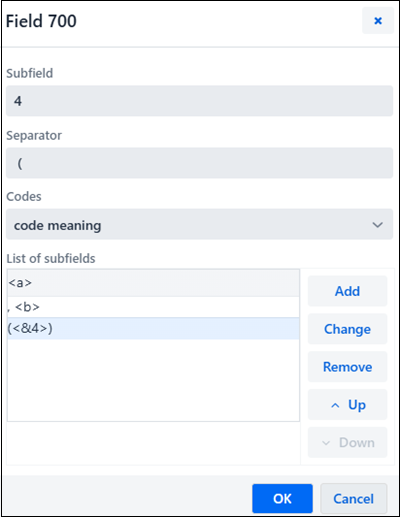
The “List of subfields” includes subfields that you already added to the field. In the beginning the list is empty. It is not possible to add data directly into the list. The list can be updated. If you select a row in the list, the data is transferred to input fields under “Subfield”, “Separator” and “Codes”.
Under “Subfield”, enter the subfield designation.
Under “Separator”, enter what you want to add before the subfield in the display. You can enter one or more characters. The default separator is the " ; " character. See also the Rules for displaying user-defined attributes chapter.
The drop-down list under “Codes” is used only for coded subfields. Use it to select how to display a coded subfield.
Once you add all the subfields for the format to the list, click the OK button.
You will return to the Hit list format attribute window.
If you want the subfields to be displayed in the same order as they were defined for the attribute, tick the checkbox under “Order of subfields defined”.
Once you add all the fields to be displayed, click the OK button.
You will return to the User attributes window.
To exit the window, click the Exit button.
This procedure describes how to add, change or delete rows under “List of fields” in the Hit list format attribute window and rows under “List of subfields” in the Fields ??? window.
To the “List of fields” in the Hit list format attribute window, the data is transferred from the input fields under “Field”, “Separator”, “Subfields” and the data from the “Order of subfields defined” checkbox. Each row has the following form:
Under “Subfields”, all elements from the list of subfields from the Field ??? window are displayed in one row. The individual element comprises data that is transferred from the input fields under “Subfield”, “Separator” and “Codes”.
The form of every row depends on the values selected in the drop-down list under “Codes”:
Tip
If you want the data displayed with spacing, the space must be part of the separator.
The following rules apply when displaying data:
Example
If in the search window you want to display authors from fields 700 and 701 without the relator code, and authors from fields 702 with the code and code meaning, define the attributes as follows:
/ <@700><a>, <b> (<&4>)
/ <@701><a>, <b> (<&4>)
/ <@702><a>, <b> (<%4>)
COMARC format display:
701 aMenart bJanez 4070
701 aKovič bKajetan 4070
701 aZlobec bCiril 4070
701 aPavček bTone 4070
702 aModer bJanko 4730
Display of attributes in the search window:
Menart, Janez (author) / Kovič, Kajetan (author) / Zlobec, Ciril (author) / Pavček, Tone (author) / Moder, Janko (730 – translator)
User-defined attributes can be deleted in the User attributes window.
This chapter contains a list of attributes with corresponding fields and subfields, from which data is displayed in the search results formats in bibliographic databases, authority databases and the CORES database.
| Attribute | Display data |
|---|---|
| Action note | 318abcdefhijklnopr059 |
| Author | 700abcdf, 701abcdf, 710abcdefgh, 711abcdefgh |
| Author – corporate body | 710abcdefgh, 711abcdefgh, 712abcdefgh |
| Awards note | 334a |
| Bibliographic level | 001c |
| Bibliographies note | 320a |
| Cast note | 323a |
| COBISS system | Two-letter system designation |
| COBISS.XX-ID | ID |
| CODEN | 040a |
| Contents note | 3270a |
| Continued by | 440ax |
| Continues | 430ax |
| Corporate body name used as subject | 601abcdefghwxyz |
| Country of publication | 102a |
| Created by | Person who created the record |
| Credits note | 322a |
| Date of copying | Date of first download from COBIB |
| Date of creation | Date of creation |
| Date of update | Date of last update |
| Dissertation note | 328adefg |
| Edition | 205abdfg |
| Edition statement | 205a |
| Erroneous CODEN | 040z |
| Erroneous government publication number | 022z |
| Erroneous ISBN | 010z |
| Erroneous ISMN | 013z |
| Erroneous ISSN | 011z |
| Erroneous legal deposit number | 021z |
| Expanded title | 532a |
| Extent of item (pages) | 215a |
| Field for local needs | 830a, 992b |
| Formed by merger | 436ax |
| Former title | 520ae |
| Frequency note | 326a |
| Frequency of publication | 110b |
| General material designation | 200b |
| General note | 300a |
| Government publication number | 022ab |
| Host item | 200ahi (host unit of component part in monograph) 200ahi (host unit of component part in continuing resource) and 011a, 215gihk (component part) |
| Illustration code | 105a |
| Imprint | 210abcdefgh |
| ISBN | 010a |
| ISMN | 013a |
| ISSN | 011ecf |
| ISSN of host item | 011as |
| Key title | 530ab |
| Language of libretto, etc./Language of subtitles | 101hj |
| Language of text | 101a |
| Language of text/original | 101ac |
| Legal deposit number | 021ab |
| Literature code | 105f |
| Local number (LN) | 000g |
| Main entry heading | 503a, 700abcdf, 710abcdefgh |
| Manufacturer | 210g |
| Mathematical data | 206a |
| Merge with , to form _ | 447ax |
| Name of part | 200i |
| Note relating to the copy in hand | 316a059 |
| Notes | 300a, 320a, 326a, 328a, 336a, 337a |
| Number of libraries | 998 |
| Number of part | 200h |
| Original version note | 324a |
| Original/old record ID | 001ex |
| Other class numbers | 686abc |
| Other controlled subject headings | 602afwxyz, 605ahiwxyz, 606awxyz, 607awxyz, 608awxyz, 609awxyz |
| Other former titles | 431ax, 434ax, 435ax |
| Other standard identifiers | 017ab |
| Other subsequent titles | 441ax, 444ax, 445ax, 446ax |
| Other title information | 200e |
| Parent of supplement | 422ax |
| Personal author | 700abcdf, 701abcdf, 702abcdf |
| Personal name used as subject | 600abcdfwxyz |
| Physical description | 215acde |
| Physical form | 106a, 115a, 116a, 117a, 124b, 126a, 130a, 135b |
| Place of manufacture | 210e |
| Place of publication | 210a |
| Provenance note | 317a059 |
| Publication date designation | 100b |
| Publication year | 100c |
| Publication year 1 | 210d |
| Publisher | 210c |
| Publisher’s No. | 071ab |
| Record data | 001aghx |
| Record status | 001a |
| Record updated by | Person who last updated the record |
| References note | 321a |
| Reproduction note | 325a |
| Secondary authors | 702abcdf, 712abcdefgh |
| Series | 225adefhivx |
| SGC subject headings | 600abcdfwxyz, 601abcdefghwxyz, 602acdfwxyz, 604atwxyz, 605ahiklmnqrsujwxyz, 606awxyz, 607awxyz, 608awxyz, 609awxyz |
| Specific data on the material | 206a, 207a, 208ad, 230a |
| Standard identifiers | 010abdz, 011ed, 013abdz, 0172abdz, 071ab |
| Status and type of material | DELETE; NEWID=nnnnn, FATH, SON, LOCAL, 001bct, 110a |
| Subject headings | 600abcdfwxyz, 601abcdefghwxyz, 602acfwxyz, 604atwxyz, 605ahiklmnqrsujwxyz, 606awxyz, 607awxyz, 608awxyz, 609awxyz, 610a |
| Subseries | 411ax |
| Subseries to | 410ax |
| Supplement | 421ax |
| System requirements note | 337a |
| Target audience code | 100e |
| Title and statement of responsibility | 200abcdefghi |
| Title proper | 200a |
| Titles | 200acehi |
| Type of content | 105bcdfg, 110d, 125c, 128a, 140def |
| Type of continuing resource designator | 110a |
| Type of electronic resource | 135a |
| Type of electronic resource note | 336a |
| Type of record | 001b |
| Typology | 001t |
| UDC | 675a |
| UDC access | 675c |
| UDC group | 675b |
| UDC – Statistics | 675s |
| Uncontrolled subject headings | 610a |
| Uniform title | 500abhiklmnqrstu |
| URL | 856uz |
| Users note | 333a |
| Variant titles | 510ae, 513ae, 514a, 515a, 516a, 517a, 518a |
| Various other editions | 452ax, 453ax, 454ax |
| Various other links | 481a, 482a, 488ax |
| Attribute | Display data |
|---|---|
| Adopted by | Person who adopted the record |
| Authorized access point – corporate body name | 210abcdefgh |
| Authorized access point – personal name | 200abcdf |
| Authorized access point | 200abcdf, 210abcdefgh |
| CONOR.XX-ID | ID |
| Corporate body name | 210abcdefgh, 410abcdefgh, 510abcdefgh |
| Date of birth/beginning – death/end | 190a, 191a |
| Date of creation | Date of creation |
| Date of meeting | 210f, 410f, 510f |
| Frequency | Number of linked records in COBIB |
| General note | 830a |
| Institution/organisation code | 911a |
| Language | 101a |
| Language and nationality | 101a, 102a |
| Last edited by | Person who edited the record |
| Last update date | Date of last update |
| LC number | 035a |
| Location of meeting/Addition to corporate body name | 210ce |
| Most frequent creator | 911b |
| Nationality | 102a |
| Personal name | 200abcdf, 400abcdf, 500abcdf |
| Public notes | 300a, 320a, 330a, 340a |
| Record created by | Person who created the record |
| Record data | 001abgx |
| Related access points | 500abcdf5, 510abcdefgh5 |
| Researcher code | 200r |
| Source data found | 810ab |
| Source data not found | 815a |
| Status | invalid record, see ID=001x |
| Status and type of authorized access point | invalid record, see ID=001x, 001c, 100b |
| Type of authorized access point | 001c, 100b |
| URL | 856uz |
| Usage | 820a |
| Variant access points | 400abcdf5, 410abcdefgh5 |
| Attribute | Display data |
|---|---|
| LCHS | 400abcdfgjxyz, 410abcdefghjx, 415ajxyz, 420acfjxyz, 430abhiklmnqrsuwjxyz, 440atjxyz, 443afilntjxyz, 450ajxyz, 480axyz (only the fields that contain code “lc” in subfield 2) |
| MeSH | 400abcdfgjxyz, 410abcdefghjx, 415ajxyz, 420acfjxyz, 430abhiklmnqrsuwjxyz, 440atjxyz, 443afilntjxyz, 450ajxyz, 480axyz (only the fields that contain code “mesh” in subfield 2) |
| Authorized access point | 200abcdf, 210abcdefgh, 215axz, 220acf, 230abhiklmnqrsuw, 240at, 243afilnt, 250axy, 280axyz |
| Authorized access point (eng) | 700abcdf, 710abcdefgh, 715axz, 720acf, 730abhiklmnqrsuw, 740at, 743afilnt, 750axy, 780axyz |
| Notes for cataloguers | 820a, 830a |
| Public notes | 300a, 305ab, 310ab, 320a, 330a, 340a |
| RAMEAU | 400abcdfgjxyz, 410abcdefghjx, 415ajxyz, 420acfjxyz, 430abhiklmnqrsuwjxyz, 440atjxyz, 443afilntjxyz, 450ajxyz, 480axyz (only the fields that contain code “ram” in subfield 2) |
| Sears | 400abcdfgjxyz, 410abcdefghjx, 415ajxyz, 420acfjxyz, 430abhiklmnqrsuwjxyz, 440atjxyz, 443afilntjxyz, 450ajxyz, 480axyz (only the fields that contain code “sears” in subfield 2) |
| SGC.XX-ID | 999c or ID, if 999c does not exist |
| Related access points | 500abcdf, 510abcdefgh, 515axz, 520acf, 530abhiklmnqrsuw, 540at, 543afilnt, 550axy, 580axyz (only the 5XX fields that do not contain code “g” in subfield 2) |
| Broader terms | 500abcdf, 510abcdefgh, 515axz, 520acf, 530abhiklmnqrsuw, 540at, 543afilnt, 550axy, 580axyz (only the 5XX fields that contain code “g” in subfield 2) |
| Access point type | 001c |
| UDC | 675a |
| Variant access points | 400abcdfgjxyz, 410abcdefghjx, 415ajxyz, 420acfjxyz, 430abhiklmnqrsuwjxyz, 440atjxyz, 443afilntjxyz, 450ajxyz, 480axyz (only the 4XX fields that have no subfield 2) |
| Source data found | 810ab |
| Attribute | Display data |
|---|---|
| Author – corporate body | 7120abcdefgh48 |
| CORES.XX-ID | ID |
| ISSN | 011ec |
| Personal author | 7020abcdf478 |
| Title | 200abhi |
Fields for subject headings from the 60X block and fields for personal names and names of corporate bodies from the 7XX block can be linked with authority records.
When you enter an authority record ID (subfield 3 in the field for an author in a bibliographic record), the following data from the authority record is added to the record:
Every time the bibliographic record is saved, this data is automatically synchronized with the current state in the CONOR database.
Batch update of bibliographic records in the COBIB database is automatically performed overnight.
Similar software performs the synchronization of bibliographic and authority records in local databases as well. How often this is done depends on the agreement with individual libraries.
The software for synchronization of bibliographic and authority records first looks for all authority records that:
and
The software then looks for all bibliographic records that contain IDs of changed authority records in subfield 3. In these bibliographic records, all fields that contain subfield 3 are synchronized with the appropriate authority records.
The following procedure is performed:
All mentioned updates except the relinking in cases of deleted authority records are performed only if the authorized access point in the authority record is established (100b = “a”).
When you enter an ID of a SGC authority record in subfield 60X3, the authorized access point from the SGC authority record is entered to the subject heading field.
It is also possible to search by variant access points from the SGC authority record, even though they are not transferred to the bibliographic record.
Every time the bibliographic record is saved, the data is automatically synchronized with the current state in the SGC authority base.
Batch update of bibliographic records in the COBIB database is automatically performed overnight.
Similar software performs the synchronization of bibliographic and authority records in local databases as well. How often this is done depends on the agreement with individual libraries.
The software for synchronization of bibliographic and authority records first looks for all verified authority records that were changed or verified between the last synchronization date and the current date.
The software then looks for all bibliographic records that contain IDs of changed authority records in subfield 3. In these bibliographic records, all fields that contain subfield 3 are synchronized with the appropriate authority records.
The following procedure is performed:
| Functionality | Tips |
|---|---|
| Font size settings in the browser | The font size is managed with the Zoom option in the web browser. |
| Hide the workspace | You can hide the workspace and show it again by clicking the button. |
| Link with COBISS Lib | If you click the Login to COBISS Lib link, you will automatically be logged in to the COBISS Lib application, where you can continue with procedures dealing with holdings, reports… A record that you saved to the local database can be found in the History window (the button). |
| Using the spell checker | If you want to check the spelling in input fields, you must enable the spell checker in the web browser. |
| Exporting records | Files are created when you export records to different formats. If you want to select the location and define the file name when downloading files, you must first activate these options in the web browser. |
| Open a record in a new browser window | If you pull a record that is opened in a new browser tab out of the browser window, it is opened in a new window. |
| Move field/subfield | Place the mouse pointer on the field/subfield you want to move and use the left mouse button to drag it to a new location. |
| Entering Unicode characters | When entering Unicode characters, you can use different character maps (e.g., Character Map, BabelMap, Unicodia, COBISS character map) and on-screen keyboards. |
| Access clipboard history | Use the <Windows> + <V> keys to open the clipboard history, where you can choose between the last 25 copied or cut texts/elements and paste them to input fields in the COBISS Cat application. |